

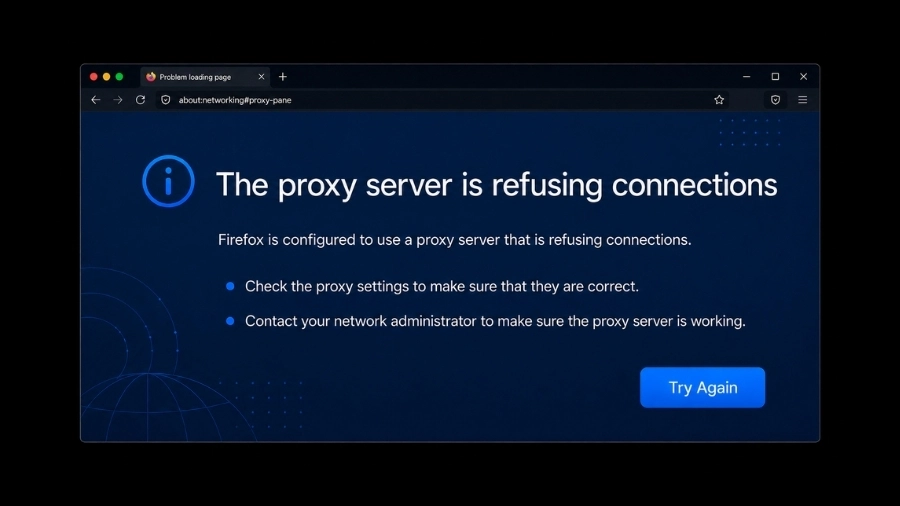
The proxy server is refusing connections Firefox is a common error that can block websites even when your internet is still working. This usually happens when Firefox tries to connect through a proxy server that is misconfigured, offline, or blocked, not because your internet is down.
If you are a regular user, developer, or working in a company network, this blog helps you fix the issue step by step. We will start with quick fixes you can apply in minutes, then move to deeper system and software solutions to fully resolve and prevent the error.
Use the Quick Fix First: Check Proxy Settings in Firefox
Before diving into complex system changes, we recommend checking the internal network settings of your browser. Most connection refusal issues stem from a simple toggle or an outdated manual configuration within the application itself.
To find these settings, follow this path:
- Open Firefox and click the three horizontal lines (Menu) in the top right corner.
- Select Settings (or Options on older versions).
- In the General panel, scroll down to the very bottom to find the Network Settings section.
- Click the Settings… button to open the Connection Settings window.
Fix 1: Turn Off Manual Proxy in Firefox
If you previously used a proxy for a specific task, Firefox might still be trying to use that “mask” for all your traffic. While proxies offer great task-specific control, a dead proxy address will block your connection entirely.
How to turn it off:
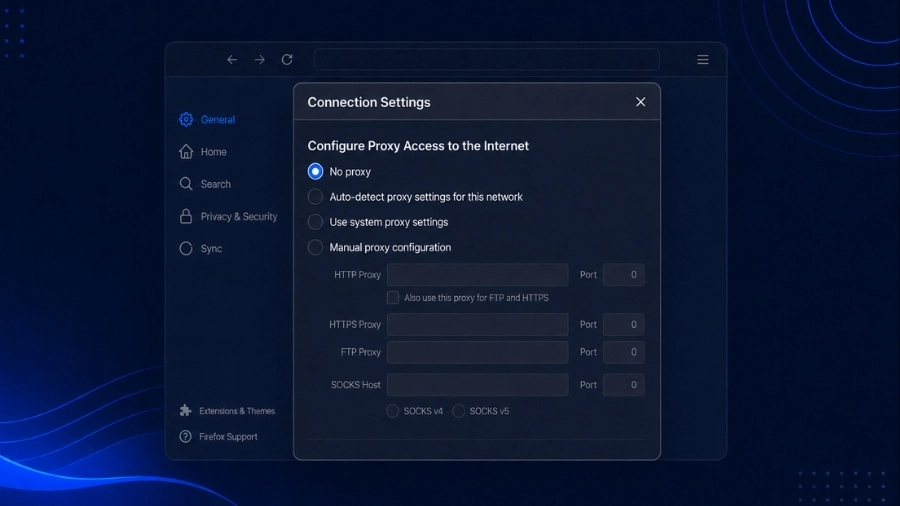
- Inside the Connection Settings window, look under “Configure Proxy Access to the Internet.”
- Select the “No proxy” option.
- Click OK and try to reload your website to see if the error is resolved.
Fix 2: Reset Firefox Network Preferences
Sometimes, third-party tools or old configurations can leave behind hidden “ghost” proxy settings. Instead of resetting the entire browser, you can fix only the network-related settings to remove incorrect data.
Steps to do:
- Type about:config in the Firefox address bar and press Enter
- Click “Accept the Risk and Continue”
- Search for network.proxy
- Look for entries shown in bold (these are settings that were changed from default)
- Only reset entries related to proxy settings by right-clicking them and selecting Reset
This helps restore correct proxy settings without affecting other parts of your browser.
Fix 3: Clear DNS and Socket Issues Inside Firefox
Firefox keeps its own internal cache for DNS and “sockets” to make connections faster. However, if this data becomes outdated or corrupted, it can cause errors like the proxy server is refusing connections Firefox, even when your settings are correct. This is also why DNS behavior matters in a proxy server dns setup when Firefox cannot resolve the correct route.
How to clear it:
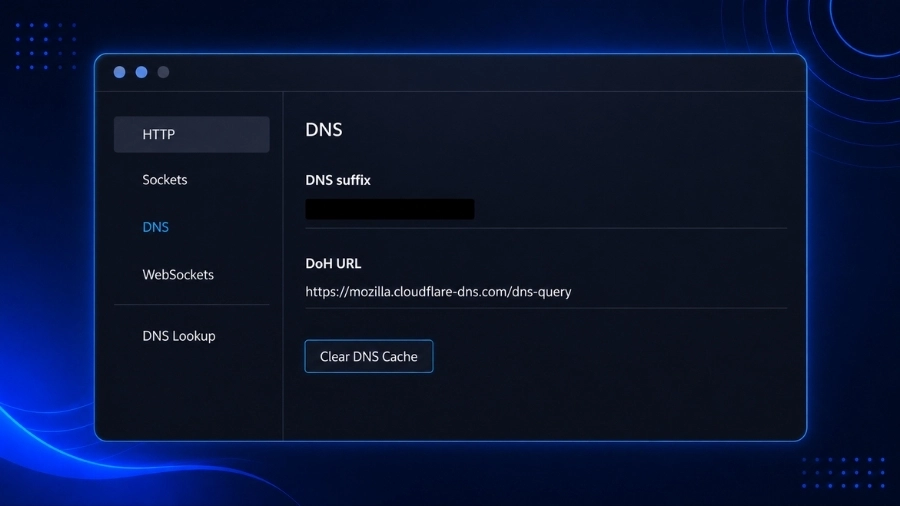
- Type about:networking in the address bar and press Enter
- Click DNS on the left and select Clear DNS Cache
- Click Sockets on the left and select Close Idle Sockets
- Restart Firefox and try loading the website again
This simple step can fix hidden connection issues without changing your proxy settings.
Fix 4: Fix System Proxy Settings on Windows or macOS
Firefox can use settings from your operating system, especially when “Use system proxy settings” is enabled. This means if your computer has an old proxy configuration, outdated script, or leftover VPN settings, Firefox will still try to use them.
As a result, it can trigger the error the proxy server is refusing connections Firefox not just in Firefox, but sometimes across other apps on your device as well.
Windows Proxy Path
On Windows, hidden proxy settings are a common cause of connection problems, including the windows could not detect proxy settings warning. To check and fix:
- Go to Settings → Network & Internet → Proxy
- Under Automatic proxy setup, make sure “Automatically detect settings” is turned ON
- Under Manual proxy setup, make sure “Use a proxy server” is turned OFF (unless you really need it)
These steps help remove old or incorrect proxy settings that may affect Firefox.
macOS Proxy Path
On macOS, proxy settings are managed in the Network section and may be enabled by mistake. To check:
- Go to System Settings → Network
- Select your active connection (Wi-Fi or Ethernet)
- Click Details… → Proxies
- Make sure Web Proxy (HTTP), Secure Web Proxy (HTTPS), and SOCKS Proxy are all unchecked
- Click OK → Apply to save changes
This ensures your system is not using an unwanted proxy that could cause connection errors.

Fix Firefox Proxy Errors Caused by Third-Party Tools
External software is a common invisible cause of browser errors. VPNs, antivirus “web shields,” and proxy extensions can force Firefox into a route that no longer exists, leading to a refused connection.
Fix 5: Temporarily Disconnect VPN or Proxy Apps
VPN apps are designed to take over your network routing. However, if a VPN crashes or is uninstalled incorrectly, it might leave “kill switch” settings or proxy rules active in your system. This can lead to errors similar to unable to connect to the proxy server even when your internet is working.
We suggest fully closing any VPN software running in the background. If the error disappears, you may need to update the VPN app or reset its internal settings. Testing without these tools helps us isolate whether the software is the root cause.
Fix 6: Check Antivirus Web Protection or HTTPS Scanning
Many antivirus programs monitor your web traffic in real time. To do this, they often act like a local proxy or a lightweight proxy server firewall. If this feature stops working properly, Firefox may not be able to connect to the internet when security tools interfere. To check:
- Open your antivirus settings
- Look for features like Web Shield, HTTPS Scanning, or Network Filtering
- Turn these features off one at a time and test your connection
If the connection works after disabling one feature, you should either add Firefox as an exception or consider reinstalling the antivirus to fix the issue.
Fix 7: Test in Firefox Troubleshoot Mode
Troubleshoot Mode (previously called Safe Mode) helps you find problems caused by extensions or custom settings. It temporarily disables add-ons and themes without deleting your data.
Steps to test:
- Click the Menu (☰) button
- Go to Help → Troubleshoot Mode…
- Click Restart, then choose Open
If the error disappears, it means one of your extensions (such as a proxy switcher) is causing the problem.
Fix 8: Correct Proxy Address, Port, and Authentication Problems
For users who actually need a proxy, such as those using professional residential proxies, the error usually happens because of incorrect or outdated information. Even a small typing mistake in the proxy address, a wrong port, or an expired session can cause the connection to be refused. These issues are also commonly linked to various proxy error codes that indicate configuration problems.
Verify Server Address and Port
Make sure the proxy details you entered are correct. Even small mistakes can cause connection errors.
- Check that the HTTP or SOCKS hostname is entered correctly and has no extra spaces
- Make sure the port number matches the one provided by your proxy service
- Confirm that you are using the correct proxy type, such as SOCKS5 or HTTP
Check Username and Password Prompts
Many high-quality proxies require login credentials. If your password has changed or your IP is no longer allowed, the connection may be refused.
Make sure Firefox is asking for your username and password, or check if your IP address is properly whitelisted in your proxy dashboard.
Confirm the Proxy Server Is Online
Sometimes the issue is not on your device but on the proxy server itself. If the server is down, overloaded, or under maintenance, it will not accept connections.
To check, try using the same proxy in another browser or application. If it still does not work, the problem is likely with the proxy server.

Fix 9: Repair Localhost and Loopback Proxy Problems
Some apps, such as development tools or ad blockers, use a local proxy like localhost (127.0.0.1). If that app is not running, Firefox will still try to connect through it and fail.
Steps to fix:
- Check your Firefox proxy settings for localhost or 127.0.0.1
- If you are using a related app, make sure it is running
- If you no longer use that app, switch Firefox settings to “No proxy”
This removes the loopback issue and allows Firefox to connect directly to the internet.

Fix 10: Reset Firefox Without Losing Important Data
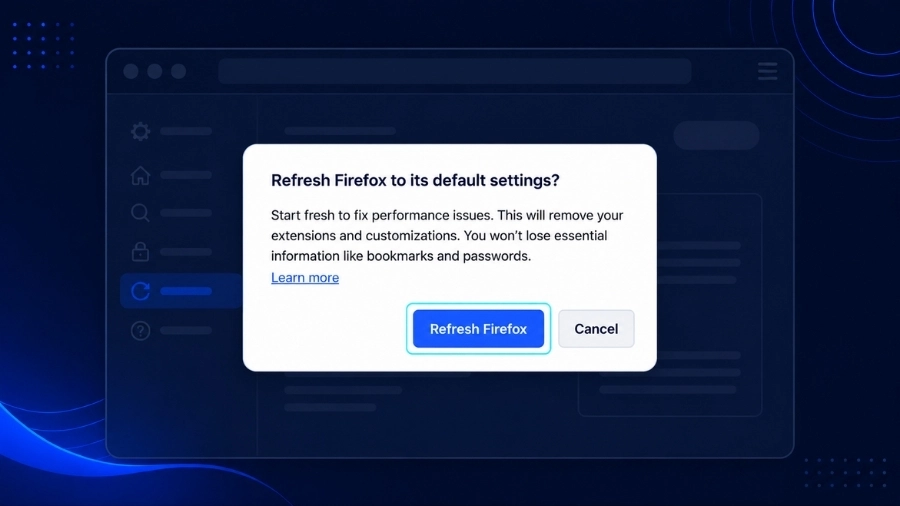
If you have tried all other fixes and still see the error, using the Firefox Refresh feature is a good final option. It resets important settings without deleting your personal data.
Steps to do:
- Type about:support in the address bar and press Enter
- Click Refresh Firefox… on the right side
- Confirm the action
Firefox will restart and reset its core settings, including proxy configurations. Your bookmarks, saved passwords, and history will stay, but any problematic settings should be removed.
How to Prevent the Error From Coming Back
Maintaining a stable browser setup is much easier than fixing problems later. To help you avoid the error, the proxy server is refusing connections to Firefox. We have listed some simple but effective prevention tips. These steps can also help you fix proxy error issues before they happen again.
| Prevention Tip | Benefit | Technical Note |
| Remove unused proxy/VPN extensions | Avoid conflicts in proxy control | Check about:addons → Extensions |
| Review extension permissions | Prevent traffic redirection or tracking | Watch proxy + host permissions |
| Clean uninstall network tools | Remove leftover proxy settings | Reset to No Proxy after uninstall |
| Scan malware & check the hosts file | Detect hidden traffic changes | Check the hosts file after scans |
| Enable DNS over HTTPS | Prevent DNS hijacking | Found in Firefox Privacy settings |
By following these steps, you can keep your browser stable and avoid future connection errors. It is also helpful to document your proxy settings and keep your security tools updated to maintain a reliable connection.
FAQs: Extra Questions Users Often Have While Fixing This Error
Why Does Firefox Show This Error While Chrome Still Works?
Firefox has its own independent network settings, whereas Chrome usually uses the system’s default settings. For comparison, checking proxy server chrome settings can help you understand why Chrome may still work while Firefox fails. This means Firefox can have a “refused connection” due to an internal setting that doesn’t affect other browsers.
Is It Safe to Choose “No Proxy” in Firefox?
Yes, it is perfectly safe. “No Proxy” simply means Firefox connects directly to websites using your home or office IP address without an intermediary.
Why Did the Error Start After Uninstalling a VPN?
Many VPNs change system proxy files. If the uninstallation was incomplete, those files might still point to a server that no longer exists on your machine.
What Should I Do If the Proxy Address Is Required by My Company or School?
If you are on a managed network, you must use the specific address and port provided by your admin. If it fails, contact your IT support, as the server itself might be down.
Conclusion
Fixing the proxy server is refusing connections Firefox error is usually about removing incorrect or outdated settings. From simple changes in Firefox to checking system-level proxy settings, these 10 fixes give you a clear path to get back online.
We suggest starting with the “No Proxy” option first, then moving to deeper fixes if needed. If you rely on proxies for work, using a trusted provider like 9Proxy can help avoid common connection issues. Our residential proxies offer stable and reliable performance, so your connection works when you need it.
For more practical proxy guides, browser fixes, and setup tips, you can also follow Blog9Proxy for related troubleshooting content.