

If you’re seeing “Windows could not detect Proxy settings,” your computer may be struggling to connect to the internet properly. This common issue often comes from wrong proxy settings, VPN or antivirus conflicts, DNS errors, or network adapter and driver problems.
Many users also encounter “Windows could not automatically detect this network's Proxy settings” in the same situation. The steps below are designed to be simple and easy to follow, starting from basic fixes to more advanced ones, helping you restore your connection quickly and prevent the issue from happening again.
What is “Windows Could Not Detect Proxy Settings” Error?
The message Windows could not detect Proxy settings appears when your computer cannot find the correct way to connect to the internet. In simple terms, Windows is trying to automatically choose the best path or “gateway” to access the web, but something like wrong settings or software interference is blocking that process.
For most users, this leads to no internet access, limited connectivity, or network errors. It does not always mean you are using a proxy or that your hardware is broken. Instead, it usually means there is a small system or network setting issue that prevents Windows from identifying the right connection path.
Causes of The “Windows Could Not Automatically Detect This Network’s Proxy Settings” Error
This error usually happens when Windows cannot properly detect or apply the proxy settings needed for your internet connection. In most cases, it is caused by simple system misconfigurations, software conflicts, or unstable network conditions.
We have found that the most common causes include:
- Proxy settings changed incorrectly or were set manually by mistake
- Outdated or corrupted network drivers
- Unstable Wi-Fi or Ethernet connection
- Conflicts from VPNs or antivirus software
- Corrupted system files or wrong DNS/IP settings
These issues can confuse Windows and prevent it from connecting to the internet correctly.
Why Windows Mentions a Proxy Even If You Never Set One
You might wonder why Windows could not detect Proxy settings appear even if you never set up a proxy. The reason is that many systems and apps work in the background. Windows, web browsers, and even work or public networks often use auto-detect features to manage internet traffic automatically.
In addition, security tools, VPNs, or even malware can change these settings without clearly informing you. Sometimes, when a program is removed, it leaves behind a “ghost” configuration. As a result, Windows continues trying to use a proxy that no longer exists, which leads to this error.
Quick Fix: 5 Safest Fixes To Try First
Before we change any deep system files, we should try the fastest and lowest-risk methods. These steps solve temporary glitches that cause the Windows could not detect Proxy settings error.
If basic fixes do not work, you may need to explore deeper solutions to fix proxy error in your system configuration.
Fix 1 – Restart your PC, router, and network adapter
Temporary network errors are a common cause of connection problems like Windows could not detect Proxy settings. Turn off your computer, unplug your router for about 30 seconds, then turn everything back on. This helps reset the connection between your device and your internet provider.
Fix 2 – Check whether the issue happens on Wi-Fi, Ethernet, or both
Try switching between Wi-Fi and a wired (Ethernet) connection if possible. This helps you identify whether the problem is coming from one network adapter or affecting your whole system.
If your connection fails completely on both, you may also encounter issues like unable to connect to the proxy server, which often points to deeper network misconfiguration.
Fix 3 – Forget the network and reconnect
Sometimes, your saved network profile may contain incorrect or outdated settings that cause errors like Windows could not detect Proxy settings. By forgetting and reconnecting to the network, you allow Windows to create a fresh connection profile, which can remove hidden issues. To do this, follow these steps:
- Go to Settings → Network & Internet → Wi-Fi
- Select your current network and click “Forget”
- Turn Wi-Fi off, then turn it back on
- Select the same network again and enter the password to reconnect
This process helps clear any corrupted or “stuck” configurations and often restores a stable internet connection quickly.

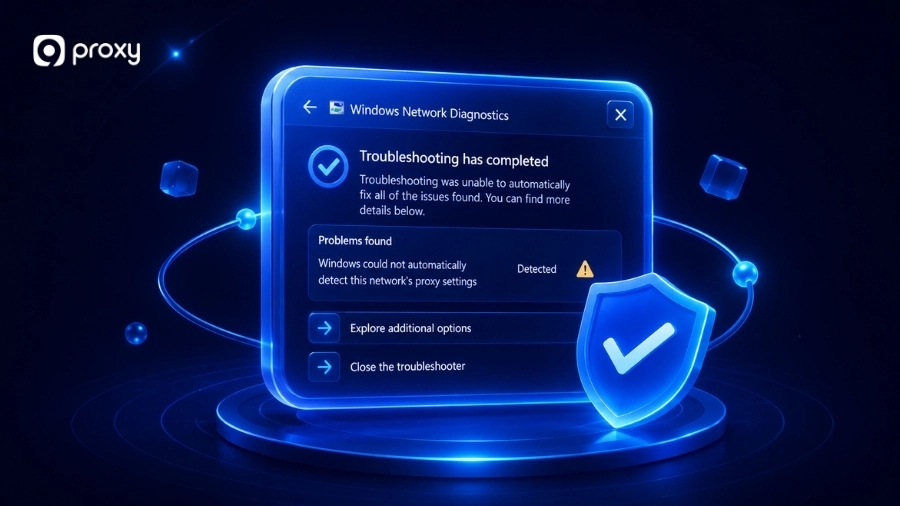
Fix 4 – Run the built-in network troubleshooter once
Windows has a built-in tool to check network problems. Search for “Troubleshoot settings” in the Start menu, then run the “Network Adapter” troubleshooter. It can quickly detect and fix basic issues.
Fix 5 – Turn Off Software That May Be Causing the Conflict
Some software can interfere with your network connection and trigger errors like Windows could not detect Proxy settings. VPNs, antivirus programs, and browser extensions are common causes.
In some cases, these conflicts may escalate into errors, such as can’t connect to proxy server, especially when multiple tools try to control your connection at the same time. Follow these steps to check:
- Turn off your VPN temporarily
- Pause real-time protection in your antivirus software
- Check and remove any suspicious browser extensions
- Restart your browser and test your connection
If the issue is gone, one of these tools is likely causing the conflict.
Fix Problem Related to Proxy & DNS Settings
Since the error Windows could not detect Proxy settings directly mentions proxy, you should check the Proxy settings in Windows. These settings control how your computer connects to the internet and decide how data is sent and received online. Understanding how a proxy server dns resolution works can also help you identify where the breakdown occurs.
Fix 6 – Check “Automatically detect settings”
This is one of the most effective fixes for Windows could not detect Proxy settings. Windows uses this option to automatically find the correct path to the internet. To check and enable it:
- Press Windows + I to open Settings
- Go to Network & Internet → Proxy
- Under Automatic proxy setup, turn ON Automatically detect settings
If it is already on, try turning it off and on again to refresh the setting.
Fix 7 – Turn off “Use setup script” unless your network requires it
The setup script option is usually used in company or school networks. For home users, this setting should normally be turned off. Follow these steps:
- Open Settings → Network & Internet → Proxy
- Find Use setup script
- Turn it OFF unless your organization provides a script address
Leaving this on without a valid script can cause connection issues.
Fix 8 – Turn off “Use a proxy server” if it was enabled by mistake
Sometimes, this option is turned on by apps without your knowledge, which can lead to errors like Windows could not detect Proxy settings. To fix it:
- Go to Settings → Network & Internet → Proxy
- Scroll to Manual proxy setup
- Turn OFF Use a proxy server
- Click Save after making changes
This ensures your system connects directly to the internet without unnecessary routing.
Fix 9 – Fix DNS, IP, and Network Adapter Settings
If your proxy settings look correct, but the error Windows could not detect Proxy settings still appears, the problem may be deeper in your network configuration. In many cases, your DNS or IP address may be “stuck,” causing Windows to fail when trying to connect properly.
Sometimes, these deeper issues may also be linked to specific proxy error codes, which can help identify exactly what is failing in your network stack. The table below shows the most useful commands to reset and refresh your network settings:
| Command | What It Does |
| ipconfig /flushdns | Clears old DNS cache |
| netsh winsock reset | Resets network components to default |
| ipconfig /release | Releases your current IP address |
| ipconfig /renew | Requests a new IP address from your router |
| netsh winhttp reset proxy | Resets proxy settings at system level |
These commands help remove outdated or corrupted network data and restore a clean connection path. To run these commands:
- Search for cmd in the Start menu
- Right-click and choose Run as Administrator
- Enter each command one by one and press Enter
- Restart your computer after finishing
Note: If you are using a VPN or third-party firewall, you may need to reinstall or set it up again after running netsh winsock reset, because this command resets network components those tools depend on.
Fix 10 – Advanced Cases: Managed Devices, Malware, and Policy Issues
In some cases, the error Windows could not detect Proxy settings keeps coming back even after trying all basic fixes. This usually happens on managed work devices or when malware is changing your settings in the background.
Persistent problems may also appear as messages like something wrong with proxy server, which often indicates hidden system-level issues. The table below helps you identify the root cause and what action to take:
| Issue Type | Symptom | Action |
| Managed Device | Settings are grayed out or cannot be changed | Contact your IT department because Group Policy may control proxy settings |
| Malware / Browser Hijacker | Settings reset after restart | Run full antivirus and anti-malware scans; check Startup apps and scheduled tasks |
| Corrupt System Files | Random connection drops or unstable internet | Run DISM and SFC commands to repair system files |
This comparison makes it easier to see whether your issue is a simple setting problem or something more complex, like system policies or hidden software.
If your proxy settings switch back after every restart, it is often caused by malware or unwanted programs. In this case, run a deep scan using trusted security tools and review your Startup programs in Task Manager to remove anything suspicious.
How to prevent this proxy error in the future
We want you to stay online without dealing with the same issue again. In many cases, preventing Windows could not detect Proxy settings is much easier than fixing it after it happens. To keep your connection stable, follow these simple habits:
- Keep your Windows system and network drivers updated through Windows Update
- Avoid using multiple VPNs or free proxy tools at the same time
- Save or note your working network settings before installing new software
- Restart your computer regularly to clear temporary issues
- Only enable manual proxy settings if you are using a trusted, high-quality provider
These small steps can help reduce errors and keep your internet connection running smoothly.

FAQs
Is It Safe To Turn Off “Automatically Detect Settings”?
Yes, it is usually safe for home users to turn off this option. Most home networks do not require automatic detection. However, some office, school, or public networks depend on this setting to connect properly. After turning it off, always test your internet to make sure everything still works.
What Is The Difference Between Proxy Settings And DNS Settings?
Proxy settings control how your internet traffic is routed, often sending it through another server before reaching the website. DNS settings, on the other hand, translate website names (like google.com) into IP addresses so your computer can find them. Both affect your connection, but they serve different purposes.
Is This Error Related To Internet Provider (ISP) Issues?
In some cases, yes. If your internet provider has unstable routing or temporary network problems, it can cause errors like Windows could not detect Proxy settings. However, this is less common than issues caused by your own system settings.
Why Do My Proxy Settings Automatically Change?
Your proxy settings may change automatically when certain programs or system policies modify them in the background. This often happens due to VPN software, antivirus tools, malware, or work network policies. In some cases, leftover settings from removed apps can also cause changes, so checking installed programs and running a security scan is important.
Conclusion
Fixing Windows could not detect Proxy settings can be simple if you follow the right steps. Start with basic actions like restarting your device, then check proxy settings and reset your network if needed. Also, watch for software conflicts and keep your drivers updated.
If you need better control over security and performance, choose 9Proxy to keep your connection stable and avoid Windows could not detect Proxy settings errors. For more in-depth guides on proxies and related topics, visit Blog9Proxy to explore a full library of resources.