

iPhone proxy server setups are becoming more common as users look for better privacy, greater control over their internet connection, and safer browsing on iOS. Unlike desktop systems, a proxy server for iPhone works mainly through Wi-Fi networks, with settings applied separately to each connection.
In this article, we explain what an iPhone proxy server is, how it works, and when it is useful. We also guide you through setting it up correctly on iOS 16 and iOS 17. In addition, you will learn how to test your proxy, turn it off safely, fix common problems, and choose a reliable provider instead of risky free options.
What Is an iPhone Proxy Server?
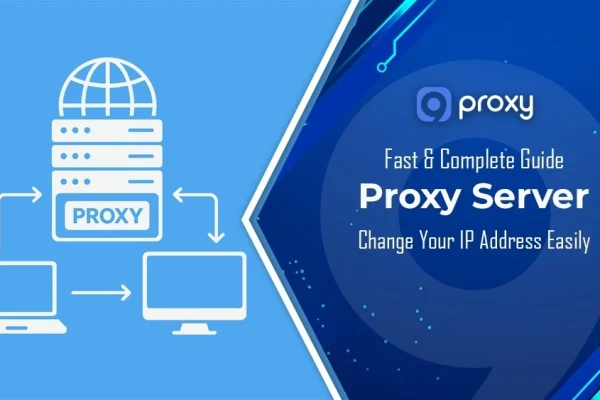
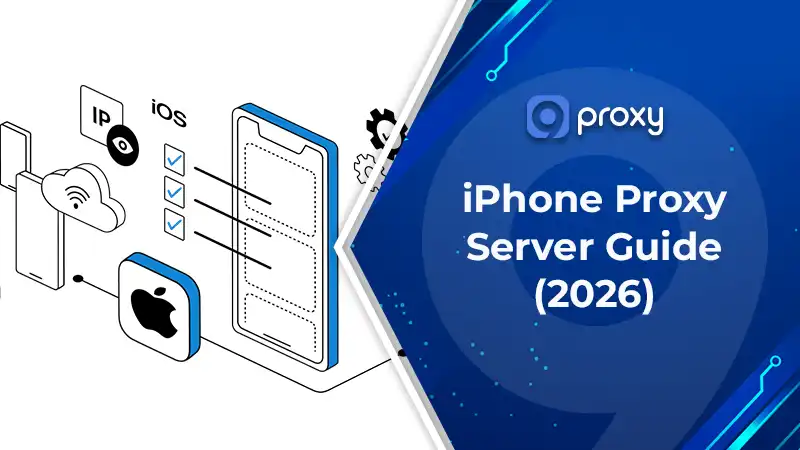
An iPhone proxy server is an intermediate server that your iPhone connects to before reaching a website or online service. Instead of sending requests directly, your iPhone routes them through the proxy, so websites see the proxy’s IP address rather than your real one.
However, it does not automatically encrypt all data or provide full system-wide protection. Encryption depends on HTTPS or the features offered by the proxy provider. In simple terms, an iPhone proxy server helps control how your device connects to the internet, but it is not the same as a VPN.
How Does a Proxy Server Work on an iPhone?
When you use a proxy server on an iPhone, the connection works clearly and simply. First, you open a website or an app on your iPhone. Instead of connecting directly, your iPhone sends the request to the proxy server.
The proxy then forwards that request to the website using its own IP address. After the website sends back a response, the proxy receives the data and passes it back to your iPhone. Because of this process, the website never sees your real IP address. This is the basic idea behind every iPhone proxy setting on iOS.
When Using a Proxy on iOS Makes Sense
Using a proxy server iPhone can be useful in many everyday situations, especially when you want more control over how your device connects to the internet. Below are some common and practical use cases that help explain when a proxy makes sense.
- Privacy on public Wi-Fi: When using Wi-Fi in cafés, hotels, or airports, a proxy adds an extra layer between your iPhone and the internet, helping reduce direct exposure.
- Accessing region-limited content: Some websites or services are only available in certain regions. A proxy can help you access this content where it is allowed.
- Testing geo-based websites or ads: Developers and marketers often use proxies to see how websites or ads appear in different locations.
- Work or school networks: Many companies and schools require a corporate proxy to control and manage network access.
- Light automation or testing: Proxies are useful for simple, non-sensitive testing tasks that do not involve personal data.
- App-specific privacy and access: For users who need to protect their privacy or access region-specific features in messaging and social apps, setting up proxies can be helpful. For example, a WhatsApp proxy server can help maintain connectivity in restricted networks, while a TikTok proxy server enables access to region-locked content and safer browsing on the platform.
For safety reasons, avoid logging into banking apps or other critical accounts when using unknown or untrusted proxies.
Benefits of Using a Proxy Server on an iPhone
A proxy server works as a middle layer between your iPhone and the internet. Instead of connecting directly to websites, your traffic passes through the proxy first, which gives you more control over how your connection is handled. Key benefits include:
- Hiding your real IP address so websites do not see your actual location
- Controlling location-based access, which helps when content is limited by region
- Reducing direct exposure on public networks, such as cafés or airports
- Supporting basic filtering or caching, which can improve browsing behavior
For many users, the biggest advantage is how simple it is to use. A proxy server for iPhone can be turned on or off easily through Wi-Fi settings, without installing extra apps or tools.
Where to Find Proxy Settings on iPhone (iOS 16 & iOS 17)
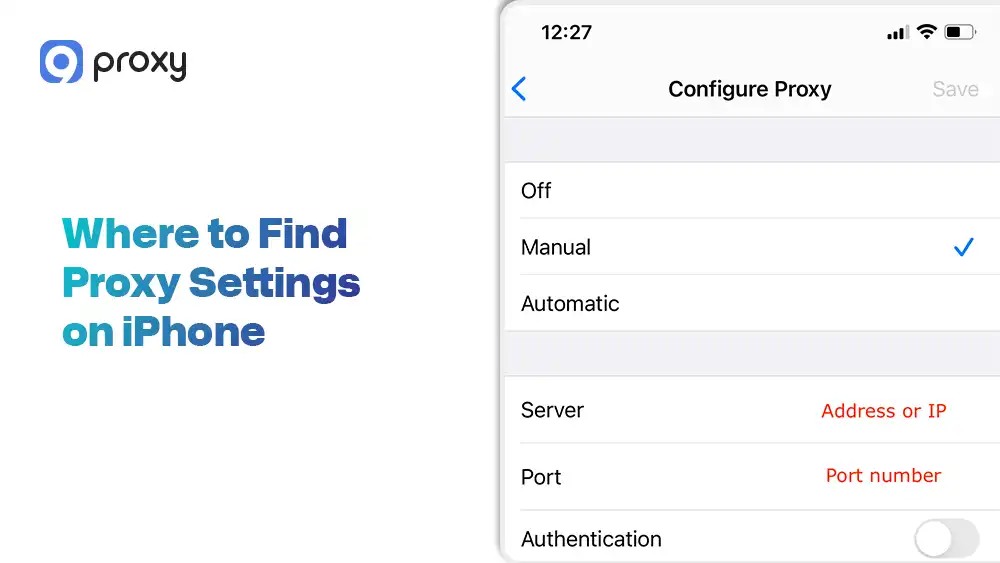
Finding the iPhone proxy setting screen is simple once you know where Apple places it. On iOS, proxy options are not in general network settings but inside each Wi-Fi connection.
- Open Settings and tap Wi-Fi.
- Tap the small (i) icon next to the Wi-Fi network you are currently connected to.
- Scroll down to the HTTP Proxy section at the bottom of the page.
- Tap Configure Proxy to open the settings.
You will see three options: Off (the default setting), Manual (used by most paid proxy services), and Automatic (commonly used by schools or offices with managed networks).
How to Set Up a Proxy Server for iPhone on Wi-Fi (Step-by-Step)
Setting up your connection the right way is very important. We will guide you through both the manual and automatic setup methods, so your proxy server for iPhone works smoothly and correctly from the start.
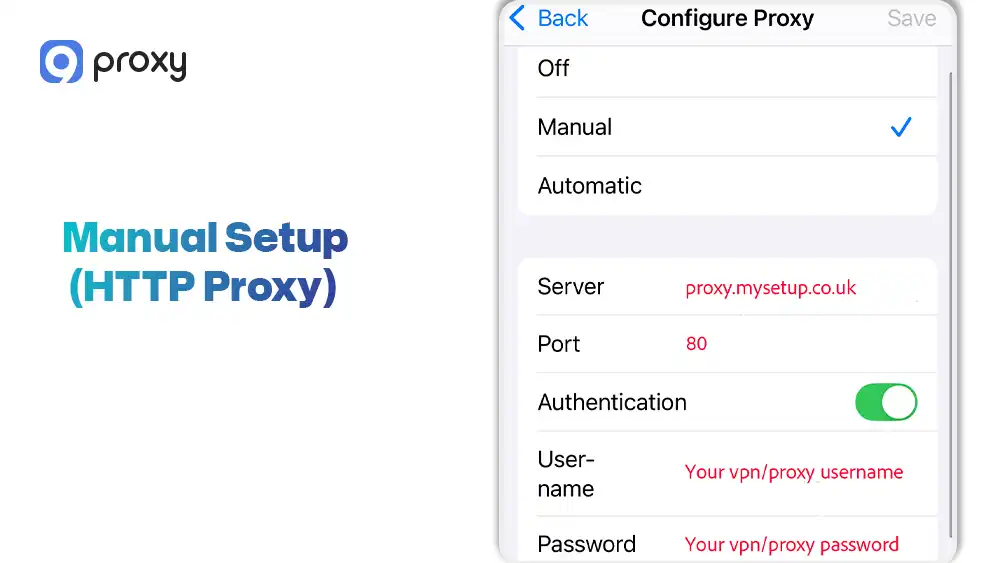
Manual Setup (HTTP Proxy)
Manual setup is the most common and reliable way to configure an iPhone proxy server, especially when using paid or professional proxy services. This method gives you direct control over all connection details and helps reduce setup errors caused by automatic detection.
Steps:
- Go to Settings → Wi-Fi on your iPhone
- Tap the (i) icon next to the Wi-Fi network you are currently connected to
- Scroll down to the HTTP Proxy section and tap Configure Proxy
- Select Manual to enter the proxy details yourself
- Enter the Server, which can be an IP address or a hostname provided by your proxy service
- Enter the correct Port number
- Enable Authentication if your proxy requires a username and password, then enter those details
- Save the settings and exit the menu
If your provider gives you an IP address, use that option for better reliability. Use a hostname only when your proxy provider specifically instructs you to do so.
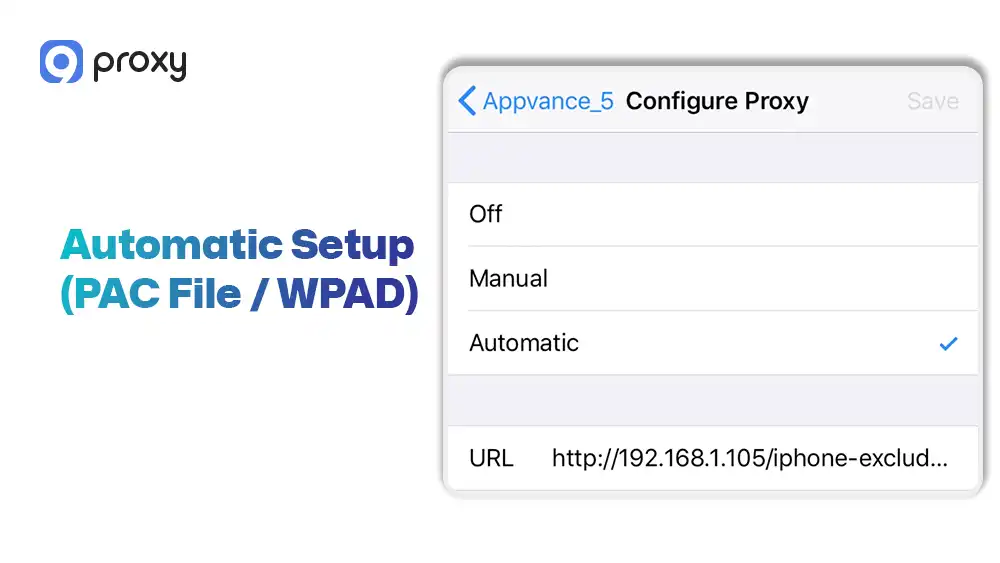
Automatic Setup (PAC File / WPAD)
Automatic setup means your iPhone loads proxy rules from a specific URL or directly from the network instead of entering details manually. This method is usually used in managed environments.
Steps:
- Open Settings → Wi-Fi on your iPhone
- Tap the (i) icon next to the connected Wi-Fi network
- Scroll to HTTP Proxy → Configure Proxy
- Select Automatic
- Enter the PAC file URL provided by your network or IT team
This setup method is most common in enterprise, school, or office networks where proxy settings are controlled by administrators.
Authentication Options (Username/Password vs IP Whitelist)
Authentication is how the best iPhone proxy services confirm that you are an authorized, paid user. There are two common ways to handle this. You can enter a username and password directly on your iPhone, or you can use IP whitelisting through your proxy provider’s website.
When IP whitelisting is enabled, your iPhone’s connection is approved automatically, so you do not need to turn on the authentication option in your iPhone’s proxy settings.
Test if Your iPhone Proxy Is Working
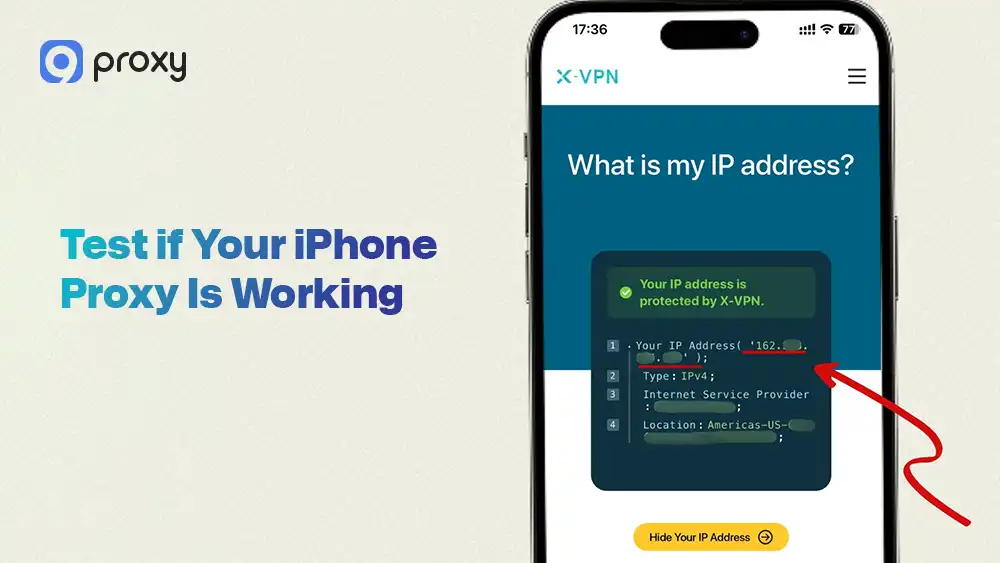
We always recommend testing your connection after setup to avoid “silent” failures where the proxy appears active but is not working correctly.
- Open Safari and search for “What is my IP”.
- Compare the IP address shown with your real IP address.
- If the location matches the proxy server’s location, the setup is working.
- Visit two or three different websites to check that pages load normally, and the connection speed is stable.
Turn Off a Proxy Server on iPhone Safely
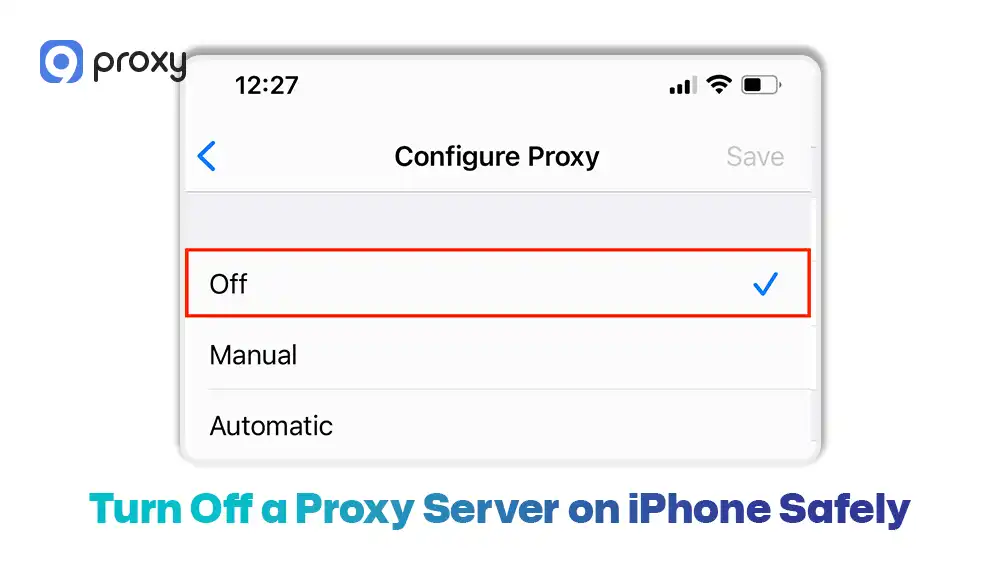
Turning off a proxy is simple and is often necessary when you finish using it or need to fix connection issues. Disabling the proxy restores your normal internet connection and helps other apps work correctly.
Steps:
- Go to Settings → Wi-Fi on your iPhone
- Tap the (i) icon next to the Wi-Fi network you are currently connected to
- Tap Configure Proxy to open the proxy settings
- Select Off to disable the proxy for that network
Remember, proxy settings are saved per Wi-Fi network. If you later connect to a different Wi-Fi network, you may need to turn the proxy off again to avoid unexpected connection problems.
Common iPhone Proxy Problems and Quick Fixes
Most iPhone proxy server issues come from simple typing mistakes or network restrictions. We have put together the quickest and most effective fixes to help you restore your connection and get back online without frustration.
Proxy Connected but Safari Won’t Load Pages
If Safari opens but pages do not load, the issue is often related to proxy compatibility or settings. First, check whether your proxy supports the protocol you are using. Some proxies only work with HTTP, while others also support HTTPS.
Next, carefully verify the port number, because even one wrong digit can stop the connection. If everything looks correct but pages still fail to load, the proxy server may be overloaded. In this case, switching to a different server location or reconnecting to Wi-Fi can often solve the problem.
Understanding how proxy server DNS resolution works can also help identify whether DNS-related issues are preventing pages from loading correctly.
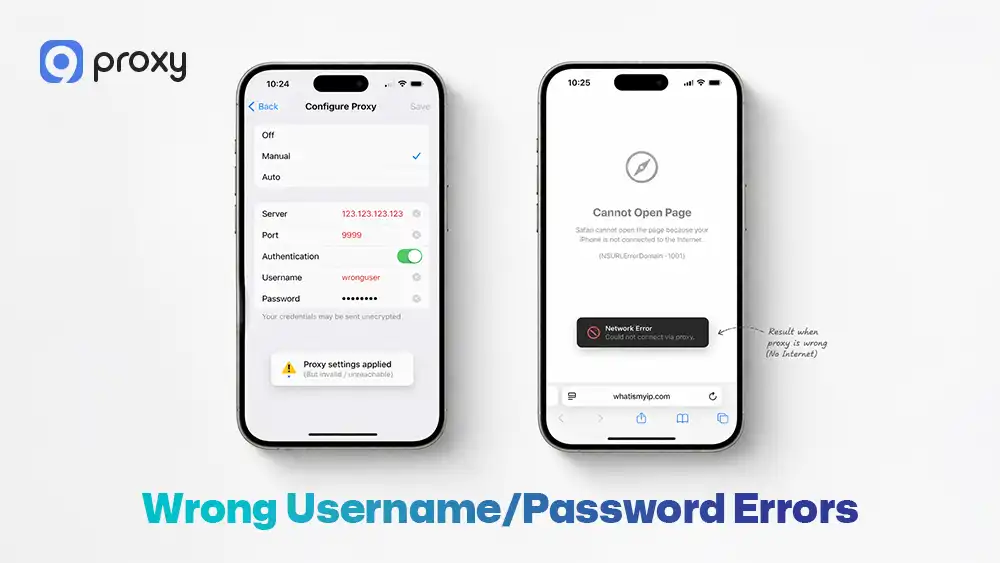
Wrong Username/Password Errors
Repeated login prompts usually come from authentication issues. To avoid typing mistakes, copy and paste your username and password directly from your provider’s dashboard. Also, check whether your subscription is still active or if you have reached the allowed session limit.
Proxy Works on One Wi-Fi but Not Another
Proxy server iOS settings are saved separately for each Wi-Fi network. This means when you connect to a new router, you must set up the proxy again. In addition, some public or corporate Wi-Fi networks block the ports that proxies use, which can prevent the proxy from working even if the settings are correct.
Slow Speed and High Latency
If your connection feels slow or laggy, choose a proxy server that is physically close to your real location. Distance increases latency. Avoid using a free iPhone proxy server, especially during peak hours, as these servers are often crowded and unreliable.
Finally, test your Wi-Fi speed without the proxy enabled to confirm whether the slowdown is caused by the proxy or your internet connection.
Free iPhone Proxy Server vs Paid Proxies (What’s Safe for Real Users)
Free proxies may look attractive at first, but they often come with serious risks for everyday users. Before choosing one, it helps to understand how free and paid proxy services compare in real use on an iPhone. The table below highlights the key differences.
|
Feature |
Free iPhone Proxy Server |
Paid Proxy |
|
Stability |
Low |
High |
|
Privacy |
Unclear |
Strong |
|
IP Reputation |
Often blacklisted |
Clean |
|
Support |
None |
Available |
Free proxies are best used only for light testing or short experiments. Avoid using them for logins, personal accounts, or private data. Paid proxy services provide much better safety, stability, and overall reliability for regular iPhone use.
9Proxy: A Reliable Proxy Server Solution for iPhone
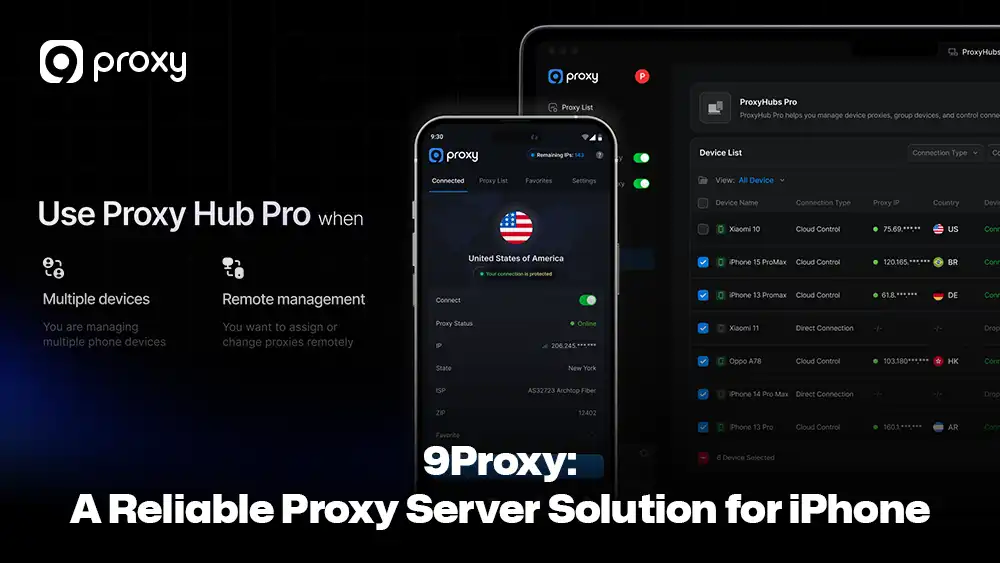
9Proxy provides highly compatible and reliable proxy solutions designed specifically for iPhone users who need a clean, stable, and private connection. We offer residential, mobile, and datacenter proxies with guaranteed uptime and strong anonymous performance, making them suitable for both everyday browsing and more demanding online tasks.
Key advantages of 9Proxy include:
- 100% real residential proxies: IPs come from real users in more than 90 countries, helping you maintain high trust and avoid detection.
- Clean and private IP pool: Our IPs are not shared with other providers, which greatly reduces the risk of blacklists.
- Unlimited bandwidth with IP-Based Packages: Perfect for data-heavy activities such as streaming, browsing, or extended online sessions.
- Affordable pricing: Plans start at around $0.04 per IP, with no hidden limits or extra fees.
- Crypto payment perks: Pay with cryptocurrency and receive a 5% bonus in additional IPs.
With 9Proxy, you get a balance of speed, privacy, and reliability tailored for iPhone proxy use. For users who need cellular network connectivity, exploring a mobile proxy server option can provide even more authentic mobile traffic patterns and higher trust levels on mobile-focused platforms.
FAQ
Is it safe to use proxy servers on an iPhone?
Yes, using proxy servers on an iPhone is generally safe when you choose a reputable and trusted provider. Reliable proxy services focus on privacy and security, while unknown or free proxies may monitor your traffic or misuse your data. For this reason, it is best to avoid unverified free options.
What’s the best proxy type for iPhone browsing?
Residential proxies are usually the best choice for iPhone browsing. They look like normal home connections, which makes them less likely to be blocked by websites and more stable for everyday use.
Will using a proxy server in iPhone settings affect mobile data?
Residential proxies are usually the best choice for iPhone browsing. They look like normal home connections, which makes them less likely to be blocked by websites and more stable for everyday use.
Are there apps that help manage proxy server iPhone setups?
Yes, apps like Potatso or Shadowrocket can help manage advanced proxy settings more easily than the default iOS menu. These apps are useful for users who need more control or multiple proxy profiles.
Conclusion
Understanding how to manage an iPhone proxy server gives you more control over how you browse the internet. In this guide, we covered what proxy servers do on iOS, how to set them up on Wi-Fi, how to test and turn them off safely, and how to fix common connection problems.
Choosing a high-quality, paid provider helps keep your browsing fast, stable, and private in 2026. For users who also work across desktop and mobile platforms, understanding proxy configuration on different devices can be valuable-resources like proxy server Chrome settings provide helpful guidance for browser-based proxy management on desktop systems.
We hope this guide makes it easier for you to use iOS proxy settings with confidence and peace of mind. For more tutorials and proxy insights, visit Blog9Proxy to explore comprehensive guides and best practices.