

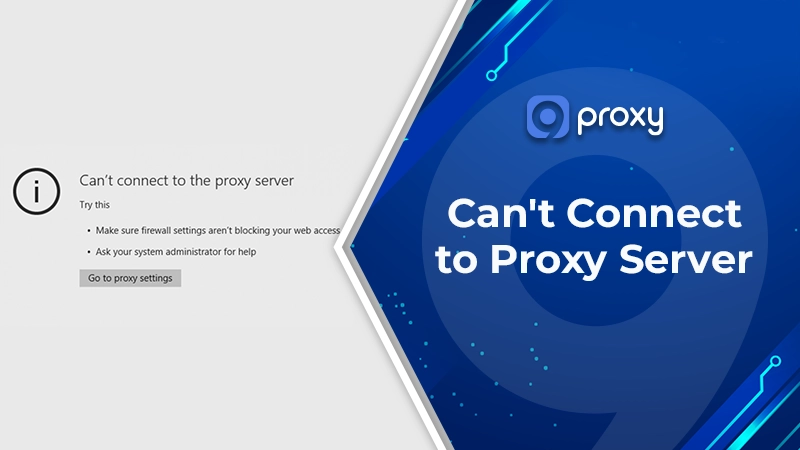
Can’t connect to proxy server errors often appear at the worst possible time, stopping your access right when you need the internet most. If you see a “Can’t connect to proxy server” message, it means your device is failing to reach the web through a proxy acting as a middleman.
Therefore, 9Proxy created this guideline for those using Windows 10/11, browsers, or VPN tools who want fast, clear, and safe solutions. We will walk you through why this issue happens, how to fix it step by step, and how to prevent it from coming back. The goal is to help you restore stable access quickly, avoid risky changes, and get back online with confidence.
What Is a Proxy Error?
A proxy error occurs when your device cannot communicate with a website through a proxy server, even though your internet connection may still be working. In simple terms, the proxy acts as a bridge, and the connection fails because that bridge is blocked, misconfigured, or temporarily unavailable. This is different from a normal “no internet” issue, since your Wi-Fi or network can be active while the proxy layer stops traffic from passing through.
In many real-world cases, users see different error messages depending on where the connection breaks. If you want a clearer explanation of how to fix error in proxy server situations caused by unresponsive servers, this can help you understand whether the problem comes from your device or the proxy itself.

Common Causes of Proxy Connection Errors
Understanding why you cannot connect to proxy services is the first and most important step toward finding a long-term solution. In most cases, this problem does not happen randomly. It usually comes from a few common causes that affect how your system connects to the network. By identifying the right category, you can fix the issue faster and avoid unnecessary changes.
- Incorrect proxy settings: This often happens when the proxy IP address or port number is typed incorrectly in your system or browser settings. Browser-level mistakes inside proxy server chrome settings can also trigger connection failures even when the proxy itself is online.
- Software interference: VPN applications or overly strict antivirus programs may override your network configuration and block proxy traffic without clear warnings.
- Malicious activity: Some harmful software can secretly modify Internet or registry settings, causing proxy connections to fail.
- Firewall blocks: Firewalls may stop the connection to protect your system, even when the proxy is safe and trusted.
- Corrupted system files: Damage within the Windows Registry or Group Policy can break network rules and disrupt proxy services.
Step-by-Step Fixes for “Can’t Connect to Proxy Server” Errors (From Easy to Advanced)
We suggest starting with the easiest steps first. Many customers can fix unable to connect to proxy server errors in just a few minutes by trying these basic actions, without needing to make complicated system changes.
5 Quick Fixes: Start Here if You’re a Regular User
Most errors that are unable to connect to the proxy server can be fixed by checking a few basic settings. We suggest trying these five simple steps first before moving on to anything more advanced.
- Disable Proxy in Windows: Open Settings → Network & Internet → Proxy and turn “Use a proxy server” off. This makes your computer connect directly to the internet.
- Reset LAN settings: Go to Control Panel → Internet Options → Connections → LAN Settings. Make sure only “Automatically detect settings” is checked.
- Reboot your hardware: Turn off your router and modem for about 30 seconds, then turn them back on. This clears temporary network problems.
- Restart the network using Command Prompt: Open Command Prompt and type netsh winsock reset, then restart your computer. This refreshes network components.
- Switch browsers: If Chrome does not work, try Firefox or Edge. This helps check whether the issue is caused by the browser or the system.

Windows 10 & 11 Fix: Can’t Connect to Proxy Server Error
For users on Windows 10 or Windows 11, resetting system network components can often fix ongoing proxy problems. These steps help correct hidden configuration errors while keeping your system safe. Follow them for the best results.
Start with the steps below:
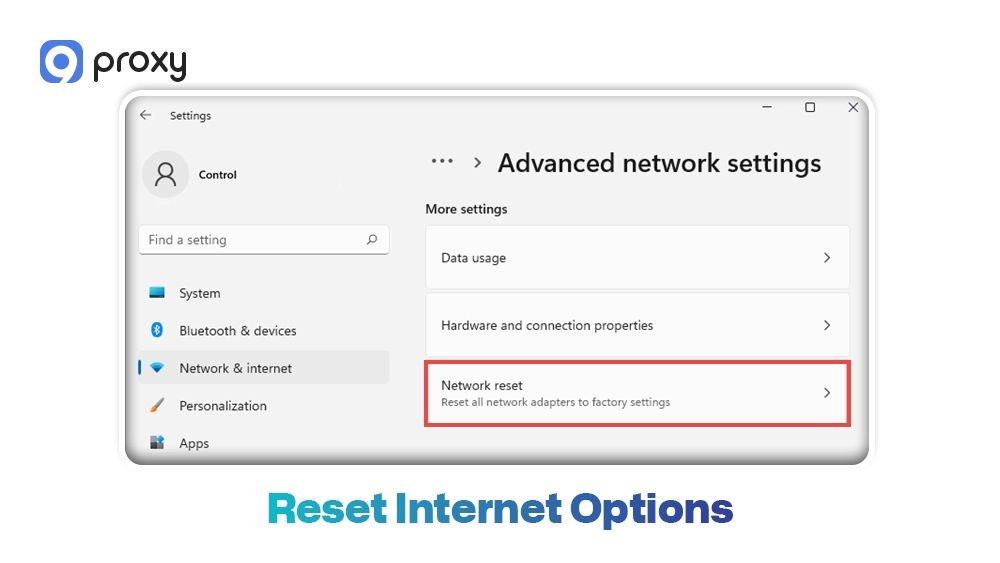
- Reset Internet Options
Open Internet Options → Advanced → Reset. This returns your network settings to their default state and removes unwanted changes. - Run the Network Troubleshooter
Use the built-in Windows tool to automatically find and fix issues with network adapters or DNS settings. - Check proxy settings in the Settings app
Go to Settings → Network & Internet → Proxy and confirm that “Use a proxy server” is turned on or off based on how you want to connect. - Use Command Line tools
Open Command Prompt as an administrator and run:
netsh winsock reset
ipconfig /flushdns
Restart your computer after running these commands. - Optional: Registry backup and cleanup
This step is for advanced users only. Always back up the registry before removing damaged proxy-related keys.
Together, these steps resolve most system-level proxy issues without affecting overall Windows stability.
Fixing Proxy Errors Caused by VPN, Antivirus, or Malware
Third-party software can affect proxy connections without showing clear alerts. Common cases include VPN applications overriding system proxy settings, antivirus firewalls blocking proxy ports, or malware secretly modifying registry values.
Some network conflicts may also appear alongside gateway-related problems. Users dealing with unstable responses or timeout loops often compare symptoms with common server-side cases such as 502 error fix or 504 gateway timeout errors before identifying the real cause.
To fix this, we recommend following a clear and safe order:
- Temporarily disable VPN software: Many VPNs apply their own routing rules, which can conflict with proxy connections.
- Check antivirus and firewall rules: Review your security software to make sure proxy IPs and ports are not being blocked.
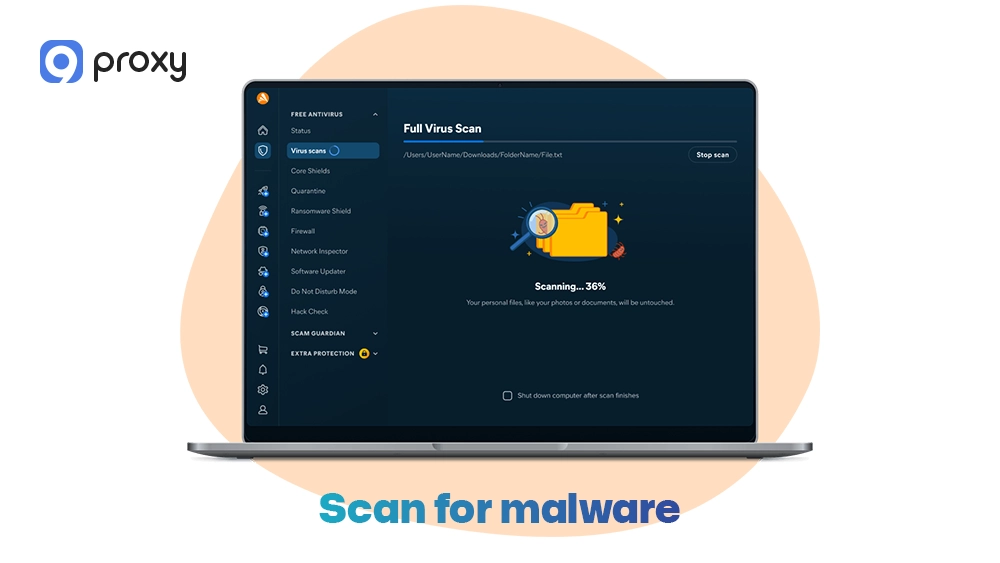
- Scan for malware: Run a full scan with Windows Defender, then use a second scanner such as Malwarebytes for confirmation.
- Use Safe Mode for cleanup: Safe Mode stops malicious programs from running, making it easier to remove harmful changes.
After completing these steps, turn your proxy back on and test the connection again.
For IT Admins: Group Policy, Registry & Deep System Settings
For advanced users or IT administrators, deeper troubleshooting is often needed when users cannot connect to proxy services even after trying basic fixes. These steps focus on system policies and overall system health, which are common sources of hidden problems.
Start by checking the following areas:
- Reset Group Policy settings: Open the Local Group Policy Editor and review any rules related to proxy or network access.
- Check Registry keys: Go to Internet Settings and confirm that the ProxyEnable and ProxyServer values are correct. In some environments, conflicts between DNS routing and proxy server dns behavior can also create connection instability.
- Run system file checks: Use sfc /scannow and DISM to find and repair damaged Windows files.
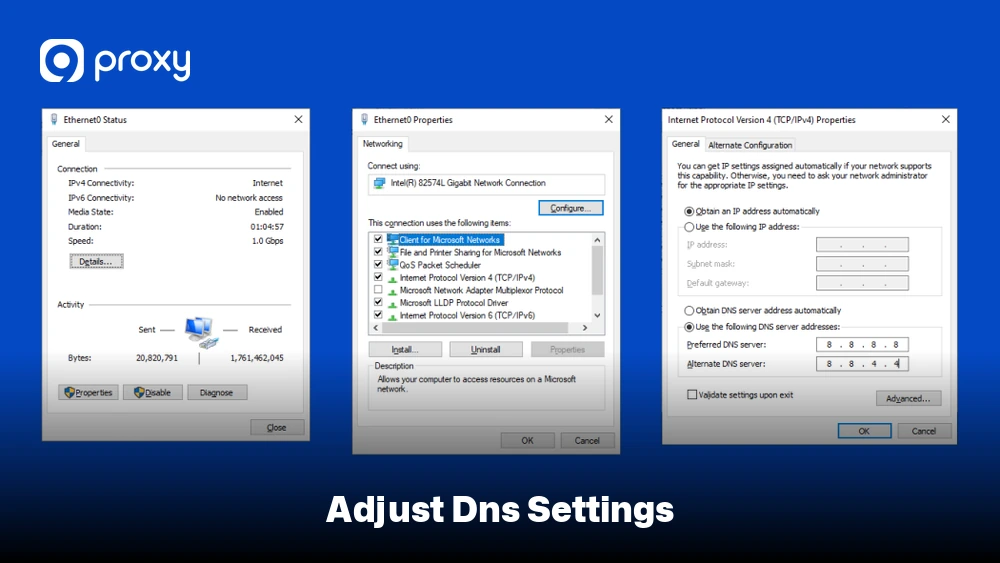
- Adjust DNS settings: Try using trusted public DNS servers to see if name resolution is causing the issue.
- Review Windows Event Viewer: Look for network or application errors that may explain why the proxy connection fails.
These steps require careful handling, but they often help uncover system-level issues that simple troubleshooting cannot fix.
Proxy Server Still Not Working? How to Test If It’s the Server or Your Device
If you have tried everything and still cannot connect to the proxy, we need to isolate the location of the problem. Follow these simple checks to narrow it down:
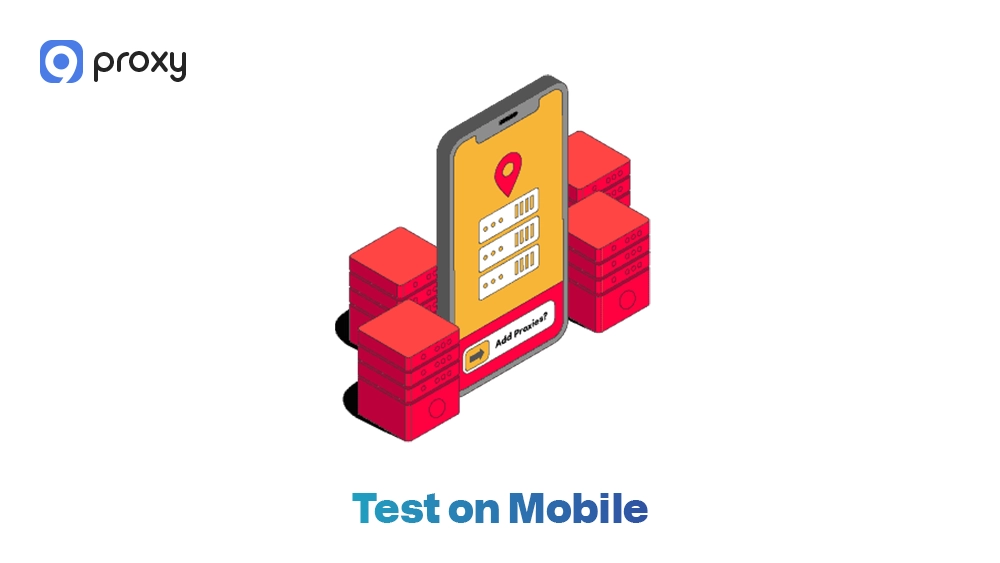
- Test on Mobile: Try connecting to the same proxy using your phone on mobile data. If it works there, your home router or PC is the problem.
- Check the Provider: Visit the status page of your proxy provider to confirm there is no outage. Understanding common proxy error codes can also help you quickly identify whether the issue is temporary, authentication-related, or server-side.
- App Swap: If the proxy fails in a browser, try setting it up in a tool like Telegram or a scraper. If it works there, your browser settings are to blame.
- Bypass the ISP: Sometimes your Internet Service Provider blocks certain ports. Try a different network or a hotspot to verify this.
Prevent Proxy Errors in the Future: Best Practices
We believe it is always better to prevent problems than to fix them later. The table below highlights practical habits that help keep your network stable, secure, and free from common proxy issues.
By following these simple practices, you can maintain a clean network environment, reduce unexpected errors, and avoid proxy-related downtime in daily use.
| Tip | What It Helps | Why It Helps |
| Avoid suspicious browser extensions | Stops hidden proxy overrides | Extensions can silently change settings |
| Don’t install random VPN apps | Prevents routing conflicts | Many VPNs force proxy rules |
| Regularly update Windows | Fixes bugs and security gaps | Updates repair network components |
| Back up the registry before changes | Enables safe recovery | Prevents permanent misconfigurations |
| Use known proxy providers | Ensures stability and support | Trusted services reduce downtime |
Many users choose reliable providers such as 9Proxy to reduce authentication failures, unstable IP routing, and repeated proxy interruptions. You can also follow updates and troubleshooting guides on Blog9Proxy for newer proxy issues and fixes.
FAQs
How can I troubleshoot network issues that might be causing proxy connection problems?
We suggest starting with simple steps. First, restart your router. After that, use the Windows Network Troubleshooter. This tool helps check whether your network adapter is working properly and if your IP settings are correct.
Can a VPN cause proxy connection issues in Windows 10 & 11?
Yes. VPNs often change how your system routes traffic. If a VPN does not shut down correctly, it can leave behind old settings that make Windows try to connect through a server that is no longer active.
How do I resolve a proxy server connection error after a Windows 11 update?
Windows updates can reset network settings. Open the Settings app, review your Proxy settings, and make sure “Automatically detect settings” is turned on and no old proxy information is enabled.
What should I do if I’ve checked all settings and still can’t connect to a proxy server in Windows 11?
If everything looks correct, the issue may be outside your system. In this case, contact your proxy provider’s support team to confirm that your IP address is allowed to access their server.
Conclusion
Fixing a network interruption is much easier when you follow a clear, step-by-step approach. From checking your LAN settings to cleaning up system conflicts, we’ve shown that most problems come from simple misconfigurations or software clashes that you can resolve in just a few minutes.
Keeping your system updated and using trusted services also helps prevent issues before they start. When you can’t connect to a proxy server, having the right knowledge makes all the difference.
If you want a faster, more stable, and reliable experience, choose a trusted proxy service like 9Proxy and get back online with confidence today.