

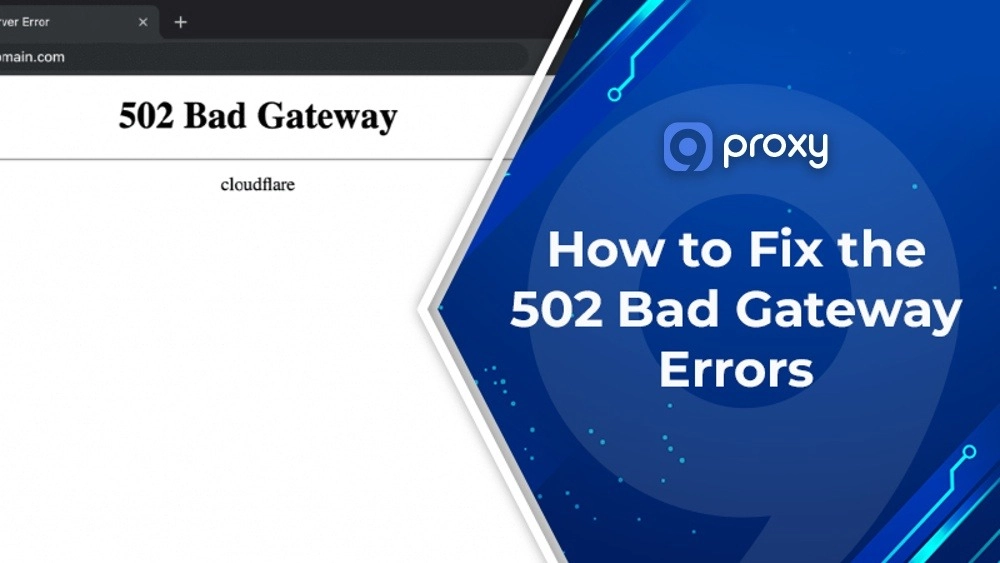
A sudden 502 Bad Gateway error happens when a gateway or proxy receives an invalid response from an upstream server, creating a communication gap that affects users, developers, and website owners alike. This can halt your browsing, interrupt your work, or block customers from reaching your site.
That’s why finding a quick, reliable solution is essential. This article from 9Proxy will help you understand what causes the disruption and how to address it from both the user side and the server side, giving you a clear path to restore stability and keep the problem from coming back.
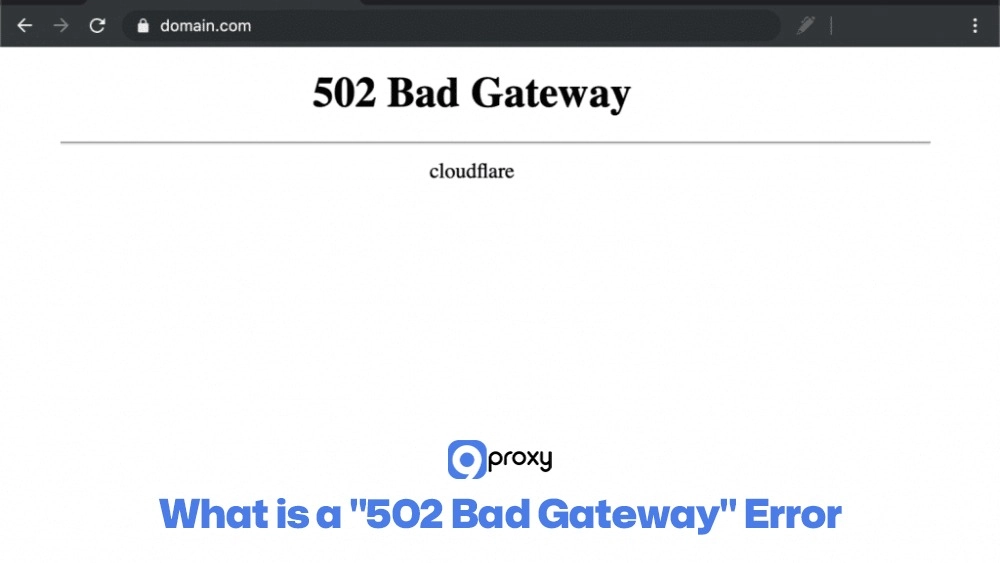
What Is a “502 Bad Gateway” Error?
A 502 Bad Gateway error appears when one server acting as a gateway or proxy tries to communicate with an upstream server but receives a bad, incomplete, or no response. In HTTP terms, this 502 status code signals a communication breakdown between the gateway and the origin server, meaning the server failed to fulfill the request.
You can picture it like a receptionist calling a specialist: if the specialist doesn’t pick up, responds incorrectly, or times out, the receptionist must return and say the request couldn’t be processed. This is different from a 500 Internal Server Error, a 503 Service Unavailable issue, or a 504 Gateway Timeout.
Why You’re Seeing a 502 Error?
Understanding the root causes is the first step in applying a 502 Error Fix. Because this error happens when two or more servers try to communicate, several issues can trigger it:
Upstream Server Failure: The origin server that holds your website’s code may crash, run out of resources, or shut down. When this happens, the proxy receives no response or a broken one.
Issues with the Hosting Provider: On shared hosting, traffic spikes or problems from other sites on the same server can drain CPU, RAM, or PHP workers. This makes your upstream server fail to respond properly.
CDN/Proxy Misconfiguration: Services like Cloudflare or reverse proxies such as Nginx can route traffic incorrectly if misconfigured, sending incomplete requests or mishandling upstream responses.
DNS Issues: If you’ve recently changed DNS settings or migrated hosts, the gateway might still point to an old IP address. Until propagation finishes, this mismatch can lead to a failed connection and a 502.
Server Overload: A sudden flood of traffic can overwhelm the server. When it slows down too much to answer, the gateway stops waiting and marks the response as bad.
Firewall Restrictions: Overprotective firewalls may block legitimate traffic between the gateway and origin server, causing the connection to be rejected and resulting in a 502 error.
User-Side Browser/Network Problems: In rare cases, your browser cache, cookies, or local VPN, proxy, or firewall configurations can trigger a local 502 display, even if the server is working normally. In similar scenarios, users may also encounter authentication-related issues like 407 proxy authentication required when the proxy server blocks access due to missing credentials.
Quick Fixes for Website Visitors
If you’re simply trying to visit a website, you won’t have access to the server, so your troubleshooting should focus on checking local issues. Here are the quickest ways to attempt a 502 Error Fix:
- Refresh the Page: A 502 is often temporary. Wait a minute or two, then press F5 on Windows or Cmd + R on Mac to reload.
- Check Your Internet Connection: Visit other major sites like Google or YouTube to confirm your network is working properly.
- Clear Browser Cookies and Cache: Corrupted or outdated cache files can cause errors. Clear your browser’s cookies, cache, and browsing history, then try again. If the issue persists, you may need deeper troubleshooting methods similar to a fix proxy error process when your network setup interferes with requests.
- Try Another Browser: Switch from Chrome to Firefox, Edge, or Safari. If the page loads there, the issue is tied to your original browser or one of its extensions. In some cases, browser extensions that route traffic through proxies can also trigger errors like unable to connect to the proxy server.
- Test on Another Device: Use your phone’s mobile data (not Wi-Fi) to see if the problem is specific to your current device or network.
- Use an “Is the Site Down?” Tool: Tools like Down for Everyone or Just Me help you check whether the problem is global (server issue) or only happening on your end.
Troubleshooting for Site Owners & Developers
If you are the website owner, a 502 Bad Gateway error is a serious issue that needs your attention right away. Since the problem is usually on the server side, these steps will help you identify what’s going wrong behind the scenes.
Check Hosting/Server Status
Your first step is to confirm that your hosting environment is healthy, because even a small interruption in server performance or resource availability can easily trigger a 502 Bad Gateway error and disrupt your entire site.
- Verify Uptime and Resources: Log into your hosting dashboard (cPanel, Plesk, AWS, etc.) and make sure your main server or VM is running normally. Check for sudden spikes in CPU, RAM, or disk I/O usage; these often signal overload or a malfunctioning application.
- Check PHP Worker Exhaustion: On managed hosting, look at your PHP-FPM worker limits. If all workers are busy or maxed out, new requests will pile up and eventually time out, which can easily trigger a 502 Bad Gateway response.
- Review Dashboard Error Reports: Most hosting panels include quick error summaries or crash notifications. These logs can immediately reveal whether a recent failure or service interruption caused the 502.
Review Server Logs / Error Logs
Server logs are the most reliable place to identify the cause of a 502 Error Fix. They show exactly what happened at the moment the error occurred.
Locate Logs: Start by checking the error logs for your web server or application:
- Apache: Usually located at /var/log/apache2/error.log or a similar path.
- Nginx: Check /var/log/nginx/error.log.
- PHP: Look for PHP-FPM or PHP application logs in your server’s log directory.
- WordPress / Application Logs: Many platforms store their own logs inside the site’s folder structure.
- Interpret Log Entries: Focus on the most recent lines, especially those labeled [error]. Common 502-related messages include connection failures and timeouts, which are also frequently documented across various proxy error codes that help identify communication issues between servers. Common 502-related messages include:
connect() failed (111: Connection refused)
upstream timed out (110: Connection timed out)
[crit] 7#0: *1 connect() to unix:/var/run/php-fpm/php-fpm.sock failed (2: No such file or directory)
These messages point to issues like connection failures, timeouts, or missing socket files, helping you pinpoint the exact cause of the 502.
Disable CDN or Firewall Momentarily
Third-party services that sit in front of your server can sometimes misread the origin server’s response and trigger a 502.
Test Origin Server: If you use Cloudflare, choose Pause Cloudflare on Site (under Overview). This sends requests straight to your origin server’s IP. If the site loads normally, the CDN was causing the issue.
Test Firewall: Temporarily disable any Web Application Firewall (WAF) such as Sucuri or ModSecurity (only if it’s safe). This helps you check whether the firewall was mistakenly blocking traffic between the gateway and your server.
Check Upstream Services (PHP-FPM, API, Database)
A 502 error often comes from a failure in one of the upstream services your web server depends on, especially when those critical components stop responding, slow down unexpectedly, or return invalid data during the request process.
- PHP-FPM Crashes: If PHP-FPM crashes or fails to restart after an update, Nginx or Apache cannot process PHP requests. Restart PHP-FPM manually to restore functionality.
- Slow Queries / API Calls: A long-running database query or a third-party API call that hangs can cause the application to time out. When the upstream service doesn’t answer in time, the gateway returns a 502.
- Socket Failures: Make sure your web server is using the correct communication path to reach PHP-FPM or your application (for example, the right Unix socket or network port). A wrong or missing socket path will immediately trigger a 502.
Inspect DNS, Proxy Chains & Firewall Rules
These networking components can silently break the connection without showing obvious symptoms, making the 502 error harder to diagnose.
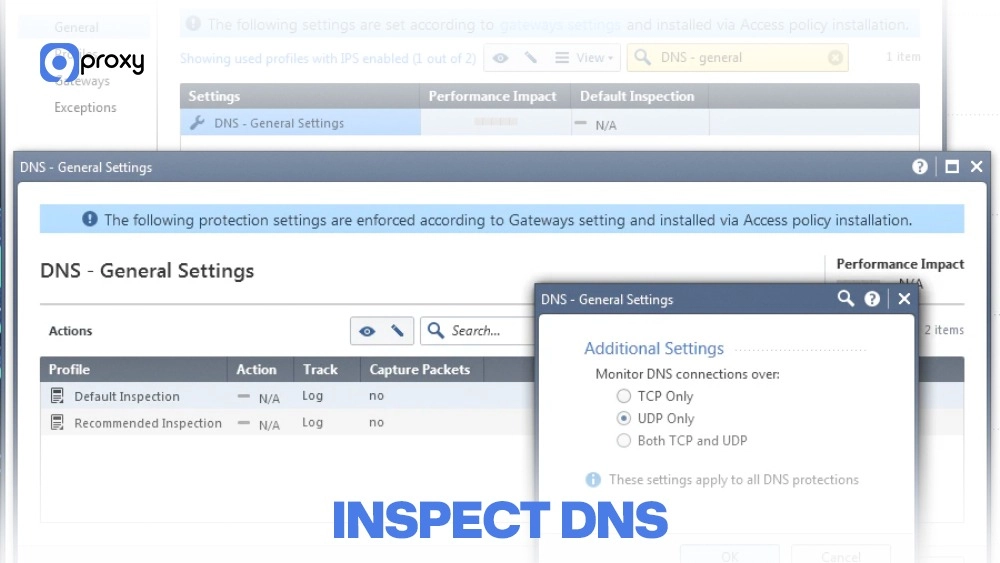
- DNS Propagation: Use a tool like DNS Checker to verify that your domain is correctly pointing to the right IP address worldwide, especially after a recent host migration.
- Proxy Routing: If you’re using multiple proxies, such as a load balancer that forwards traffic to a reverse proxy, double-check that all internal IPs, forwarding rules, and routing tables are accurate. Misconfigured proxy chains can easily break communication between servers and trigger a 502 error, especially when using third-party services like 9Proxy or similar proxy providers.
- IP Blocklists: Inspect your server’s firewall (such as iptables or fail2ban) to ensure that the IP address of your load balancer or CDN, including Cloudflare’s IP ranges, hasn’t been mistakenly blocked.
Platform-Specific Fixes (WordPress, Nginx, Apache, CDN)
Different platforms handle traffic and server responses in their own way, so fixing a 502 error effectively often requires using troubleshooting methods that are tailored to each specific system.
WordPress Troubleshooting
WordPress sites are often prone to 502 errors because many issues come from the application layer rather than the server itself.
Disable Plugins/Themes: Use FTP to access your WordPress files and rename the wp-content/plugins folder. If the site loads again, a plugin is causing the problem. Rename the folder back, then disable plugins one by one to identify which one triggered the 502 error.
Increase PHP Memory Limit: If your site is running out of resources, increase the PHP memory limit in the wp-config.php file. For example:
define('WP_MEMORY_LIMIT', '256M');
This gives WordPress more memory to handle heavier tasks.
Check .htaccess Corruption: Rename your .htaccess file to .htaccess_old. If the site loads afterward, the file was corrupted. To rebuild it, go to Settings > Permalinks in WordPress and click Save Changes to generate a clean version.
Nginx + PHP-FPM Fixes
When Nginx works as a reverse proxy for PHP-FPM, configuration mismatches are one of the most common reasons for 502 errors.
Adjust FastCGI Timeouts: Increase the timeout settings in your Nginx config, especially fastcgi_connect_timeout, fastcgi_send_timeout, and fastcgi_read_timeout. Longer timeouts help prevent Nginx from giving up too early when PHP-FPM is slow.
Check Socket Path: Verify that the Nginx fastcgi_pass directive points to the exact PHP-FPM socket location, such as:
unix:/var/run/php-fpm/php-fpm.sock
A wrong or missing socket path will immediately trigger a 502.
Worker Exhaustion: If PHP-FPM runs out of workers, it cannot process new requests. Increase worker limits by adjusting pm.max_children or pm.max_spare_servers in your PHP-FPM configuration.
Restart Services: Whenever you update configurations, reload both services to apply changes:
sudo systemctl reload nginx
sudo systemctl restart php-fpm
Apache / mod_proxy Fixes
When Apache uses mod_proxy as a reverse proxy, it can run into connection problems with the backend server, leading to a 502 error.
KeepAlive Issues: If the upstream server closes the connection sooner than expected, Apache may return a 502. Make sure KeepAlive settings match on both the proxy server and the backend server to avoid unexpected drops.
ProxyErrorOverride: If this directive is enabled, it may hide the real issue by replacing the actual backend error with a custom error page. This can make troubleshooting harder, so verify whether it should be turned on.
Backend Connection: Double-check that your ProxyPass and ProxyPassReverse directives point to the correct backend IP address and port. A wrong destination will immediately cause communication failures.

CDN / Cloudflare-Specific Fixes
Cloudflare is one of the most common sources of 502 errors when configurations are not aligned correctly.
Cloudflare Error 502 vs Host Error:
- If the 502 page shows the Cloudflare logo and mentions “Cloudflare”, it means Cloudflare received a bad response from your origin server, so the issue is on your server.
- If the page shows the logo but says “Host Error”, the problem is more likely related to a Cloudflare configuration setting.
SSL Mismatches: Ensure Cloudflare’s SSL/TLS mode (Flexible, Full, Full Strict) matches how your origin server handles HTTPS. If the origin redirects from HTTP to HTTPS but Cloudflare is using the wrong mode, 502 errors are common.
Firewall Sensitivity: Check Cloudflare’s WAF rules. A strict or overly aggressive rule may block legitimate requests, causing Cloudflare to fail when connecting to your origin server.

How to Prevent 502 Errors from Happening Again
A strong, well-planned approach is essential if you want to stop the 502 Error Fix from turning into a recurring problem. By improving stability and reducing server strain, you’ll prevent most 502 issues before they ever appear.
Implement Proper Load Balancing: Distribute traffic across several web servers so one server isn’t overwhelmed. This helps prevent sudden spikes from triggering a 502.
Optimize Caching: Use browser caching, server-side caching, and object caching to reduce the number of requests reaching your application. Fewer requests mean fewer chances for resource overload.
Regular Audits: Review your WordPress plugins, themes, and application code regularly. Outdated or poorly optimized components can cause crashes that lead to 502 errors.
Failover Systems: Set up redundant servers so a backup instantly takes over if the primary server goes down, keeping your site online without interruption.
CDN Tuning: Configure your CDN properly and make sure its timeout and origin-server settings match your application’s needs to avoid unnecessary 502 failures.
Monitoring Tools: Use uptime monitoring tools like Pingdom or Uptime Robot to check your site every minute and alert you immediately when a 5xx error appears.
Auto-Scaling Servers: On cloud platforms such as AWS or Azure, set up auto-scaling so additional servers spin up automatically when traffic increases.
Who Is Affected by the 502 Bad Gateway Error?
While a 502 Error Fix is a technical task, its real impact spreads far beyond the server. A single 502 Bad Gateway Error can disrupt workflows, damage trust, and affect revenue across multiple industries and roles. The table below shows how different sectors are affected when this error appears.
|
Industry/Role |
Impact of a 502 Bad Gateway Error |
|
E-commerce Stores |
Lost Sales & Trust: Failed checkouts push customers away. Downtime during busy shopping hours directly reduces revenue and hurts brand credibility. |
|
Financial & Banking Services |
Damaged Credibility: Users lose trust when they can’t access accounts, payment pages, or transaction records, making compliance and reliability major concerns. |
|
SaaS Platforms and Online Tools |
Increased User Churn: Paying customers expect constant access. Repeated 502 errors lead to frustration, cancellations, and negative feedback. |
|
Businesses Running Paid Ads |
Wasted Budget: Ads continue to run even when the landing page returns a 502 error. This means money is spent with zero conversions and rising costs. |
|
Corporate/Educational Websites |
Information Barrier: Employees, students, and users are blocked from essential resources, portals, or time-sensitive materials, disrupting daily operations. |
A persistent 502 Bad Gateway Error acts like a barrier, slowing down business processes, harming user trust, and impacting nearly every digital industry that relies on stable online access.
FAQ
How do I know if the 502 error is temporary or persistent?
If your 502 Error Fix works simply by refreshing the page or clearing your browser cache, the issue was likely temporary. For example, a quick server restart or a short network hiccup. But if the error continues for more than 15 minutes and appears on multiple browsers and devices, it’s a persistent problem that requires server-side investigation.
Is there a difference between a 502 error and other HTTP status codes?
Yes. All 5xx codes indicate server-side failures, but each one highlights a different issue. The 502 Bad Gateway error specifically points to a communication breakdown between two servers; the gateway or proxy received an invalid response from the upstream server. By contrast, a 500 signals a general server failure, a 503 means the service is unavailable, and a 504 indicates a gateway timeout.
What information should I provide when contacting support for help with a 502 error?
Share the affected URL, the exact time the issue started (including your timezone), the full error message (such as Cloudflare-specific errors), and what you’ve already tried. For example: “I checked the PHP logs and restarted Nginx, but the error persists.” This helps support teams diagnose the issue more quickly.
Conclusion
The 502 Error Fix is a key skill for anyone managing a website or online service. Once you understand that this error comes from a broken communication link between servers, you can apply a clear, step-by-step troubleshooting process to resolve the how to fix 502 error issue quickly and effectively.
For long-term stability, focus on proactive maintenance such as keeping your software updated, monitoring server performance, and using redundancy to avoid downtime. For more insights, troubleshooting guides, and proxy-related knowledge, you can explore Blog 9Proxy to stay updated with best practices and solutions.