

“Cannot locate the Internet server or Proxy” is a common error that can stop you from opening websites, links, or even Office hyperlinks. It usually appears when your browser or application cannot reach the target website directly or through a configured proxy server.
Through this blog, 9Proxy will help you find the root cause, fix the problem step by step, and prevent it from coming back. By following these solutions, you can restore a stable connection on Chrome, Windows, Mac, and Microsoft Office more easily.
What is the “Cannot Locate the Internet Server or Proxy Server” Error?
The error “cannot locate the Internet server or Proxy” happens when your browser or application cannot reach a website, either through a direct connection or a configured proxy server. A proxy server works as a bridge between your device and the internet, helping route requests and manage traffic.
When this bridge is broken or misconfigured, the connection fails, and the error appears. This does not always mean your internet is down. In many cases, your network still works, but the routing path or proxy settings are incorrect, especially when opening links in browsers or applications like Microsoft Office.
Why “Cannot Locate The Internet Server or Proxy Server” Error Happens
Understanding why this error occurs is the first step toward a permanent fix. Most often, the problem lies in a mismatch between what your computer expects and what the network provides.
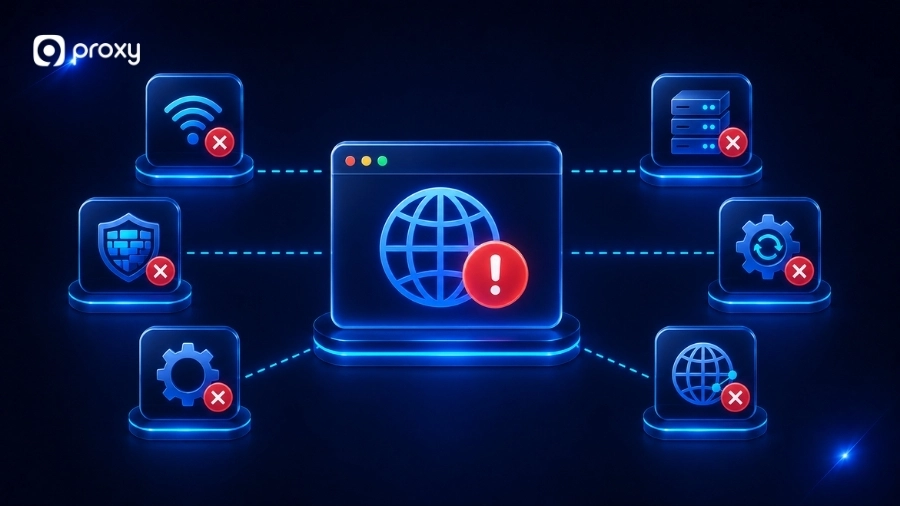
In some cases, users may also encounter related issues like something wrong with the proxy, which points to a similar configuration or connection failures. We have found that the most common reasons for this error include:
- Incorrect proxy address or port: A single wrong digit prevents the connection.
- Proxy server offline: The server you are trying to use is temporarily unreachable.
- Wrong browser settings: Your browser is looking for a proxy that no longer exists.
- Security blocks: A firewall or antivirus may see the proxy traffic as a threat.
- VPN conflicts: Running a VPN alongside a proxy can confuse your network routing.
- DNS failure: Your system cannot translate the website name into an IP address.
- Office configuration: Microsoft Office apps sometimes have unique registry issues.
Who Should Use NoCaptchaAI and Who Should Not
NoCaptchaAI is a tool designed for tasks that require frequent interaction with CAPTCHA systems. It works best for users who handle large volumes of browsing or data collection.
- Developers: automate testing or workflows with many requests
- Data researchers: collect data without manual CAPTCHA solving
- Digital marketers: monitor websites or repeat browsing tasks efficiently
- Automation teams: reduce manual work in large systems
If you only browse the internet occasionally, you may not need NoCaptchaAI. However, for professionals, it can save a lot of time and effort.
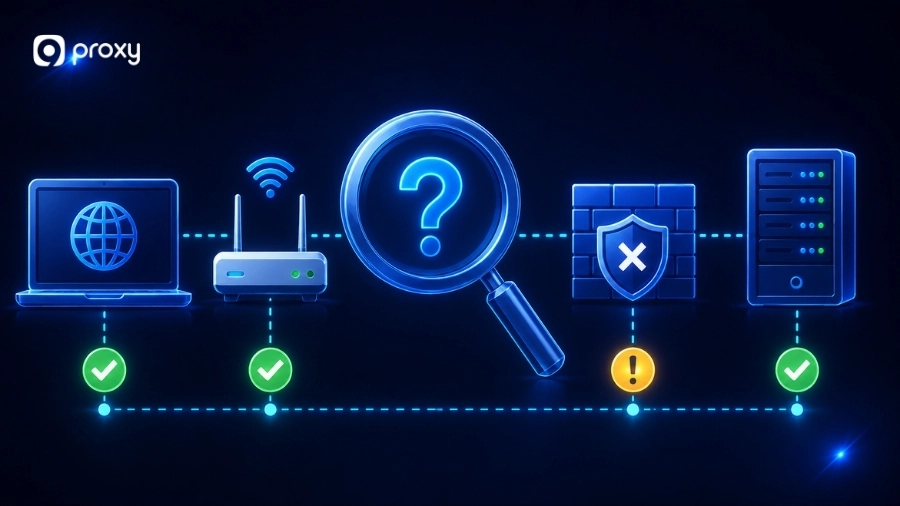
Check Where the Problem Comes From
Before changing your settings, we recommend isolating the source of the error. This saves time by ensuring you are fixing the right component. If you need a deeper explanation of how different failures happen, you can also explore common proxy error codes to better understand what your system is reporting.
You can narrow down the cause by following these steps:
- Test the URL: Try opening a different website. If only one fails, the site might be down.
- Toggle the proxy: Turn your proxy off. If the site loads, the proxy server is the problem.
- Change the browser: If the error only happens in Chrome, check your Chrome extensions.
- Switch devices: Test the same connection on your phone. If it works, your PC settings are wrong.
If only one site fails, the issue may be the website. If everything fails with proxy enabled, the proxy is likely the cause.
10 Proven Ways to Fix “Cannot Locate the Internet Server or Proxy Server” Error
We have organized these troubleshooting steps to help you fix the issue quickly. After each step, you should test your connection to see if the problem is solved. The methods below start with simple checks and move to more advanced settings.
For more detailed step-by-step solutions, you can also refer to this guide on how to fix proxy error.
1. Check Your Internet Connection
Before changing any settings, make sure your internet is working properly.
- Open another website to check your connection
- Restart your router if needed
- Try another device on the same network
If your internet is unstable, the error cannot locate the Internet server or Proxy may appear even if your proxy settings are correct.
2. Disable the Proxy Temporarily
Turning off the proxy helps you check if it is the main cause of the problem, especially when you see the error cannot locate the Internet server or Proxy. Many users facing issues like unable to connect to the proxy server can quickly identify the root cause using this method.
- Go to your system proxy settings
- Turn off “Use a proxy server”
- Reload the website
If the website works normally, your proxy settings may be incorrect, or the proxy server may be down.
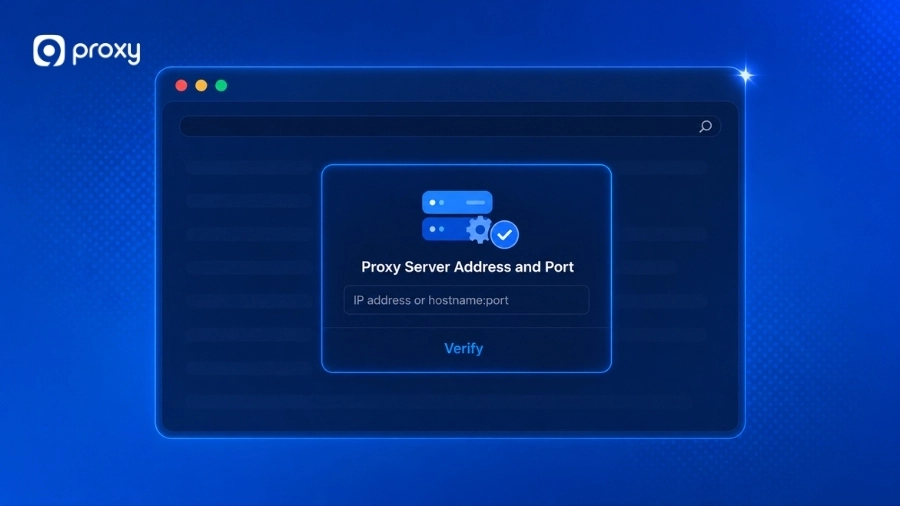
3. Verify the Proxy Server Address and Port
Incorrect proxy details are a very common cause of connection problems.
- Check the proxy IP address
- Confirm the port number
- Compare with your provider’s details
Even a small mistake can trigger the error cannot locate the Internet server or Proxy server.
4. Restart Your Browser and Device
Restarting your device helps clear temporary errors in the system. It resets network connections and allows your device to establish a fresh connection. This simple step can often fix small software issues quickly.
5. Clear Browser Cache and Cookies
Old cache files can make your browser connect to outdated data, which may cause errors like cannot locate the Internet server or Proxy. Clearing this data helps your browser create a fresh connection.
- Go to your browser settings and select “Clear Browsing Data”
- Choose “Cookies” and “Cached images and files” for all time
6. Check Firewall, Antivirus, or VPN Settings
Security tools can sometimes block your connection and cause errors like cannot locate the Internet server or Proxy. To fix this, you should carefully check the following:
- Firewall rules: A proxy server firewall can block proxy or browser traffic if its rules are not configured correctly, so review your firewall settings to ensure proxy connections are permitted.
- Antivirus protection: Some antivirus programs can stop connections they think are unsafe
- VPN connections: Check if a VPN is running in the background
If both VPN and proxy are turned on at the same time, they can conflict with each other and cause the connection to fail.
Check Firewall, Antivirus, or VPN Settings
7. Fix Proxy Settings in Windows & Mac
Incorrect system settings can affect all browsers and may cause errors like cannot locate the Internet server or Proxy. In some cases, users may also experience issues such as can’t connect to proxy server due to incorrect system-level configurations.
On Windows:
- Go to Settings → Network & Internet → Proxy
- Turn ON Automatically detect settings — skipping this step is one of the most common triggers for the windows could not automatically detect this network’s proxy settings error
- Turn OFF manual proxy if you are not using it
On Mac:
- Open System Settings → Network
- Select your current connection (Wi-Fi or Ethernet)
- Turn OFF all proxy options
These steps help your system use the correct connection path and avoid network errors.
8. Fix Proxy Settings in Your Browser
Some browsers, like Firefox, have their own proxy settings. This means they can use different settings from your system, which may cause errors like cannot locate the Internet server or Proxy.
You should check your browser’s settings to make sure it is not using outdated or incorrect proxy data. For Chrome users in particular, reviewing your proxy server chrome settings can help you confirm the correct configuration is applied. Go to the “Network Settings” section in your browser options and review the configuration.
9. Reset Network Settings
If the problem continues, you can reset your network settings to fix deeper connection issues.
Try the following steps:
- Open Command Prompt on Windows and run netsh winsock reset
- Use the network reset option in your system settings
- Restart your device after completing the steps
These actions help remove incorrect or damaged network configurations and allow your device to reconnect normally.
10. Fix the Microsoft Office Hyperlink Issue
Users often see the error “Cannot locate the Internet server or proxy server” when clicking links in Word, Outlook, or Excel. This happens because Office uses outdated Internet Explorer settings to open links.
You can fix this by forcing Office to use your default browser:
| Solution Name | Registry Path | Key | Value | Purpose |
| ForceShellExecute (64-bit) | HKEY_LOCAL_MACHINE\SOFTWARE\Microsoft\Office\9.0\Common\Internet | DWORD | 1 | Open links with the default browser |
| ForceShellExecute (32-bit) | HKEY_LOCAL_MACHINE\SOFTWARE\Wow6432Node\Microsoft\Office\9.0\Common\Internet | DWORD | 1 | Same for 32-bit Office |
9.0” is correct for all Office versions, including Microsoft 365.
Warning: Editing the registry can be risky. Only use this solution if the error happens specifically in Microsoft Office applications.
Stop the “Cannot Locate the Internet Server or Proxy Server” Error Coming Back
To keep your connection running smoothly, it is important to follow a few best practices. Maintenance prevents these errors from appearing during critical tasks.
We recommend these habits for a stable experience:
- Use reliable providers: Services like 9Proxy offer stable residential IPs that rarely drop.
- Avoid mixing tools: Do not run a VPN and a proxy at the same time unless necessary.
- Update regularly: Keep your browser and OS updated to handle new network protocols.
- Clean your settings: Remove any old or expired proxy entries from your system list.
By following these simple habits, you can maintain a stable and reliable connection with fewer errors. A well-managed setup helps you avoid disruptions and ensures smoother browsing when it matters most.
FAQs
How can DNS issues lead to this error?
DNS works like a directory that converts website names into IP addresses. If DNS fails, your device cannot find the server and may show errors like cannot locate the Internet server or Proxy. Understanding how a proxy server dns works can help clarify where this failure occurs — whether on your device or at the proxy server level. To fix this, switch to public DNS such as 8.8.8.8 or 1.1.1.1, and clear your DNS cache using ipconfig /flushdns.
What should I do if I am still getting the error after trying the troubleshooting tips?
If the issue continues, the cause may not be on your device. It could be proxy downtime, website blocking, or network restrictions. This often leads to errors like cannot locate the Internet server or Proxy server. Contact your proxy provider and provide details such as the error message, device, browser, and a screenshot for faster support.
Should I use automatic or manual proxy setup?
Manual setup gives more control and is better for tasks like automation or data scraping. Automatic setup is simpler and suitable for normal browsing, but it depends on correct configuration. If misconfigured, it can cause connection issues.
When should I contact the proxy provider?
Contact your provider if your internet works without a proxy but fails when the proxy is enabled. You should also reach out if connections fail repeatedly, IPs change unexpectedly, websites block your access, or performance is unstable.
Conclusion
Fixing the error “Cannot locate the Internet server or Proxy” requires checking both your connection and your settings. By following these 10 proven steps, you can quickly find out whether the problem is a small mistake or a more serious system issue. Keeping your system updated and using a reliable proxy provider will help ensure a stable and smooth browsing experience.
For better performance and fewer connection issues, you can consider using 9Proxy‘s residential proxies to enjoy stable, secure, and high-quality connections.