

Fix Proxy Error is important when a connection issue suddenly prevents you from accessing websites, apps, or online services. These errors can happen in browsers, automation tools, or daily work due to incorrect settings, network problems, or proxy server issues.
Understanding the common causes and error codes makes it easier to apply the right solution. With simple troubleshooting steps across different devices and browsers, you can fix proxy error problems quickly and keep your connection stable.
What a Proxy Error Actually Means
A proxy error happens when your device cannot properly connect to a proxy server, which acts as a middle layer between you and the internet. This server forwards your requests and helps keep your IP address private.
When this connection fails, the communication breaks, and your browser shows an error message or HTTP code. This can be caused by incorrect settings, network problems, authentication issues, or restrictions from the target website.
Most Common Reasons Proxy Errors Occur
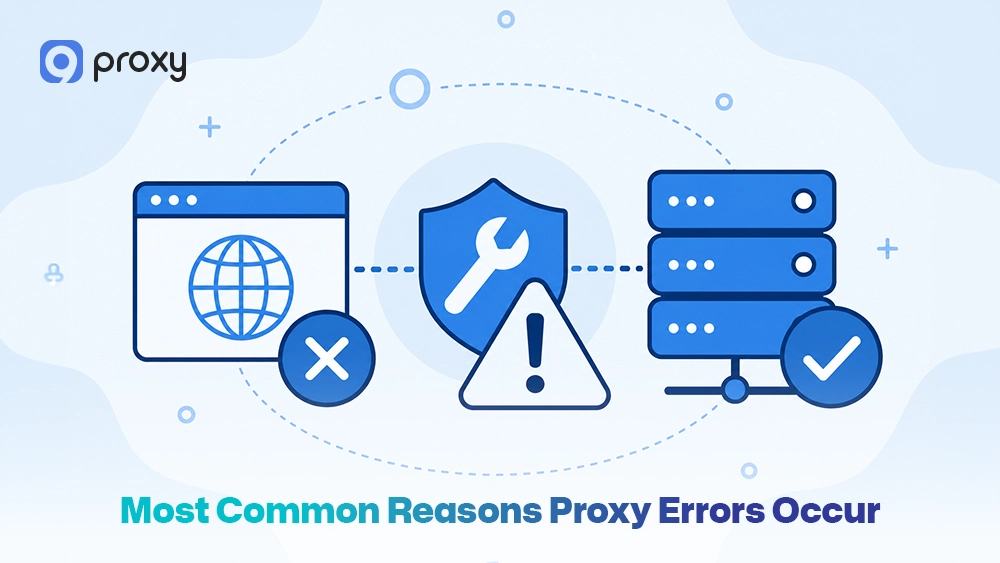
Proxy errors usually happen due to a few common problems. Understanding them makes it easier to apply a Fix Proxy Error solution quickly. Here are the main causes:
- Incorrect proxy configuration: If the IP, port, or protocol is set incorrectly, your device cannot connect to the proxy. This often leads to issues like cannot connect to proxy server when the configuration does not match the provider settings.
- Proxy server offline or overloaded: A server that is down or too busy cannot process your request.
- Authentication failure: Wrong username or password will prevent access.
- Firewall or antivirus blocking: Security software may block proxy connections. In many enterprise environments, a proxy server firewall may also restrict requests or filter traffic automatically.
- Expired or banned proxy IP: Some IP addresses are blocked by websites, causing errors.
- DNS resolution problems: If domain names cannot be converted into IP addresses, the connection will fail. Misconfigured proxy server dns settings can also prevent websites from loading correctly through the proxy.
- Unstable network or timeout: A weak or slow connection can interrupt communication.
Any of these issues can break the connection between your device and the proxy server and lead to errors.
Types of Proxy Errors
Proxy errors are usually grouped by HTTP status codes. These codes show where the problem happens during the connection process, making it easier to identify the cause and apply a Fix Proxy Error solution. They are commonly divided into three groups: redirection errors, client errors, and server errors.
The table below shows the main types of proxy errors and what they mean:
| Error Type | Code Range | Meaning | Common Examples |
|---|---|---|---|
| Redirection Errors | 300 – 399 | The request is redirected incorrectly | 301, 302 |
| Client Errors | 400 – 499 | Problem with your request or login details | 403, 404, 407 |
| Server Errors | 500 – 599 | The proxy or server cannot respond properly | 500, 502, 504 |
These categories make it easier to identify where the problem comes from, such as your device, the proxy server, or the website you are trying to access. For a deeper understanding, you can explore detailed explanations of proxy error codes to diagnose issues more accurately.
Fixing the Most Common Proxy Error Codes
Proxy error codes help you understand exactly what went wrong. Most issues fall into three groups: client errors, server errors, and connection errors. Knowing the difference makes it easier to apply the right Fix Proxy Error method.
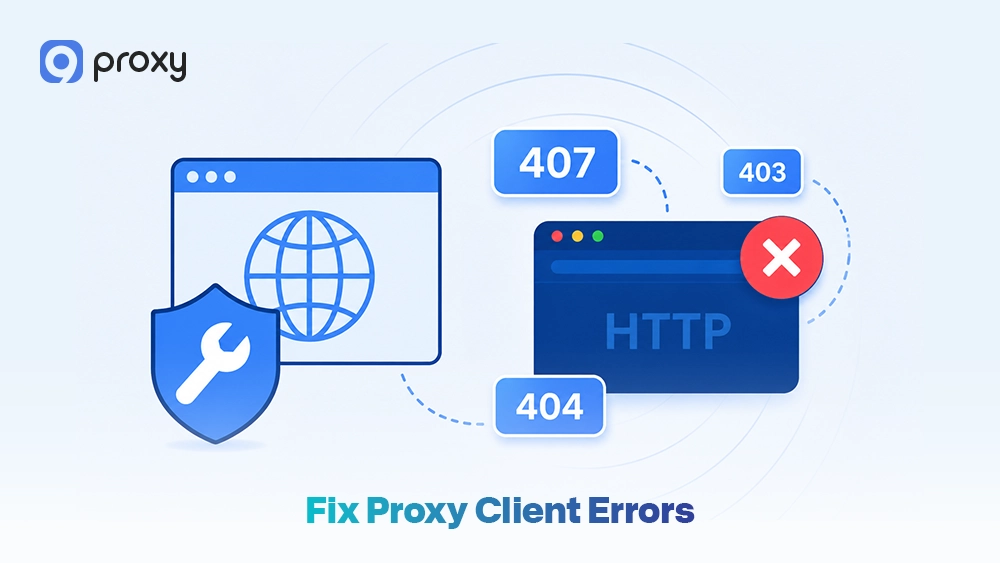
Fix Proxy Client Errors (400 – 499)
These errors usually happen because of incorrect requests or problems with your login details.
- 407 Proxy Authentication Required: This is a common error that means your username or password is missing or incorrect. Check your proxy credentials and update them if needed.
- 403 Forbidden via Proxy: This means the proxy understands your request but does not allow access. It often happens when the proxy is blocked from visiting a specific website.
- 404 Resource Not Found via Proxy: This means the proxy cannot find the website. Make sure the URL is correct, or check if there is a DNS issue with the proxy.
Fix Proxy Server Errors (500 – 599)
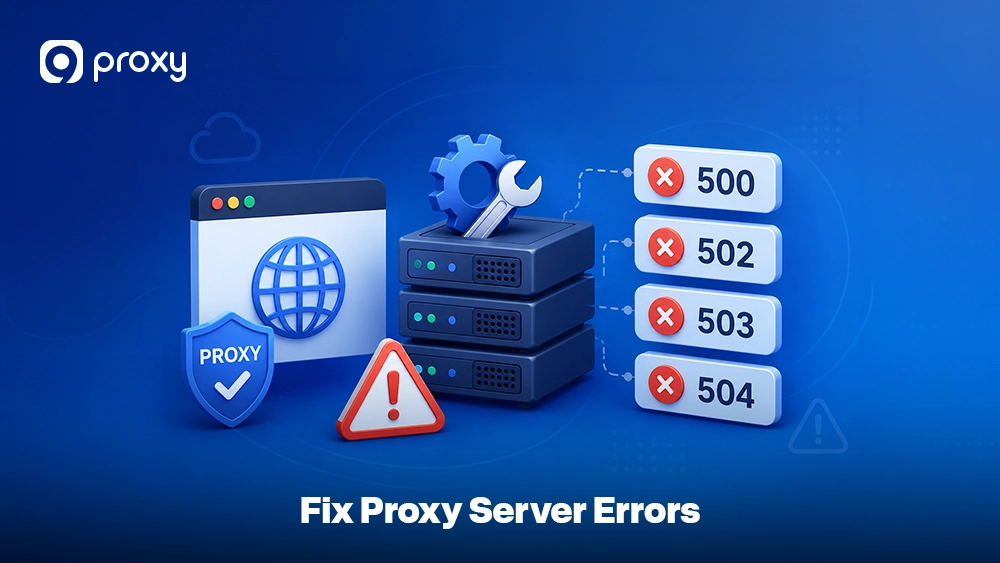
These errors happen when the proxy server itself has a problem and cannot handle your request. Understanding them can help you apply a quick Fix Proxy Error solution.
- 500 Internal Proxy Error: This is a general error with the proxy server. It is usually temporary, so waiting a few minutes or restarting the proxy can help.
- 502 Bad Gateway: The proxy received an invalid response from the website. If the problem continues, following a proper 502 error fix process can help identify whether the issue comes from the proxy or the destination server.
- 503 Service Unavailable: The server is overloaded or under maintenance. Using a different proxy from your pool is often the best solution.
- 504 Gateway Timeout: The proxy waited too long for a response. This can happen if the proxy or the target website is slow. In larger networks, troubleshooting a 504 gateway timeout issue often involves checking server response time and proxy routing stability.
Fix Common Proxy Connection Errors
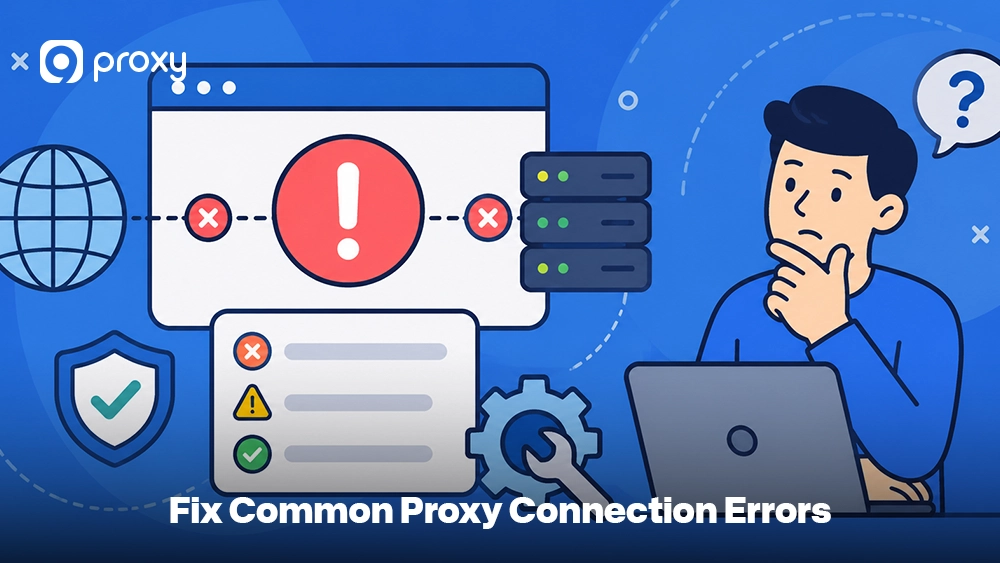
Sometimes, instead of showing an error code, your browser displays a message. These messages explain how your browser is failing to connect to the proxy, making it easier to apply a Fix Proxy Error solution.
- ERR_PROXY_CONNECTION_FAILED: This means your browser cannot reach the proxy server. Check if the proxy IP and port are correct and still active.
- ERR_TUNNEL_CONNECTION_FAILED: This usually happens with HTTPS websites when the proxy cannot create a secure connection. Check your proxy protocol or SSL settings.
- The proxy server isn’t responding: This usually means the proxy is not working or unreachable. In many cases, users describe this as something wrong with the proxy, especially when the connection suddenly stops working.
Additionally, if your system shows errors like can’t connect to proxy server, it often indicates a deeper configuration or network issue that needs to be checked at the system level.
Fixing Proxy Errors on Different Devices
It is important to know that your operating system usually stores proxy settings separately from your browser. This means changing settings in Chrome may not fix issues on the whole system, such as on Windows or Mac, and you may still need a proper Fix Proxy Error solution.
Below are simple steps to help you find and adjust proxy settings on the most common devices, so your connection works correctly across all platforms.
Fix Proxy Error on Windows
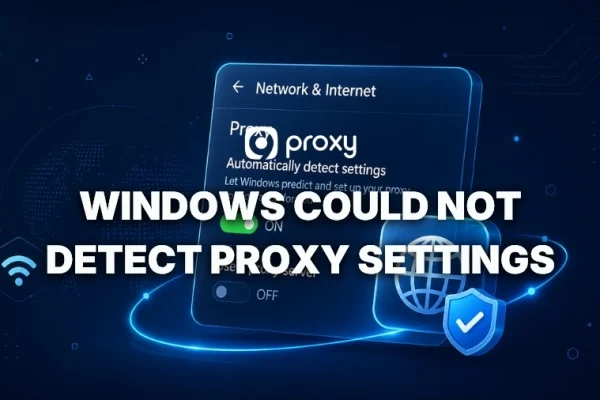
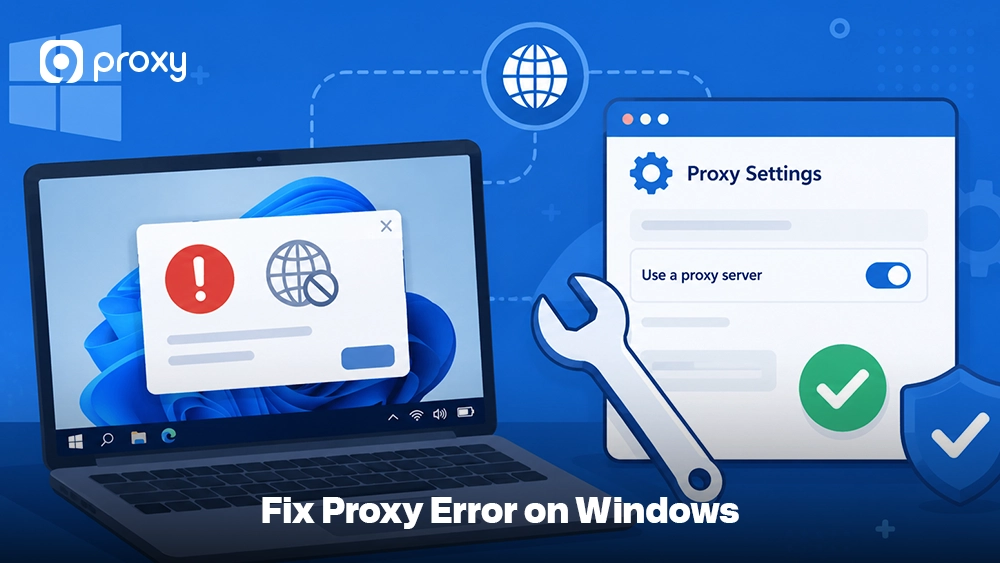
On Windows, proxy settings are located in the Network & Internet menu. You can apply a quick Fix Proxy Error method by following these steps:
- Go to Settings → Network & Internet → Proxy
- Make sure “Automatically detect settings” is turned on if you are not using a manual proxy
- If you are using a manual proxy, double-check the IP address and port
- Turn “Use a proxy server” off and then on again to refresh the connection
Fix Proxy Error on Mac
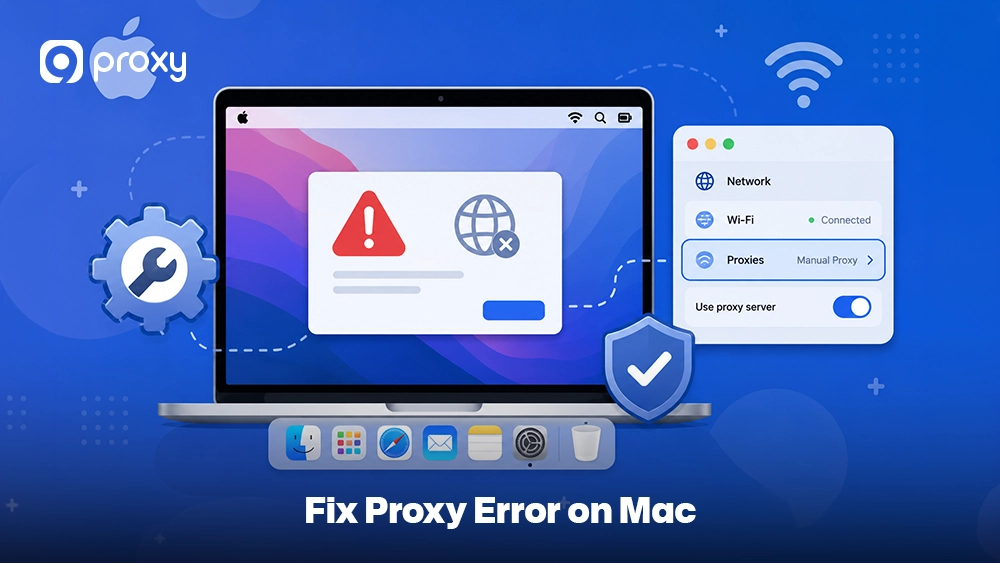
For Apple users, the process is slightly different but still simple. You can manage proxy settings through System Settings and apply a quick Fix Proxy Error solution if needed.
- Go to System Settings → Network
- Select your active connection (Wi‑Fi or Ethernet) and click Details
- Open the Proxies tab
- Uncheck any active proxies to test the connection, or re-enter your credentials to fix authentication issues
Fix Proxy Error on Mobile Device
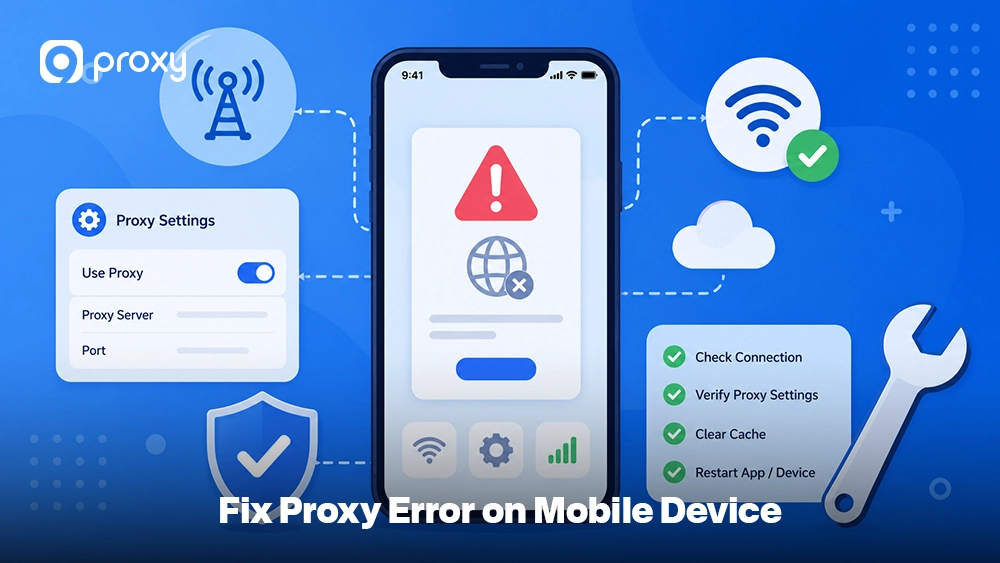
On mobile devices, proxy settings are usually linked to each Wi‑Fi network instead of the entire system. You can apply a quick Fix Proxy Error method by checking these settings.
- Open Wi‑Fi settings on your iPhone or Android
- Tap the info icon next to your connected network
- Scroll to Configure Proxy or Proxy Settings
- Set it to Manual to check your IP and port, or switch it to Off if you are having connection issues
How to Prevent Proxy Errors in the Future
Preventing issues is always easier than fixing them later. By following a few simple practices, you can reduce the chances of needing a Fix Proxy Error solution when your connection matters most. Taking a proactive approach helps you maintain a stable and reliable browsing experience.
Use reliable proxy providers
Low-quality or free proxies often lead to frequent errors and unstable connections. Choosing a trusted provider like 9Proxy can improve performance and reduce interruptions.
Monitor your proxy performance regularly
Pay attention to connection speed and stability, as sudden slowdowns may indicate potential problems. You should also rotate proxy IP addresses when needed, since using the same IP for too long can increase the risk of blocks.
Make sure your authentication is configured correctly
If possible, use IP whitelisting instead of login credentials, as it tends to be more stable. Besides, test your connection regularly, such as once a week, to confirm your proxies are still working properly and delivering good speed.
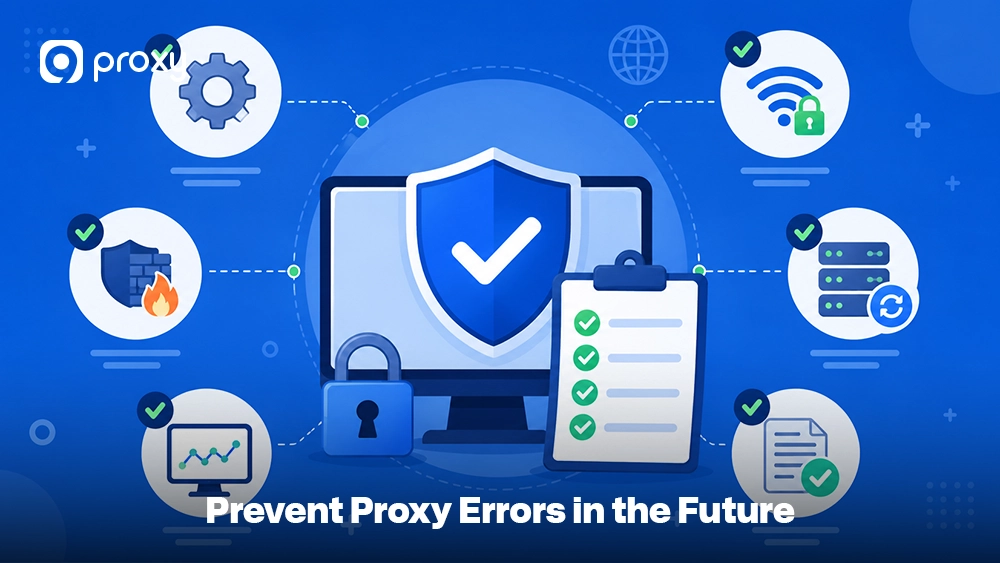
Using trusted proxy services also helps reduce connection problems over time. Reliable proxy providers such as 9Proxy can help reduce connection failures by offering stable residential IPs and better uptime across different regions.
FAQs
How to Know if Your Proxy Server Is Working Properly
To check if your proxy is working, visit a site like WhatIsMyIP.com. If the IP address and location shown are different from your real network and match your proxy, it means your proxy is working correctly. This is also a quick way to confirm a successful Fix Proxy Error solution.
Are there any browser extensions that could be causing the “The proxy server isn’t responding” error?
Yes, some extensions like free VPNs or ad blockers can change your proxy settings without you knowing. Try turning them off one by one and check if the error disappears. This simple step can often help you fix proxy error problems quickly and perform a basic Fix Proxy Error process.
What if I encounter the error on all browsers?
If the error happens on all browsers, the issue is likely in your system settings, not the browser. Check your proxy settings in Windows or Mac. Fixing them there is an important step in any Fix Proxy Error method, and it helps you fix errors in proxy server issues more effectively.
Are there any tools to diagnose proxy errors?
Yes, Windows has a built-in tool called Network Troubleshooter that can find and fix basic problems automatically. Some proxy tools also have auto-test features to help detect issues and apply a quick fix proxy error solution when needed.
Conclusion
Fixing proxy issues can be simple if you follow the right steps. By checking your settings and understanding error codes, you can quickly find the cause and apply an effective Fix Proxy Error solution or fix proxy error problems without much difficulty.
For better long-term performance, it is important to use reliable proxies and monitor your connection regularly. If you want a smoother and more stable experience, consider using high-quality proxy services to reduce errors and improve speed. For more troubleshooting guides, setup tutorials, and proxy networking explanations, you can explore additional resources on Blog9Proxy.