

Have you ever seen your PS4 ask for a proxy server and wondered why? Or maybe you're curious about how a PS4 Proxy Server could make your gaming better? A proxy server works like a bridge between your PS4 and the internet. It helps reduce lag, keeps your connection more stable, and adds extra security while you're playing online.
Most of the time, your PS4 asks for a proxy because your internet connection isn’t stable or your system settings need it. Today, 9Proxy will explain clearly what a PS4 proxy server is, why you might need to enter an address for a proxy server PS4, and how it can help you access disabled content, download faster, and stay safe while gaming.
What is a Proxy Server on PS4?
A PS4 Proxy Server is an intermediary that sits between your PS4 and the internet. Instead of connecting directly, your traffic goes through the proxy: PS4 → Proxy Server → Internet. This setup hides your real IP address, adds privacy, and can improve performance.
By routing through a different server, a proxy can help reduce lag, open up geographical limitations content, and keep your connection more secure. In short, using a proxy server for PS4 can give you smoother gameplay, better access, and safer browsing, similar to the performance benefits seen when using a proxy server ps5 for next-generation consoles.

Why is My PS4 Asking for a Proxy Server?
If your PS4 suddenly asks you to enter a proxy server address, it can be confusing. This usually means your console is trying to find a better or more stable way to connect to the internet. Below are some common reasons why this might happen:
Unstable Internet Connection
If your PS4 can’t detect a steady and reliable connection, it may suggest using a proxy server. This often happens when your Wi-Fi signal is weak or drops in and out, causing the system to look for another, more controlled way to connect.
Outdated Firmware
Just like any modern device, your PS4 needs regular firmware updates to run properly and connect well with current internet standards. If the firmware is outdated, your console might face connection problems and mistakenly ask for a proxy server.
Outdated Router Firmware
Your router also needs to be up to date. Old router software can affect all devices in your home, not just the PS4. If the router isn’t updated, it may have trouble handling internet traffic, which could lead your PS4 to request a proxy connection.

Benefits of Using a Proxy Server for PS4
Setting up a PS4 proxy server offers several useful benefits, from making your online gaming smoother to protecting your console. A proxy works as a middle step between your PS4 and the internet, handling the data from your gaming activities. This setup not only helps keep your online identity safer but also improves how well your connection performs when gaming.
Here are the benefits of using a proxy server with your PS4
- Enhanced Gaming Experience: The proxy sends your PS4’s data through a faster route to the game server. This can improve connection speed, which is crucial in fast-paced online games.
- Smooth Gameplay: A proxy can reduce latency and lower ping, especially when the game server is far from your location. This helps avoid lag and keeps gameplay running smoothly.
- Improved Online Privacy: The proxy hides your actual IP address, helping protect you from hackers and reducing the chance of being targeted during online play.
- Access to Geographical limitations Content: If a game is only available in certain countries, a proxy lets you connect through a server in that region.
- Reduced Lag: A proxy helps stabilize your connection by reducing jitters, which means less lag and more consistent performance while gaming.
In many professional or organizational setups, gamers may also use an enterprise proxy server to manage multiple connections simultaneously and maintain stable bandwidth allocation across devices. Similar configurations have long been used with older consoles, including setups involving a PS3 proxy server, where traffic control and IP management were already common practices.

Address for Proxy Server PS4 – What You Need to Know
When setting up a PS4 Proxy Server, the “address” is the critical piece of information that tells your console where to send its internet traffic. It is more than just a single number; it’s a combination of key data points.
Understanding the Proxy Address Components
The essential details you need to know about the address for the proxy server PS4 are:
IP Address: This is the unique network identifier of the proxy server itself. For example, 123.45.67.89.
Port Number: This specifies the exact communication channel on the proxy server that your PS4 should use. Common ports include 8080, 3128, or 80.
Authentication: Many high-quality proxies, especially paid ones, require either a username and password or IP whitelisting (authorizing your home IP address) to ensure only you can use the service.
The typical format is often presented as IP Address:Port Number (e.g.,123.45.67.89:8080).
Obtaining Your Proxy Address
To use a proxy server on your PS4, you’ll need a proxy address, which you can get in a few simple ways depending on your setup. Below are two common methods for finding the right address to enter.
Commercial Provider Dashboard: If you purchase a service from a provider like 9Proxy, the IP address and port will be clearly displayed in your user dashboard after configuration.
Local Host Proxy: If you are using a proxy application running on your computer to share the internet connection, the address will be your computer’s local IP address (e.g., 192.168.1.XX).
Key Considerations
When entering the proxy address on your PS4, there are a few important technical details to keep in mind. These settings affect how well your connection works and whether your proxy setup runs smoothly.
- Ports: Ensure the port you use is open on your proxy server and firewall.
- Authentication: If your proxy requires a username/password, your PS4’s manual setup will prompt for it.
- NAT Type: While a proxy can help, remember that your overall NAT type is also dependent on your router’s configuration.
How Do I Set Up a Proxy Server on PS4?
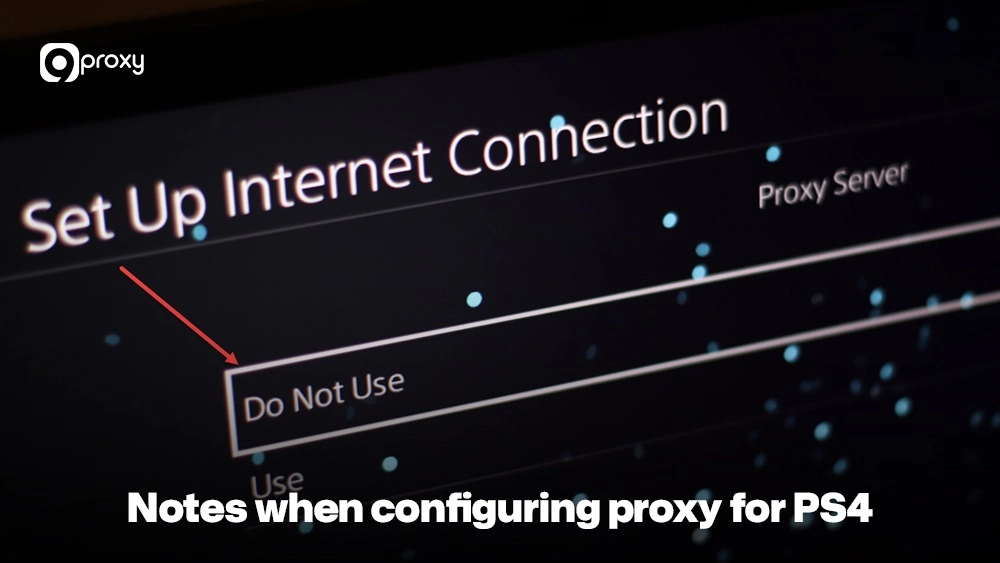
Setting up a PS4 Proxy Server can be done in two main ways, depending on whether you are using a dedicated proxy service or sharing a connection from your computer. If you’re unsure, check out this detailed guide on how to use proxy server ps4 to follow each configuration step more confidently.
Method A: Direct Manual Configuration on PS4
This is the standard approach for using a commercial proxy service.
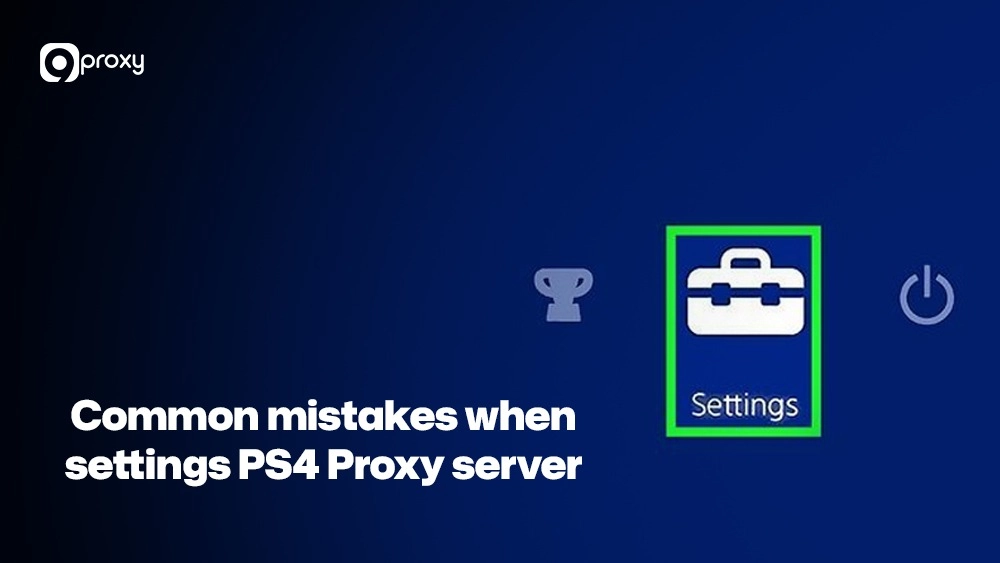
Step 1: On your PS4’s main menu, go to Settings (the toolbox icon).
Step 2: Select Network, then Set Up Internet Connection.
Step 3: Choose your connection method (Use Wi-Fi or Use a LAN Cable).
Step 4: Select the Custom setup method.
Step 5: Set the following options to Automatic for simplicity:
- IP Address Settings
- DHCP Host Name
- DNS Settings
- MTU Settings
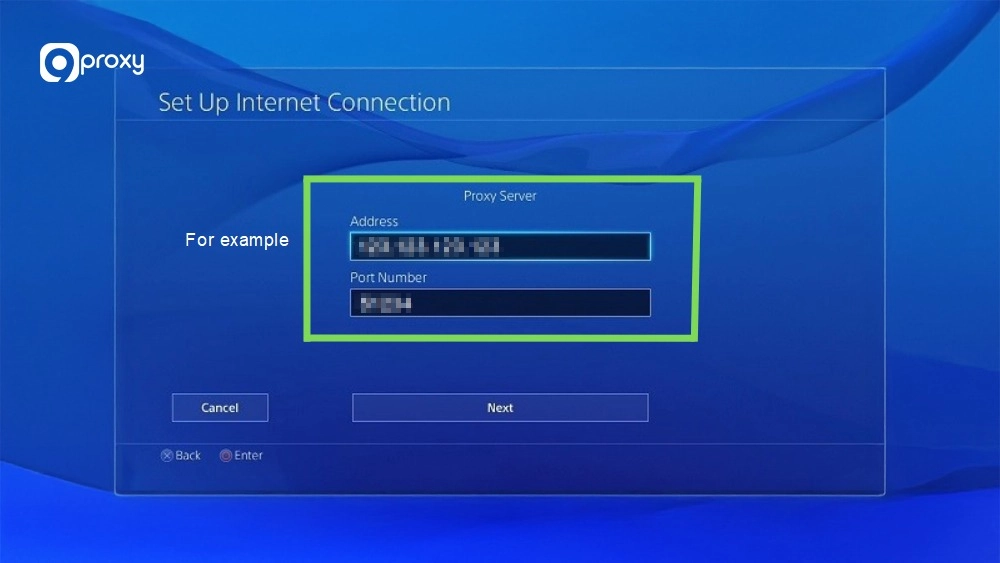
Step 6: When prompted for the Proxy Server, select Use.
Step 7: Enter the IP Address and Port Number of your PS4 Proxy Server (e.g., 123.45.67.89 and 8080).
Step 8: Select Next and Test Internet Connection to verify the connection is successful.
Method B: Sharing a Computer-Based Proxy
If you run a local proxy application (like CCProxy) on a PC or Mac, you can share that proxy with your PS4. The setup steps on the PS4 are the same as above, but the IP address you enter in Step 7 will be your computer’s local IP address on your network.
Quick Tips for PS4 Proxy Setup
To ensure the best possible performance when you use a proxy server on PS4, we suggest keeping these quick tips in mind:
- Use a Wired Connection: Whenever possible, use a wired LAN cable connection for your PS4. This provides the most stable and consistent network performance, minimizing connection drops and jitter.
- Choose the Closest Location: Select a proxy server location that is geographically close to your target game server or streaming service’s data center, not necessarily closest to you. This is crucial for obtaining the fastest proxy server for PS4 by minimizing latency.
- Monitor Performance: After setup, monitor your in-game performance. Check ping/lag, download rates, and packet loss to ensure the proxy is improving your experience.
- Ensure Proper NAT Type: For optimal online multiplayer, verify that your PS4’s NAT type is reported as Type 2 (Moderate) or Type 1 (Open), as some proxies may help stabilize this.
Avoid Common Mistakes
Setting up your PS4 Proxy Server can be simple, but a few common mistakes can cause issues. Here’s how to avoid them:
Using a Distant Proxy Server: Don’t choose a proxy server far from the game server. The longer the distance, the higher the lag, which cancels out the benefits of a faster connection.
Relying on Free/Shared Proxies: Free or public proxies are often overcrowded, slow, and unsafe. They’re not reliable for gaming, especially when downloading or logging into accounts.
Forgetting Credentials/Port: Always double-check the proxy IP address, port number, and login details (if required). Missing or incorrect info will stop the connection from working.
Not Testing the Connection: After setup, test your connection right away. Skipping this step can lead you to think the problem is with your game, when it’s really the proxy setup that needs fixing.
Fixing Proxy Server Error on PS4
Running into a proxy server error on your PS4 can be frustrating, but it’s usually something you can fix. These errors often come from setup mistakes, a disconnected proxy, or unstable internet. You can apply similar troubleshooting concepts when managing social media proxies since they share many of the same connection and authentication issues as gaming proxies.
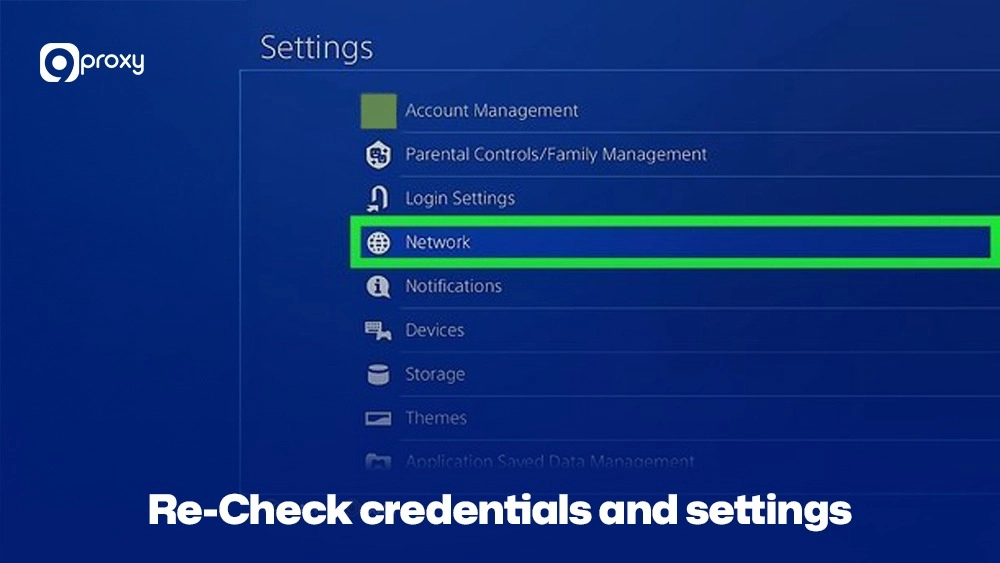
Step 1 – Re-Check Credentials and Settings
On your PS4, go to Settings > Network > Set Up Internet Connection > Custom, then carefully re-enter the proxy IP address and port number. Check each digit.
Step 2 – Verify Proxy Service Status
If you’re using a paid service like 9Proxy, log in to your dashboard to check if the specific PS4 Proxy Server you’re using is active and online.
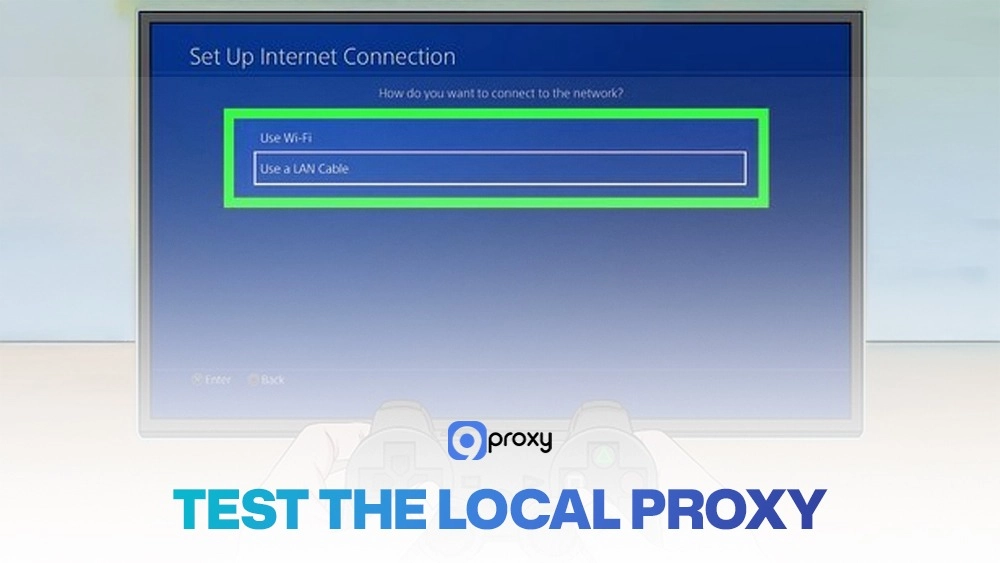
Step 3 – Test the Local Proxy
If you’re using a proxy app on your PC, make sure it’s running properly. Temporarily disable your PC’s firewall to see if it’s causing the issue. Just don’t forget to turn it back on after testing.
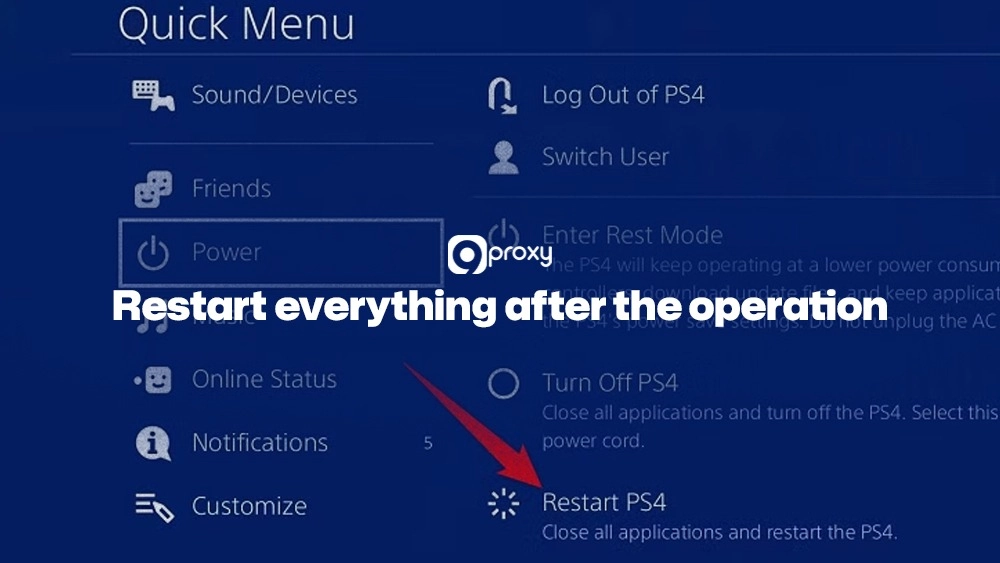
Step 4 – Restart Everything
Power down your PS4, router, modem, and proxy-hosting PC. Wait 60 seconds, then turn everything back on in this order: modem > router > PC > PS4. This often clears up hidden network conflicts.
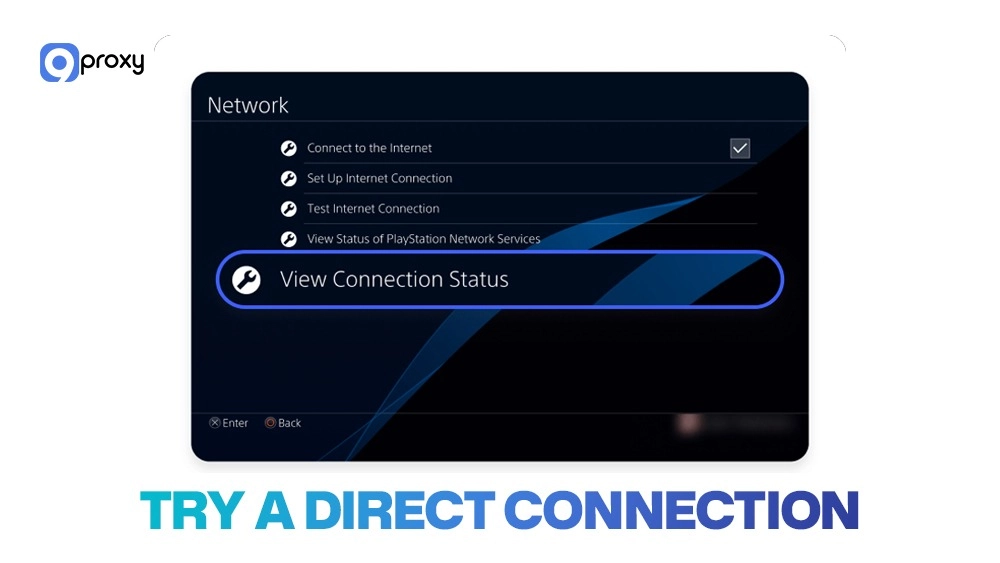
Step 5 – Try a Direct Connection
As a test, set your PS4 to “Do Not Use” a proxy. If it connects without issues, the problem is likely with the proxy setup, not your main internet connection.
How to Choose the Best Proxy Server for PS4?
Choosing the best proxy server for PS4 means focusing on low latency, fast throughput, and consistent uptime. These requirements align closely with what experienced players look for in a dedicated gaming proxy, where connection stability and response time directly affect competitive performance.
Must-Have Features for the Best PS4 Proxy
- IP Location: This is the most important factor. Your proxy server should be close to the game’s data center. The shorter the distance, the lower the delay (latency), which means smoother gameplay.
- Latency and Speed (Throughput): A good provider offers both low ping and fast data speeds. These help reduce lag during gameplay and make downloads quicker.
- Reliability/Uptime: Choose a proxy service that promises high uptime. A stable connection ensures your game doesn’t get interrupted in the middle of a session.
- Type of Proxy: Residential proxies are best for PS4. They use real home IP addresses, making them less likely to be disabled by game servers.
To find the best option, we recommend comparing important stats between providers. Below is a table that shows how we would test and measure different PS4 Proxy Server services.
|
Metric |
Measurement Method |
Ideal Result |
|
Latency (Ping) |
Ping the proxy server’s IP address from your local network. |
Under 50ms (Ideally under 20ms) |
|
Download Speed |
Use a PS4 browser speed test while connected to the proxy. |
It should be close to your ISP’s max speed. |
|
Packet Loss |
Run a continuous ping test (e.g., ping -t [IP]) for 5-10 minutes. |
0% Packet Loss |
|
Uptime |
Provider’s public Service Level Agreement (SLA) or a 7-day monitoring tool. |
99.9% or Higher |
This easy testing method helps you look past marketing hype and choose the best proxy server for PS4 based on real results. The fastest proxy server for PS4 is the one that gives you the lowest latency when connecting to your actual game server.
9Proxy – Best Proxy Provider for PS4
As network connectivity experts, we understand that serious gamers need stable, low-latency connections. That’s why 9Proxy offers proxy solutions built specifically for the demands of online gaming, making us a top choice when it comes to choosing a PS4 Proxy Server.
9Proxy delivers a high-quality, clean proxy pool with 100% real residential IPs from over 90 countries. These residential IPs are far less likely to be disabled by online platbangeforms or game servers compared to datacenter proxies.
Key Advantages of 9Proxy for PS4 Users
- Unlimited Bandwidth per IP: While many providers limit your data, 9Proxy gives you standalone IPs with unlimited usage, perfect for downloading large games, installing updates, and streaming on your PS4.
- Clean and Exclusive Proxy Pool: Our IP pool is private and not shared with other services. This greatly lowers the chance of being blacklisted or flagged for unusual activity.
- Affordable and Flexible Pricing: Starting from just ~$0.04 per IP. Plus, we provide trial packages during special events so you can test the service risk-free.
With 9Proxy, you get the reliability and speed needed to find the fastest proxy server for PS4, helping you reduce lag and access content from anywhere in the world.
Conclusion
A PS4 Proxy Server works as a helpful middle layer between your console and the internet, bringing real benefits to your gaming experience. It helps you pass over geographical limitations and keeps your connection stable with low latency. Setting up a proxy may seem technical, but if you follow the steps and tips we shared, the process becomes much easier.
The best proxy server for PS4 is the one that offers low latency and high reliability, which is why a trusted provider like 9Proxy is a smart choice. We recommend trying premium proxy services like 9Proxy to boost your online security and get a consistently faster proxy server for PS4 connection.