

When you use Wget Proxy for downloading files or scraping data, you might face limited requests, regional restrictions, or network limits. That’s why learning how to configure proxies for Wget is so important.
At 9Proxy, we understand that you often work inside restrictive networks, corporate firewalls, or environments where direct connections don’t always work. Using Wget with a proxy helps you stay connected, automate tasks smoothly, and avoid unnecessary interruptions. This article will show you everything you need to know: how to configure Wget to use a proxy server, how to set credentials for authenticated proxies, how to rotate proxies for bulk downloads, and how to fix common errors that slow down your workflow.
What Is Wget Proxy?
Wget is a simple but powerful command-line tool used for downloading files directly from the internet. It supports HTTP, HTTPS, and FTP protocols, making it useful for many technical tasks.
We often rely on Wget for automating downloads, collecting files from remote servers, or scraping public data in a structured way. It’s especially helpful when you need stable, resumable transfers, because it can continue downloads even if your connection drops.
Different Types Of Proxies Supported By Wget
Wget supports various proxy types to route your requests, and each one offers different advantages. By understanding these options, we can choose the setup that works best for each task.
- HTTP Proxy: This is the most common type and is used for normal web traffic. It works well for basic file downloads over non-secure connections.
- HTTPS Proxy: Similar to an HTTP proxy, but built for secure SSL/TLS connections. It encrypts the data between the proxy and the target server, giving you safer and more private communication.
- SOCKS Proxy: SOCKS proxies are more flexible because they can handle many types of traffic, not just web requests. SOCKS5, the latest version, is often used to pass over firewalls or geo-restrictions since it supports both TCP and UDP connections.
Benefits of Using Wget with a Proxy
Integrating a Wget Proxy into your workflow provides meaningful, practical, and security advantages. This setup helps us handle tasks that would normally be difficult or even impossible.
Getting around geographic limitations to access region-limited content
Using a proxy routes your Wget traffic through another region, making websites see your request as local. This lets you access content normally disabled in your country. It’s especially useful when working with region-specific data.
Anonymising your requests by masking your original IP address
A proxy replaces your real IP with its own, hiding your actual location. This makes it much harder for websites to identify or profile your source, which is especially useful when you need to change IP with a proxy during repeated downloads or automated tasks that would otherwise expose a single address.
Reducing tracking and improving privacy
When your real IP is hidden, websites struggle to track your activity. This reduces profiling and monitoring attempts. It adds a helpful privacy layer to your workflow.
Preventing IP bans during bulk downloads or scraping
Large volumes of requests from one IP can trigger prohibitions. Rotating through proxy IPs spreads out your traffic and avoids detection. This keeps your downloads or scraping tasks running without interruption.
Supporting automation by keeping tasks stable and uninterrupted
Proxies help scripts stay stable even when certain IPs slow down or get prohibited. You can switch to another IP to keep tasks moving. This ensures long-running jobs remain efficient and consistent.
How to Set Up Wget with a Proxy
This section covers practical steps to configure Wget for different types of proxy setups so you can choose the method that fits your environment.
Setting Up wget with an HTTP/HTTPS Proxy
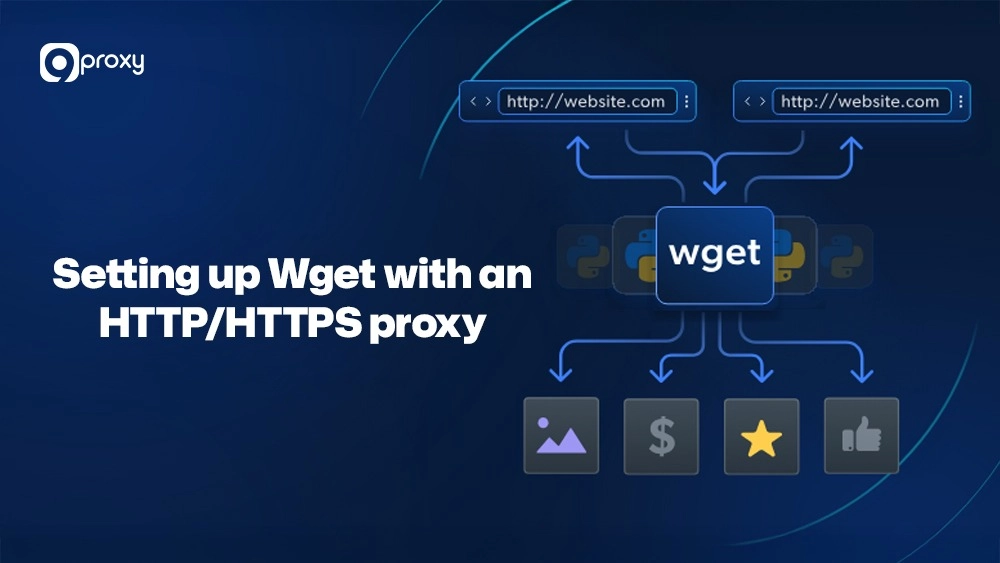
We can configure Wget to use an HTTP or HTTPS proxy by setting environment variables or adding command-line arguments. This is the simplest way to start working with a Wget proxy.
To set a proxy for your current session on Linux or macOS, use the export command and replace the example address and port with your actual proxy details:
# Sets an HTTP proxy for the current terminal session export http_proxy=”http://proxy.example.com:8080″ # Sets an HTTPS proxy for the current terminal session export https_proxy=”http://proxy.example.com:8080″ # Now run wget – it will use the set proxy wget http://example.com/file.zip
Alternatively, we can define the proxy directly in the command, including authentication details, without setting any environment variables:
# Using command-line options with a Wget proxy user/password wget –proxy=on –proxy-user=user –proxy-password=pass https://example.com/secure_file.zip
Note for Windows users: You should use the set command instead of export to set environment variables (e.g., set http_proxy=http://…). Using the command-line options with –proxy=on is also fully supported.
Using a SOCKS Proxy with Wget
It’s important to know that Wget, especially older versions, does not natively support the SOCKS protocol. If we need a SOCKS proxy, we typically have to use external tools or a specially compiled Wget binary.
External Tools (Recommended): We can use proxy clients like tsocks or proxychains to intercept Wget’s traffic and redirect it through the SOCKS proxy.
# Run wget through proxychains (after configuring proxychains.conf) proxychains wget http://example.com/file.html
SSH Tunnel: We can create a local SOCKS proxy using an SSH dynamic forward, and then set Wget’s environment variable to point to this local tunnel.# 1. Create a local SOCKS proxy on port 1080
ssh -D 1080 -N -f user@remote_server
# 2. Configure wget to use the local SOCKS proxy (requires SOCKS-supporting Wget)
export http_proxy=socks5://127.0.0.1:1080
wget http://example.com/data.txt
Pitfall: When using SOCKS, we must be careful of DNS leakage, where the DNS resolution happens locally instead of through the proxy. Tools like proxychains or compiling Wget with SOCKS support help ensure all traffic, including DNS lookups, is routed securely.
Rotating Proxy Servers with Wget for Bulk Downloads
For high-volume web scraping or bulk downloads, it’s critical to rotate proxies to avoid IP throttling or bans. A proxy pool can be leveraged by using a simple script to cycle through a list of proxy IP addresses.
Here is a simple Bash script snippet demonstrating how to use a list of Wget proxy servers:
PROXY_LIST=”proxy1.9proxy.com:8080 proxy2.9proxy.com:8080 proxy3.9proxy.com:8080″
URL_LIST=”url1.txt url2.txt url3.txt”
proxies=($PROXY_LIST)
urls=($URL_LIST)
i=0
for url in “${urls[@]}”; do
proxy=${proxies[$i % ${#proxies[@]}]}
# Set the http_proxy environment variable for the current iteration
export http_proxy=”http://$proxy”
# Run Wget with the current proxy
wget “$url”
i=$((i + 1))
done
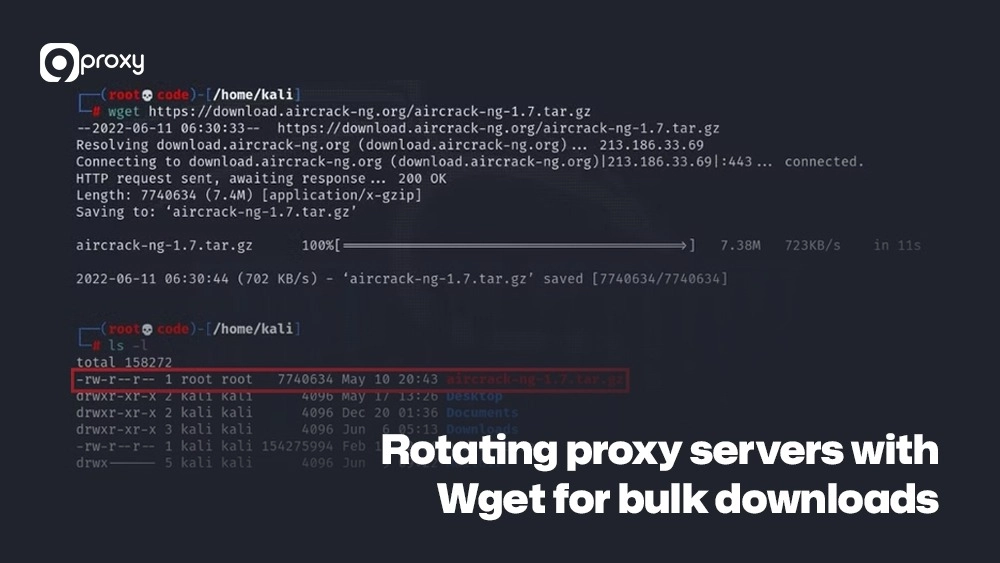
This use case ensures that scraping multiple URLs is done with different proxies, which greatly lowers the chance of being disabled by the target server. For better performance, we should add error handling and a back-off mechanism to the script so it can pause when a proxy fails before switching to the next one.
Troubleshooting Common Proxy Issues with wget
Encountering errors is normal when setting up a Wget proxy server. To help you troubleshoot quickly, we’ve created a simple guide that explains the most common issues, their causes, and how to fix them.
This table helps you quickly identify issues in your Wget setup and choose the correct fix.
| Issue / Error Message | Possible Cause | Fix |
| Connection refused | Wrong proxy host or offline server | Verify hostname and port, test with curl or ping. |
| 401 Proxy Authentication Required | Missing or incorrect credentials | Add –proxy-user and –proxy-password. |
| Couldn’t resolve host | DNS is not routed through a proxy | Use –dns-servers or enable DNS through proxy settings. |
| Access denied by upstream proxy | Firewall / corporate restriction | Request whitelisting or switch to another proxy. |
| Slow downloads | Proxy congestion or incorrect protocol | Try an HTTPS proxy or switch to a faster proxy server. |
When diagnosing Wget issues, we recommend running Wget with the -d (debug) flag. This shows each step Wget performs and helps you identify exactly where the connection is failing, making it easier to fix the problem.
How Wget Uses a Proxy: Basic Workflow
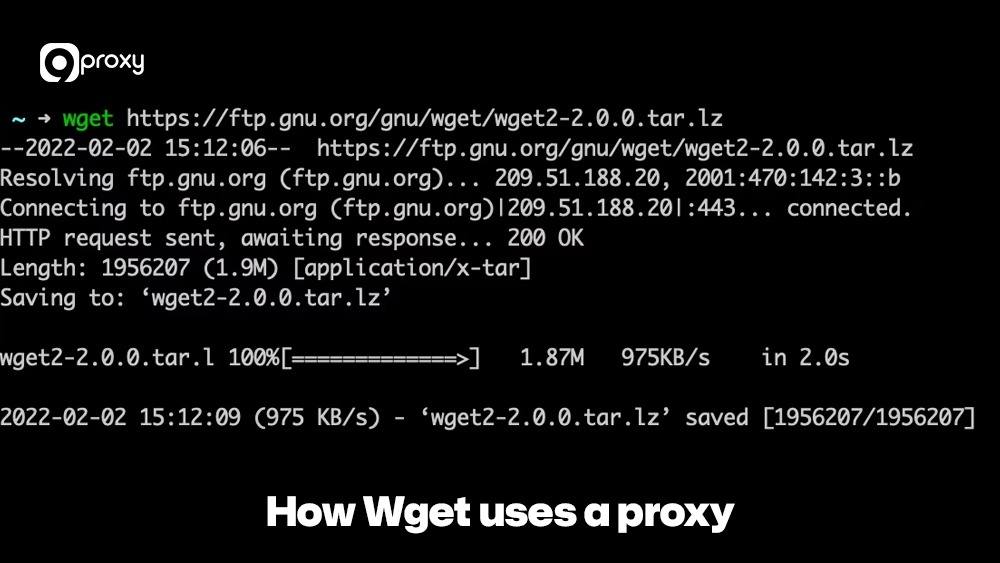
Wget works by sending its connection request to the proxy server you specify instead of going straight to the destination website. The proxy forwards that request and then sends the response back to Wget. There are two primary methods we use to configure Wget to utilise a proxy:
Environment Variables:
Wget automatically checks your system for variables such as http_proxy, https_proxy, or ftp_proxy. If these exist, Wget uses them for the matching type of traffic. This is the simplest way to apply proxy settings for your entire system or session, and it follows the same logic used in browser-level configurations like Chrome proxy settings, where traffic is routed through a defined intermediary before reaching the destination.
Command-Line Options:
We can also add flags like –proxy=on, –proxy-user, and –proxy-password directly in the Wget command. This lets us set proxy details only for a specific Wget operation without changing system-wide settings.
Using Proxies for Specific Use Cases with Wget
Using Wget with a proxy unlocks several practical use cases that make your workflows more efficient. When combined with a high-quality web scraping proxy, Wget becomes significantly more resilient to throttling and IP-based restrictions. Whether you’re scraping data, accessing region-restricted content, or testing proxy performance, this setup helps you work faster, safer, and with fewer connection issues.
Automating Web Scraping:
We can configure Wget with proxies to scrape data while greatly reducing the chance of IP disallowance. For data collection tasks, especially those similar to a LinkedIn web scraper or workflows that rely on AI endpoints such as a ChatGPT proxy, using a proxy helps keep requests consistent, distributed, and less likely to be flagged by automated systems.
Overcoming geographic access limitations:
By choosing a proxy in the region you want to access, Wget can reach content that is normally blocked in your location. This is helpful for viewing public content or testing how a website behaves in different regions.
Testing Download Speeds with Different Proxies:
Wget can also be paired with other scraping tools, including workflows that use web scraping Python, to benchmark proxy performance efficiently. By downloading a large file through each proxy, you can compare speed, latency, and reliability. This helps you pick the fastest and most stable proxy for your task.
Alternatives to Wget for Proxy Use
While Wget is powerful and highly dependable, it’s not the only tool that works well with proxies. Several other utilities offer different strengths and may be a better fit for certain workflows, especially when you need broader protocol support or more advanced features.
Using cURL with Proxies:
cURL is another widely used command-line tool. While Wget is great for recursive downloads and resuming transfers, cURL supports more protocols, handles advanced HTTP POST requests better, and has native SOCKS proxy support. We usually choose cURL for working with APIs and Wget for mirroring websites.
Examples:
# cURL with an HTTP proxy
curl -x http://user:[email protected]:8080 http://example.com/api
# cURL with a SOCKS5 proxy (native support)
curl –socks5 user:[email protected]:1080 http://example.com/api
Other Tools for Proxy-Based Downloading:
Utilities like aria2 also support proxies and can split downloads into multiple segments for faster speeds. For users who prefer a graphical interface, many GUI-based download managers offer simple proxy configuration, and tools such as nstbrowser provide an additional option for managing identities and maintaining stable sessions. These alternatives can be useful when you need a more visual or browser-based workflow.
9Proxy – Fast & Reliable Proxy Provider for Wget and Command-Line Tools
For all your command-line proxy needs, 9Proxy provides a fully compatible and high-quality solution. Our service delivers real residential proxies with stable uptime and strong anonymity, making them ideal for data-heavy workloads.
Key Advantages of 9Proxy for Your Wget Needs:
- 100% Real Residential Proxies: We offer more than 9 million IPs from real users in over 90 countries, giving you broad and reliable global coverage.
- Clean and Private Proxy Pool: Our proxy pool is not shared with other providers, which greatly lowers the chance of IP blacklisting during scraping or automation tasks.
- Unlimited Bandwidth Per IP: Perfect for activities like scraping and bulk downloads, since we charge by IP rather than by bandwidth (GB).
- Affordable Pricing: Plans start at only ~$0.04 per IP, offering strong value compared to typical market options.
- Crypto Payment Perks: When paying with cryptocurrency, you receive an additional 5% bonus IPs at no extra cost.
FAQ
How can I verify that Wget is using the correct proxy?
The easiest way is to use Wget to download a file from a service that shows your visible IP address, like ifconfig.me or ipinfo.io. If Wget is configured correctly, the reported IP will be that of your Wget proxy.
How do I use Wget with a proxy that requires authentication?
You can include the username and password directly in the environment variable or use the command-line flags, such as export http_proxy=”http://username:[email protected]:8080″ or wget –proxy-user=user –proxy-password=pass ….
Can Wget automatically switch proxies when one is limited?
Wget itself does not have a native feature to automatically rotate or switch proxies upon failure. However, as demonstrated above, we can achieve this functionality by using a custom script (e.g., in Bash or Python) that loops through a list of Wget proxy servers and updates the environment variables before each request.
Can Wget download multiple files at once through a proxy?
Yes, Wget can download multiple files. We can list all URLs in a file and use the -i (input file) flag. If a proxy is configured (via environment variable or in the command), all these downloads will be routed through the set proxy.
Conclusion
Using a Wget Proxy is the most effective way to ensure your automated and bulk downloads are private, efficient, and successfully get around network restrictions. This article has covered everything from simple environment variable setup to advanced proxy rotation and critical troubleshooting steps.
By following our guidelines, you can now confidently integrate a proxy into your Wget workflow. To get the best speed and reliability for your needs, we encourage you to explore the stable and feature-rich residential proxy solutions offered by 9Proxy.