

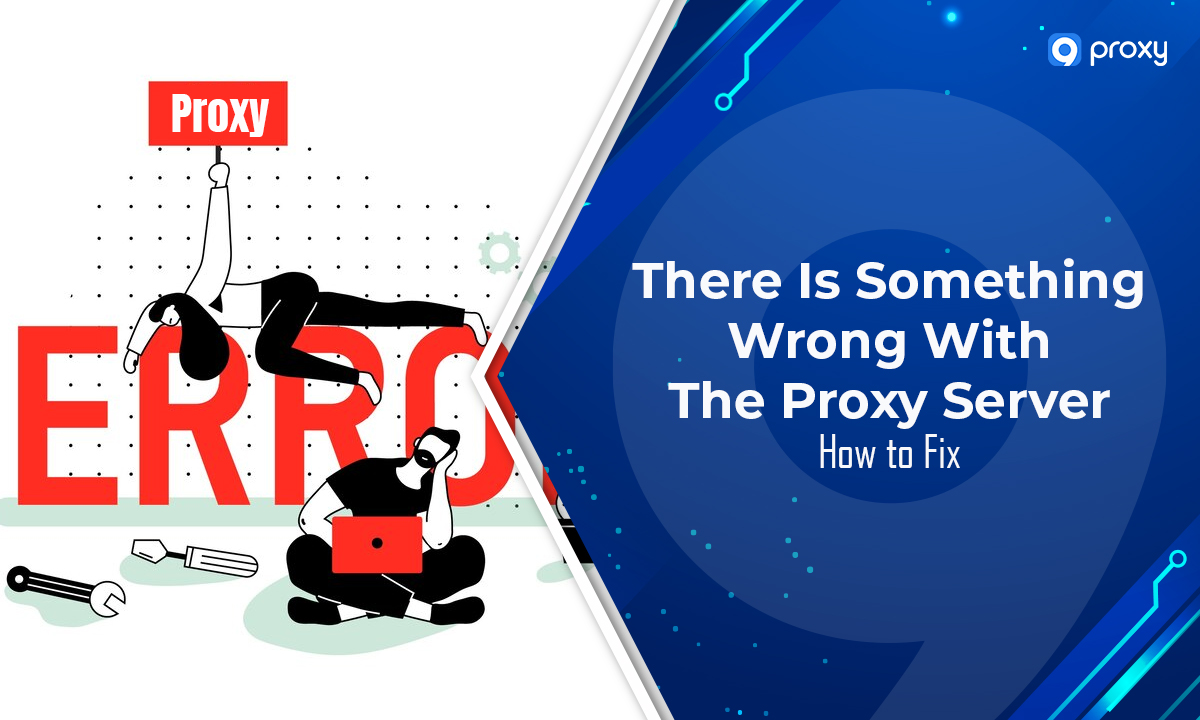
The "There Is Something Wrong With the Proxy Server" error can disrupt your online activities. At 9Proxy, we understand the importance of a smooth internet experience. That's why we've crafted this blog to help you swiftly diagnose and resolve this common but perplexing issue. With our expert advice and simple solutions, you'll be back to your online endeavors in no time, armed with the knowledge to prevent future disruptions.
Causes of The “There Is Something Wrong With the Proxy Server” Error
When you encounter the error message “There is something wrong with the proxy server,” it can be due to several reasons. Understanding these reasons can help you troubleshoot and resolve the issue effectively. Here’s a simplified and clear explanation:
- Incorrect Proxy Settings: Sometimes, the settings for the proxy server on your device or within a specific application might not be configured correctly. This means that the information needed to connect to the internet through a proxy server is either wrong or missing.
- Proxy Server Outage: The proxy server, which acts as an intermediary between your device and the internet, might be temporarily down or having connectivity issues. This could be due to various network problems.
- Interference from Firewall or Antivirus Software: Security programs like firewalls or antivirus software on your device might be preventing a connection to the proxy server. These programs can sometimes misinterpret the proxy server as a security threat.
- Corrupted Files or Settings: At times, important system files or network settings on your device can become corrupted. This corruption can disrupt the normal functioning of your network connections, including to proxy servers.
- ISP or Network Restrictions: Your Internet Service Provider (ISP) or the administrator of your network might have set restrictions that block the connection to the proxy server. This is often done for security or policy reasons.
- Outdated Software: If your web browser or operating system is not up to date, it may not be compatible with the current requirements of the proxy server. Regular updates are important for ensuring compatibility and security.
- Authentication Issues: Proxy servers often require a form of authentication (like a username and password). If these credentials are not provided correctly, or if the format is wrong, the connection will fail.
- Temporary Glitches: Sometimes, short-lived network errors or glitches in your device can cause temporary issues with connecting to a proxy server. These are often resolved by simply waiting or restarting your device.
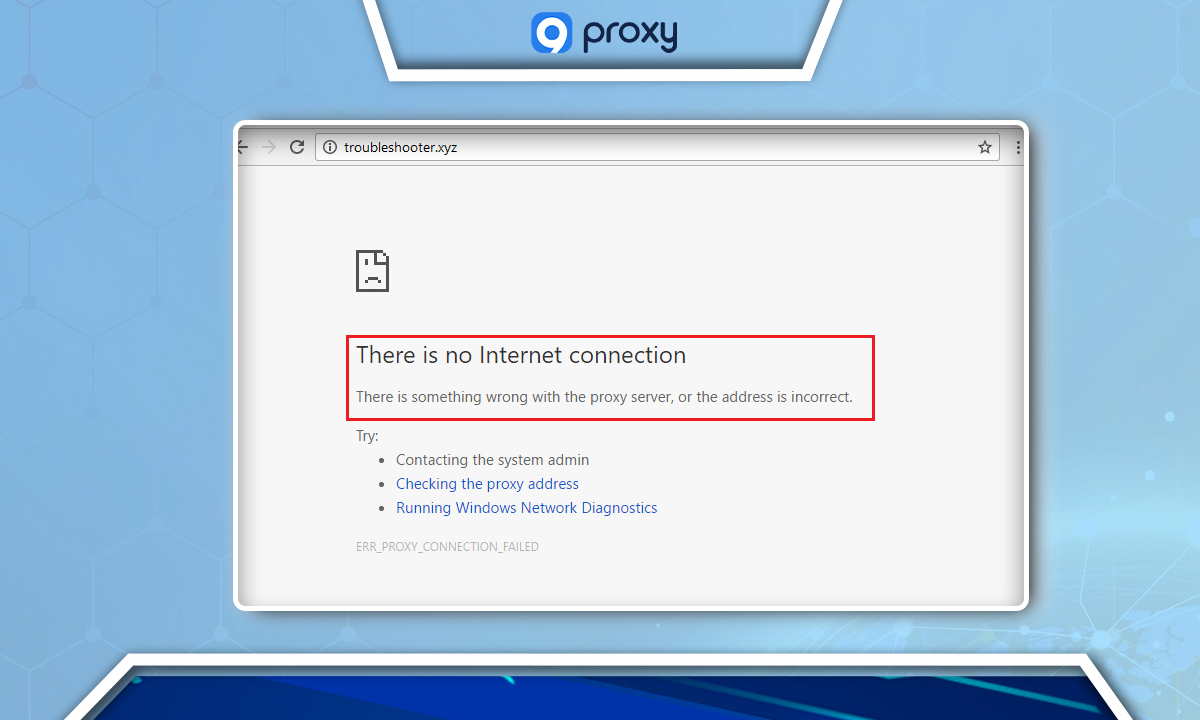
How to Fix the “No Internet. There Is Something Wrong With the Proxy Server” Error
Encountering a “No Internet” error related to a proxy server can be frustrating. This guide provides clear, step-by-step solutions to resolve this issue, suitable for both beginners and more experienced users.
Check If The Connection Is Stable
First, ensure your internet connection is reliable. If using Wi-Fi, check the router’s status and position it in an elevated, clear space for better signal. Also, try enabling and then disabling Airplane Mode on your device to refresh the connection. Additionally, test different browsers (like Safari, Firefox, or Edge) to see if the issue is browser-specific.
Restart Your Device
A simple restart of your computer can often resolve temporary glitches, including those related to proxy servers. This refreshes the system memory and can clear up minor software conflicts.
Check Your Antivirus or Firewall
Security software, vital for protecting your computer, can sometimes interfere with your internet connection. Temporarily disable your antivirus or firewall to see if it resolves the issue. Here’s how to disable Windows Security’s real-time protection:
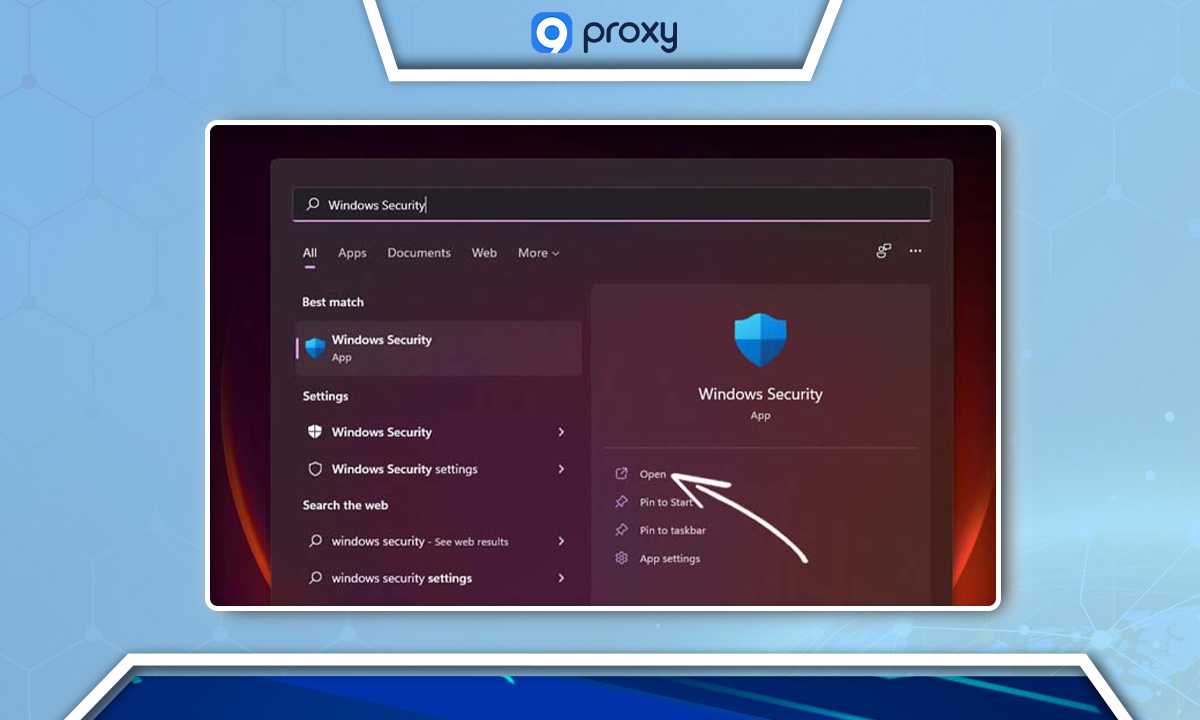
Open Windows Security from the Start menu.
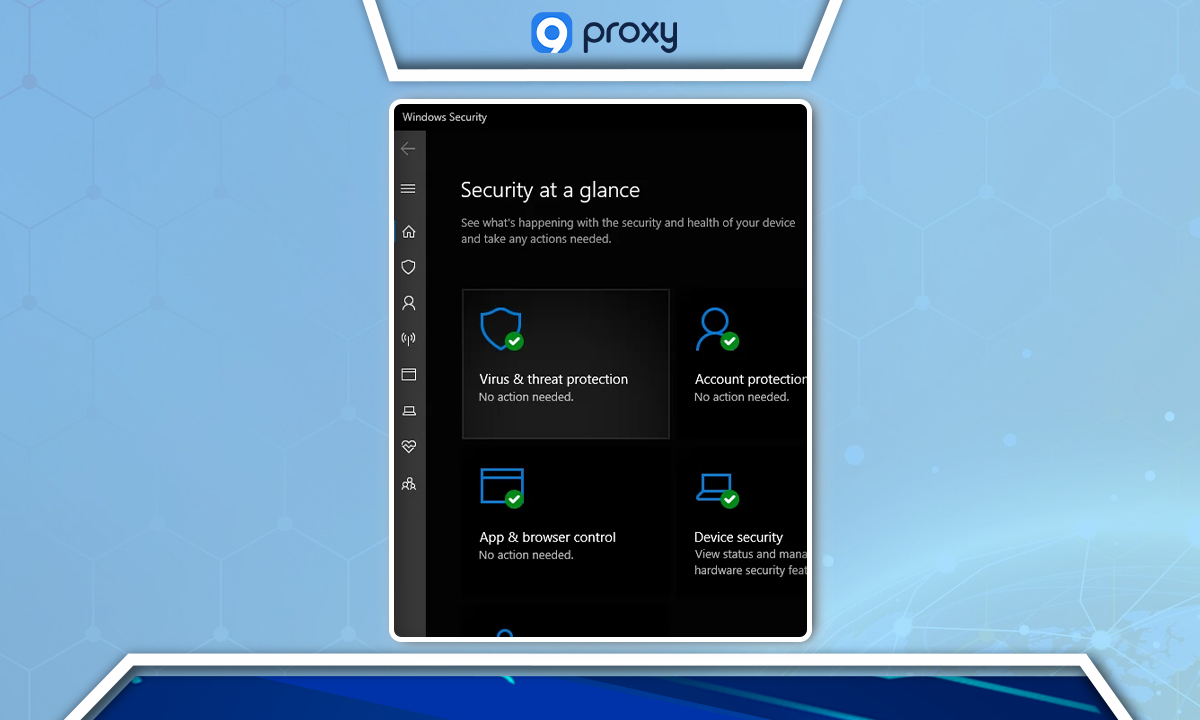
On the Windows Security screen, then select Virus & threat protection.
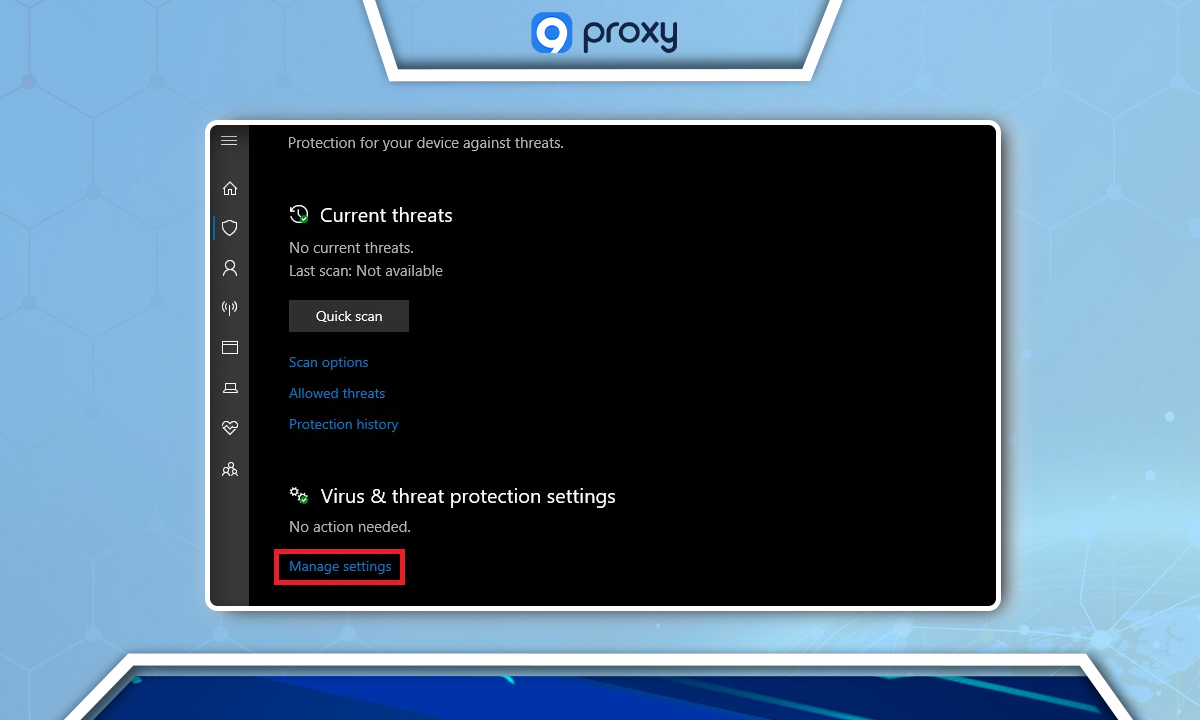
Select Manage settings.
Slide the switch to disable real-time protection. Upon doing so, a User Access Control prompt will appear, inquiring whether to allow Windows Security to modify your device. Select “Yes” to proceed.
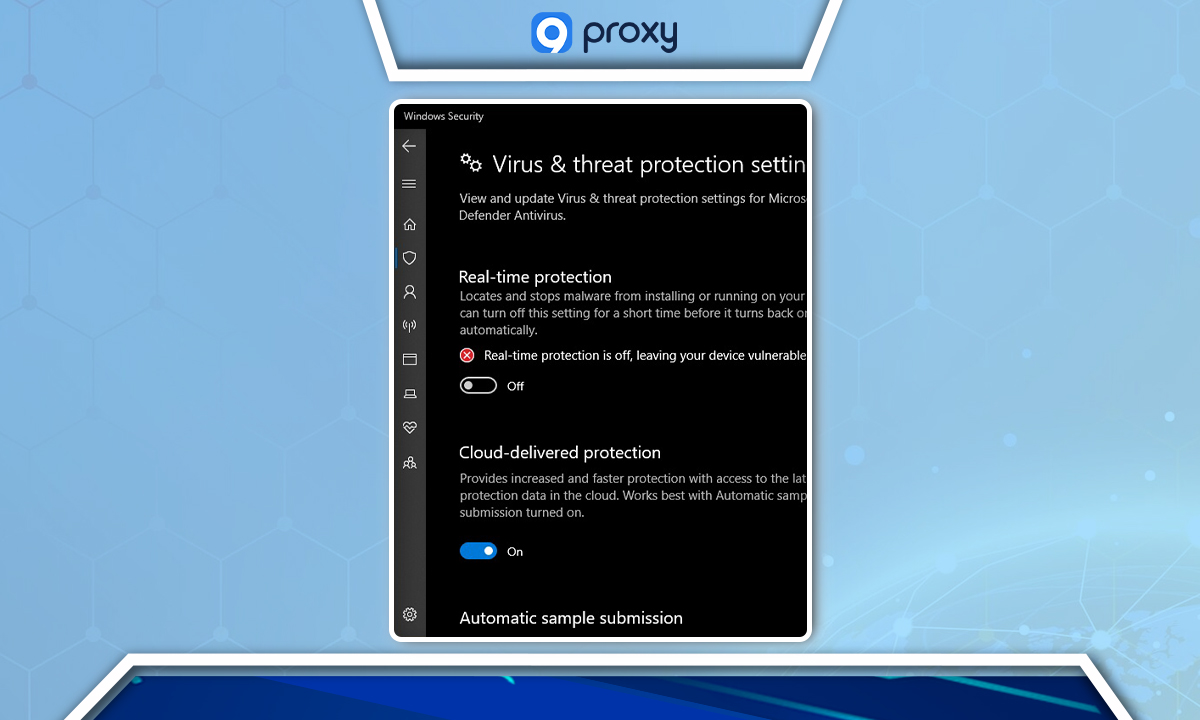
Disable Your Antivirus
If you’re using third-party antivirus software, consider disabling it briefly. Remember to re-enable it after troubleshooting to maintain security. If this step resolves the issue, adjust your antivirus settings to prevent future conflicts with network traffic.
Checking Your Proxy Settings
Incorrect proxy settings can cause connection issues. Try reverting to default settings:
Open ‘Internet Options’ from the Start menu.
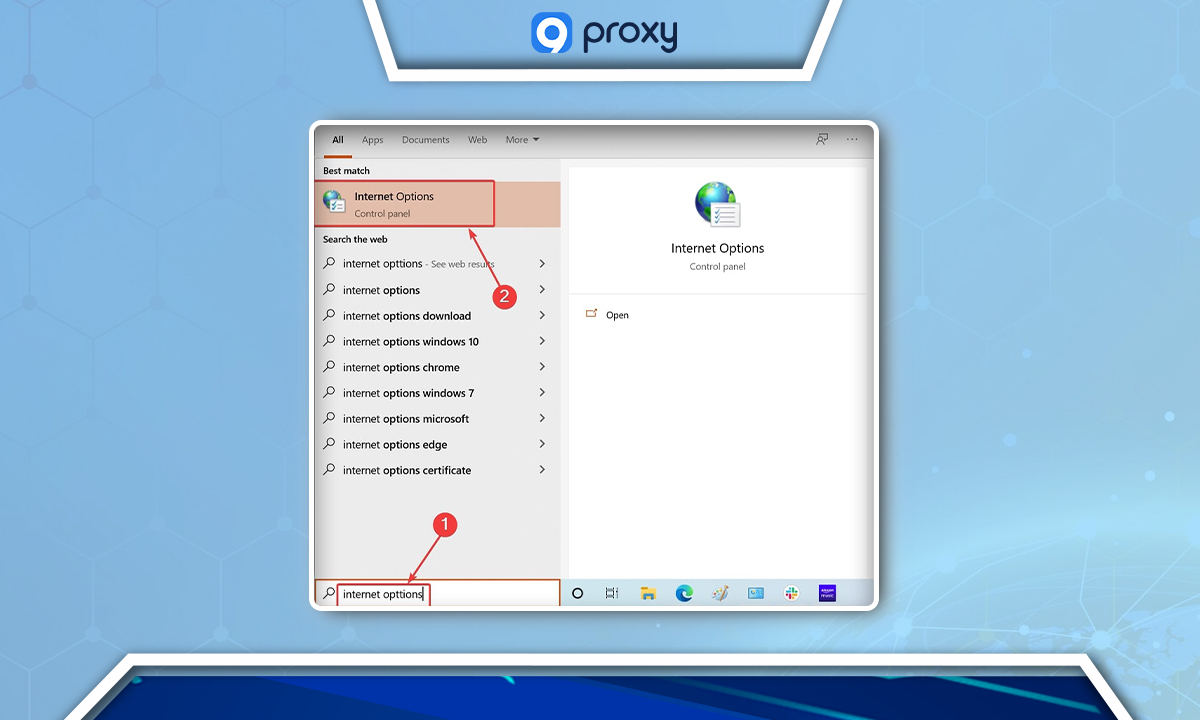
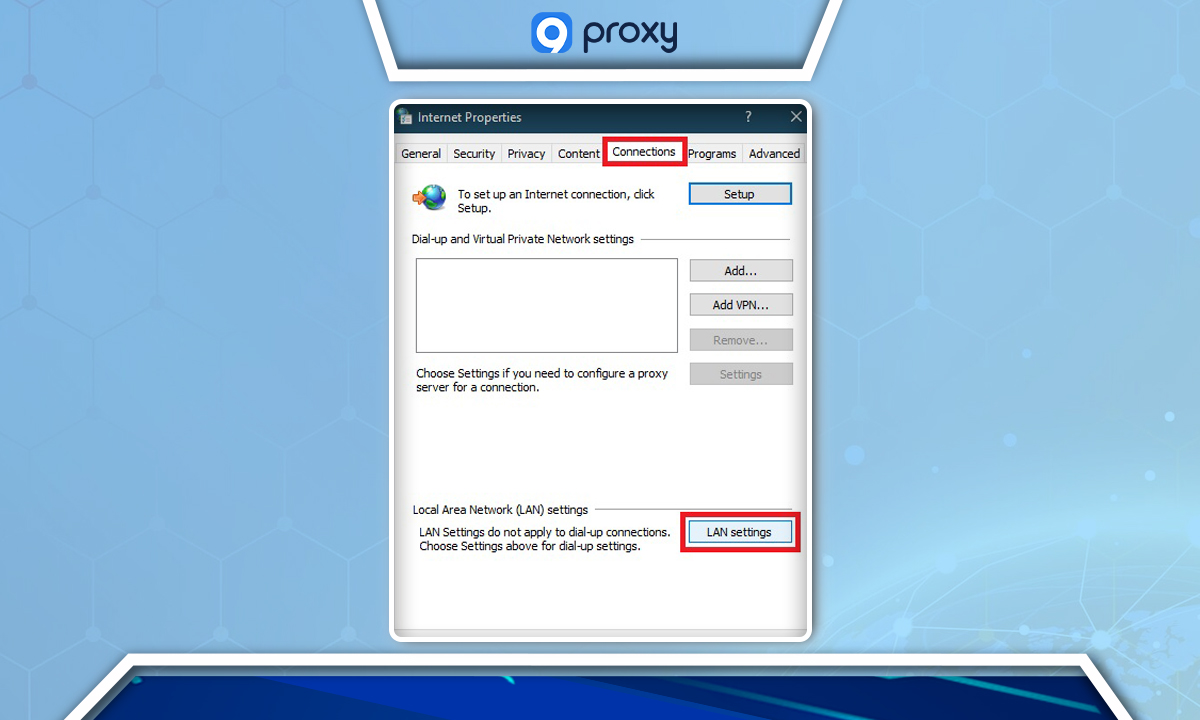
Go to the ‘Connections’ tab and click ‘LAN settings’.
Check ‘Automatically detect settings’ and uncheck ‘Use a proxy server for your LAN’.
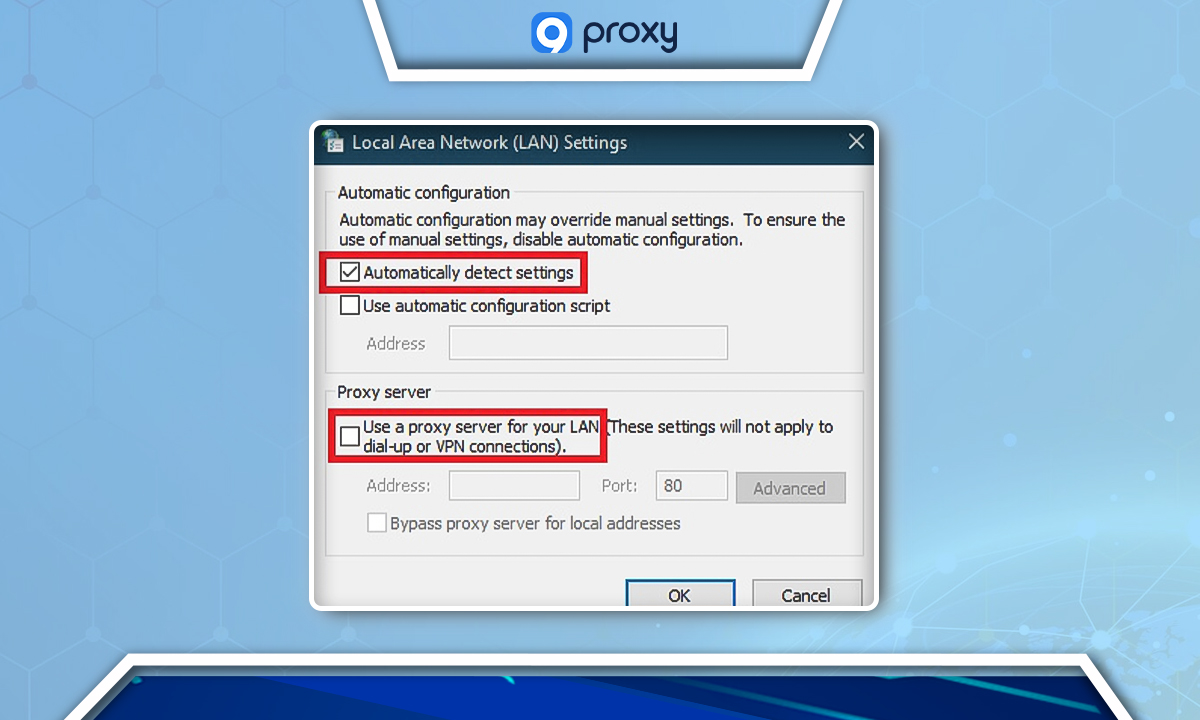
Save changes by clicking OK.
Adjusting Your Proxy Configuration Through the Registry Editor
Altering the Windows registry is more technical but can be effective. Proceed with caution:
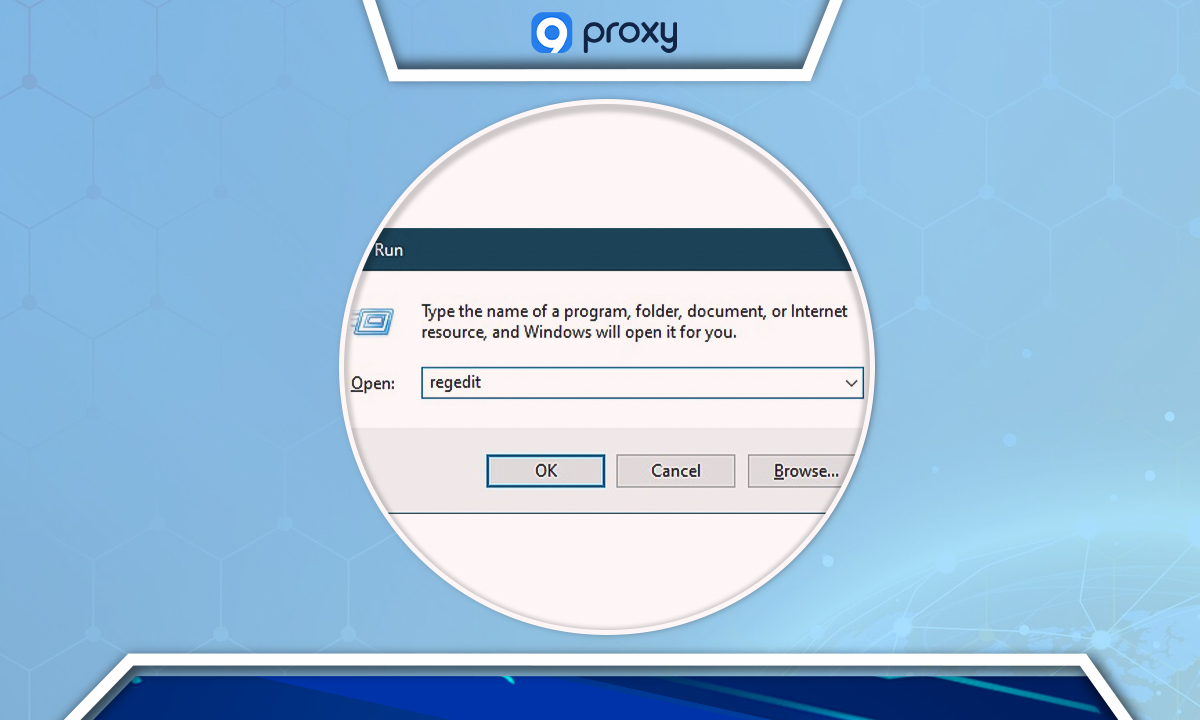
Open the Run dialog (Win + R), type ‘regedit’, and press OK.
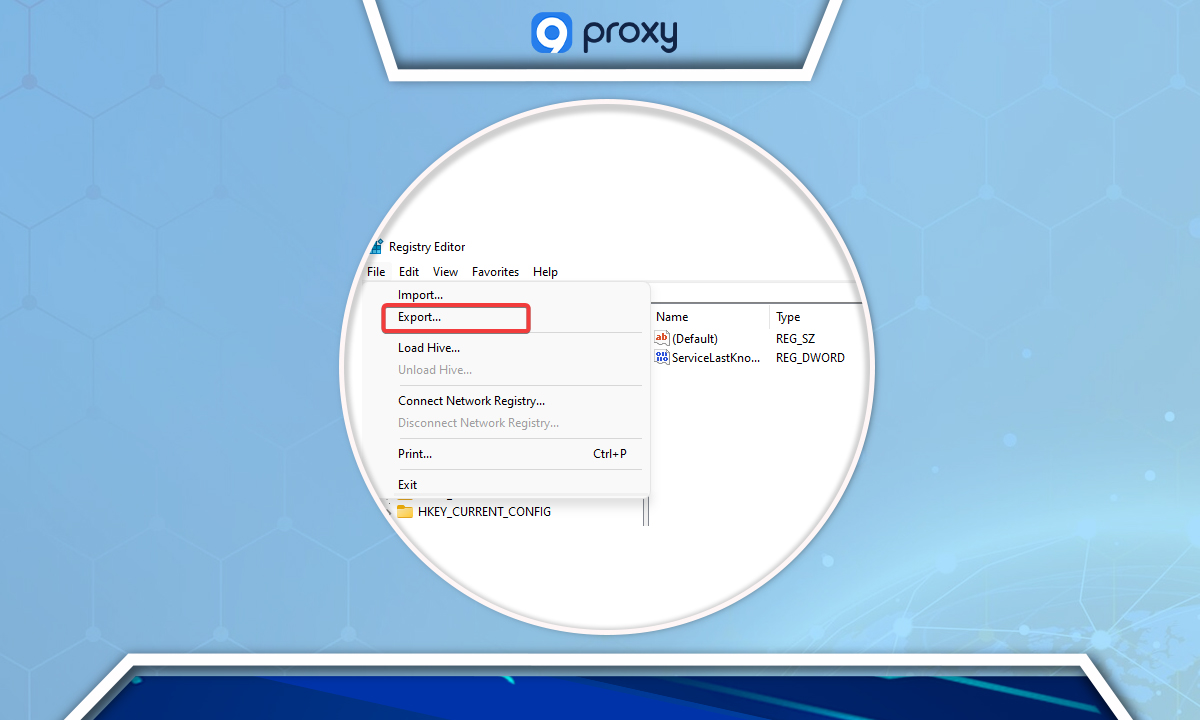
Backup your registry: ‘File’ > ‘Export’.
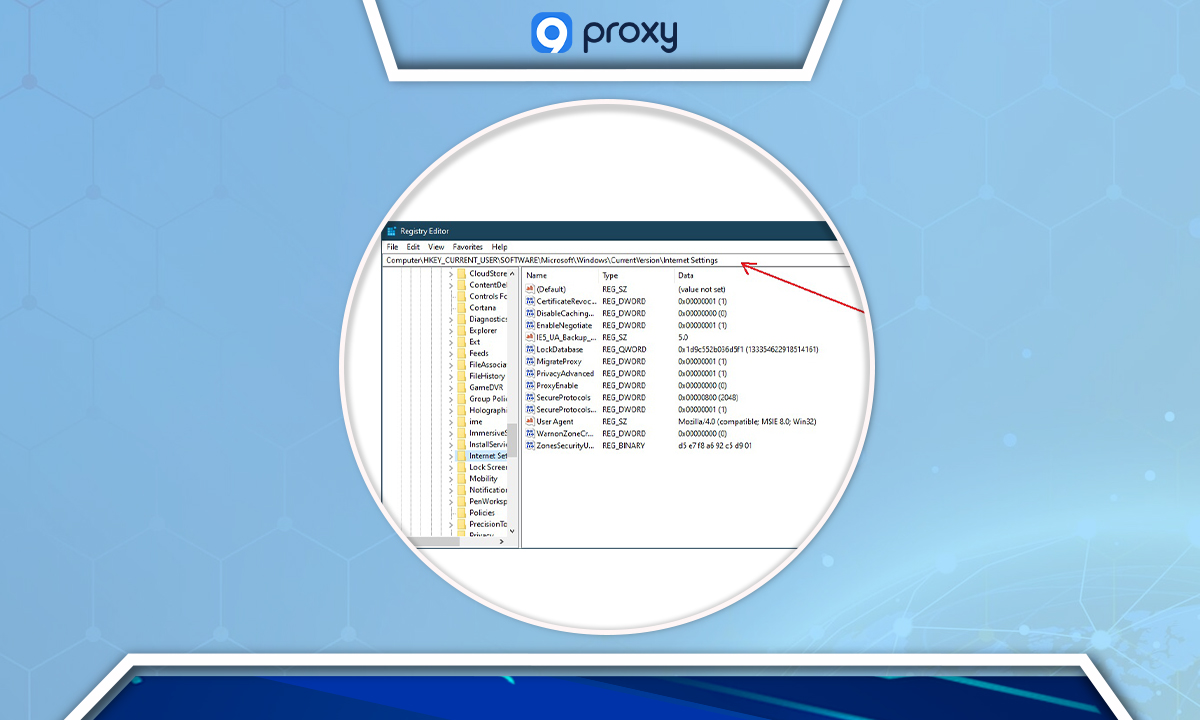
Navigate to Computer\HKEY_CURRENT_USERSoftware\Microsoft\Windows\Current\Version\Internet Settings.
Delete the values: Proxy Override, Migrate Proxy and Proxy Enable.
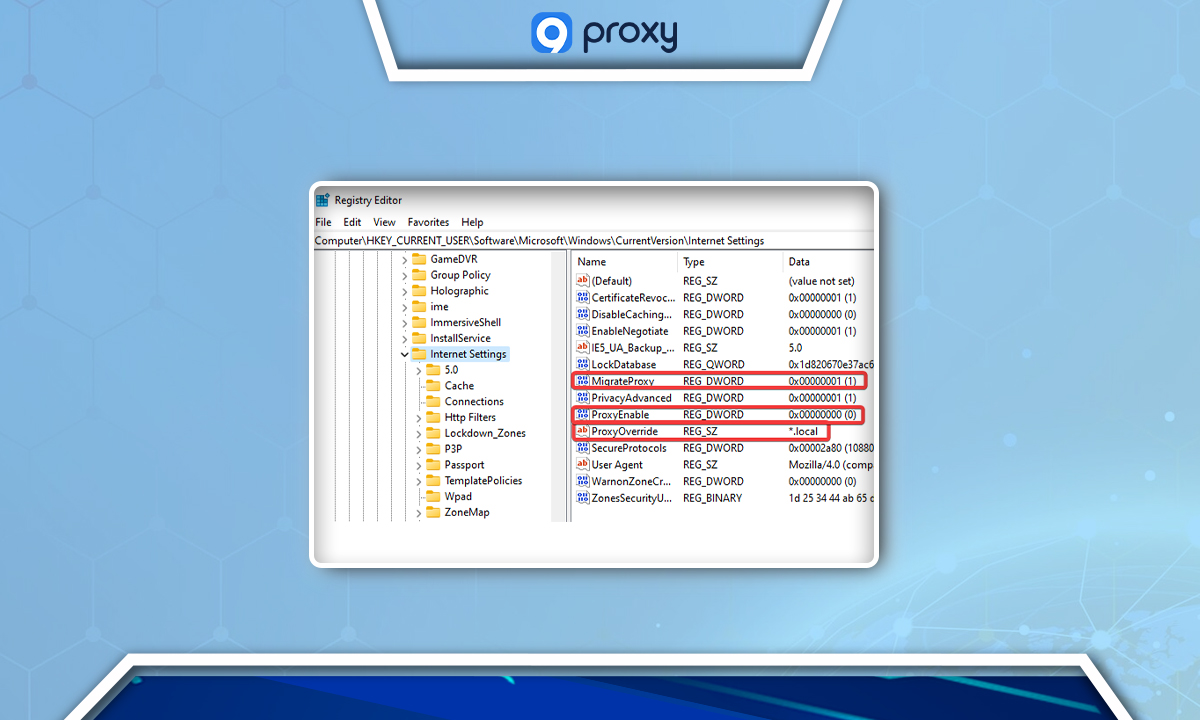
Restart your PC and check for changes.
Reset Google Chrome (or the browser you are using)
Resetting your browser to its default settings can help:
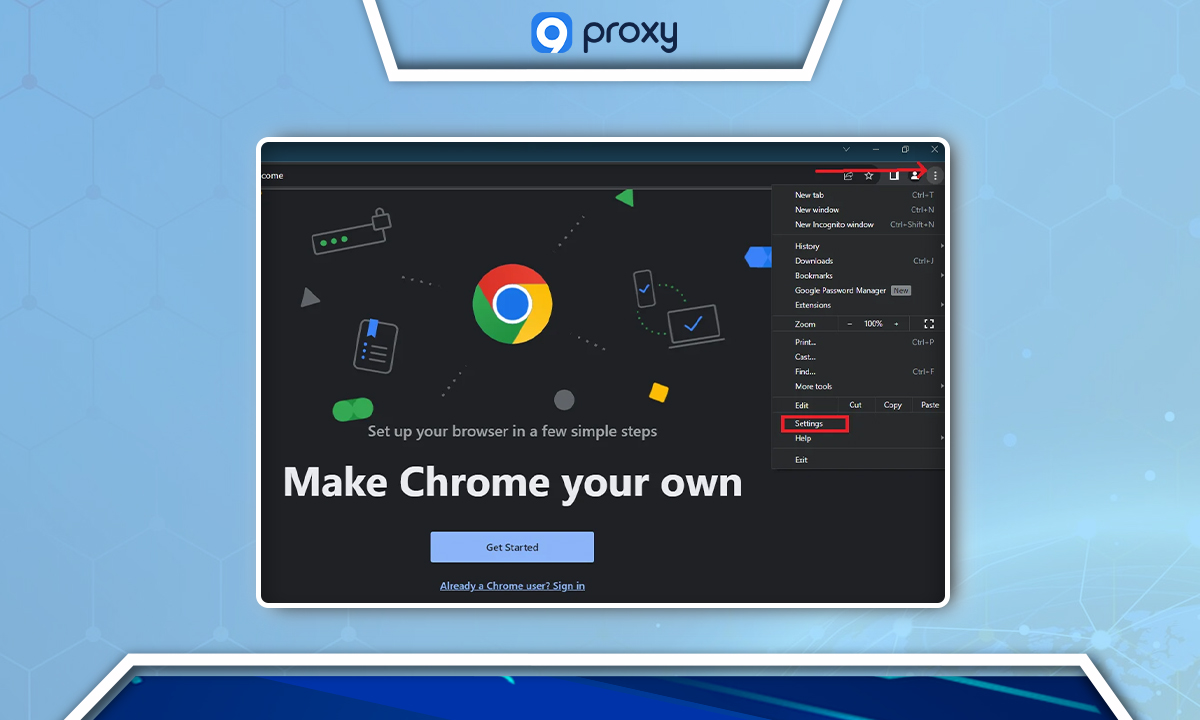
Open Chrome’s menu (three vertical dots) and click Settings
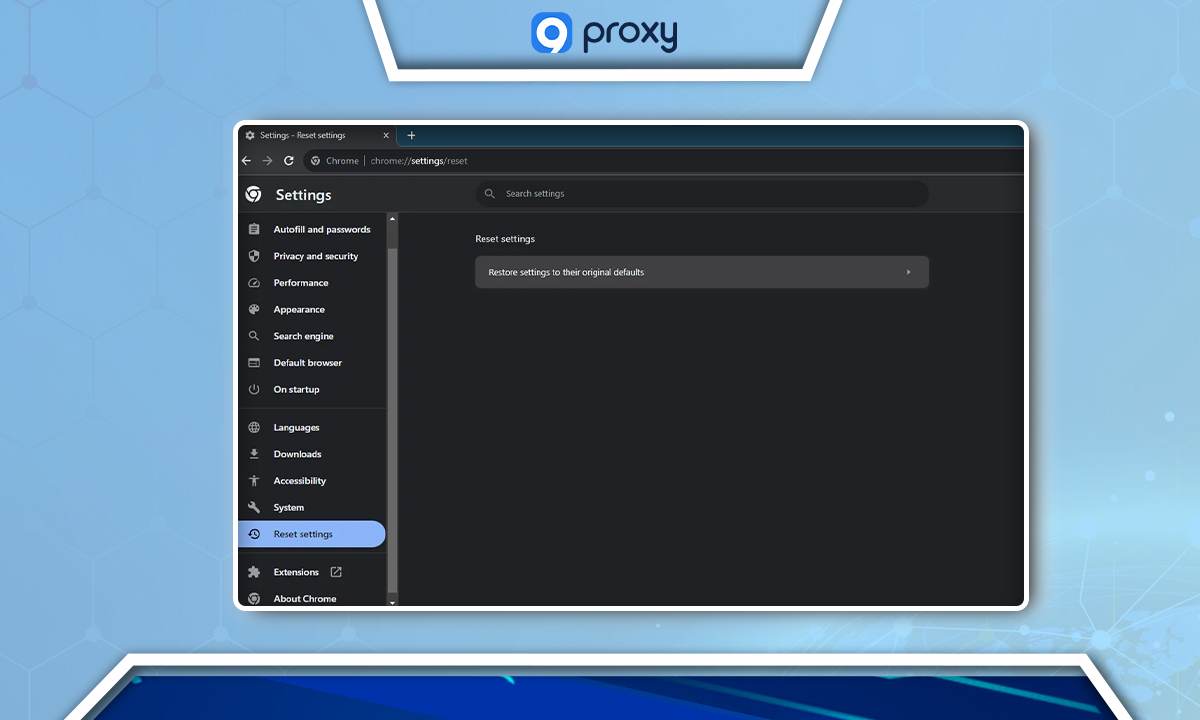
Select “Reset settings” on the left pane and choose ‘Restore settings to their original defaults’.
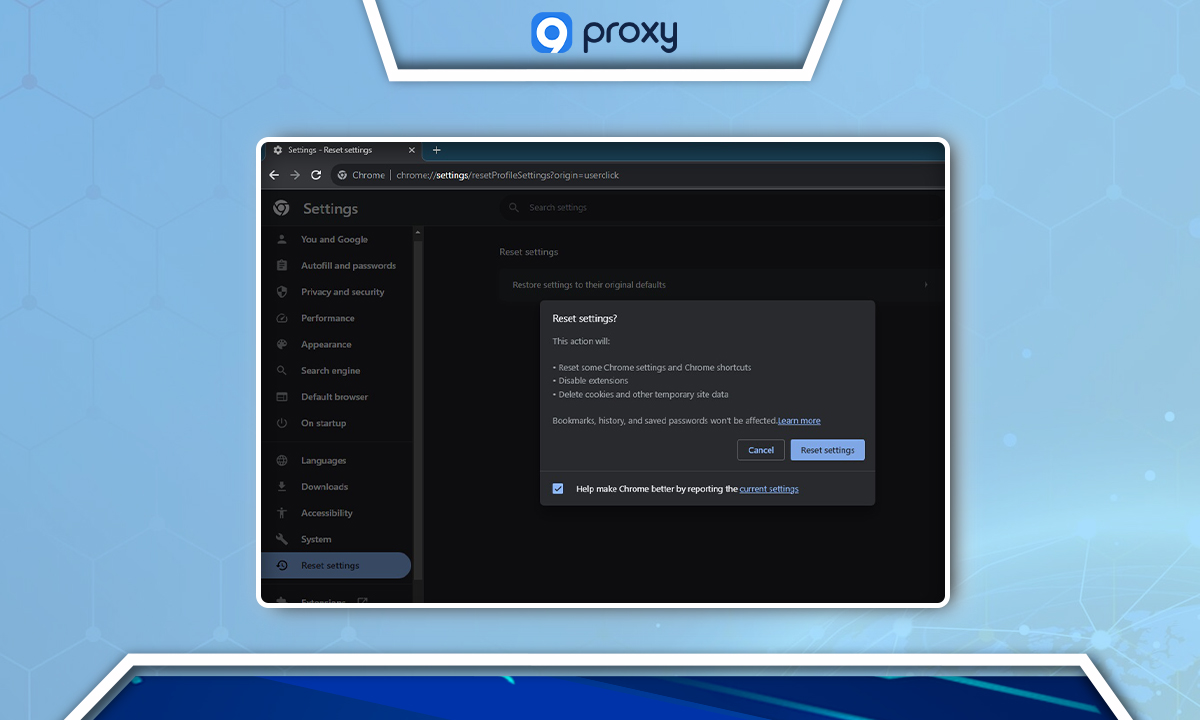
Confirm by clicking ‘Reset settings’. This will disable extensions and clear temporary data.
Reinstall Chrome
If resetting doesn’t work, try reinstalling the browser:
Open Control Panel via the Start menu.
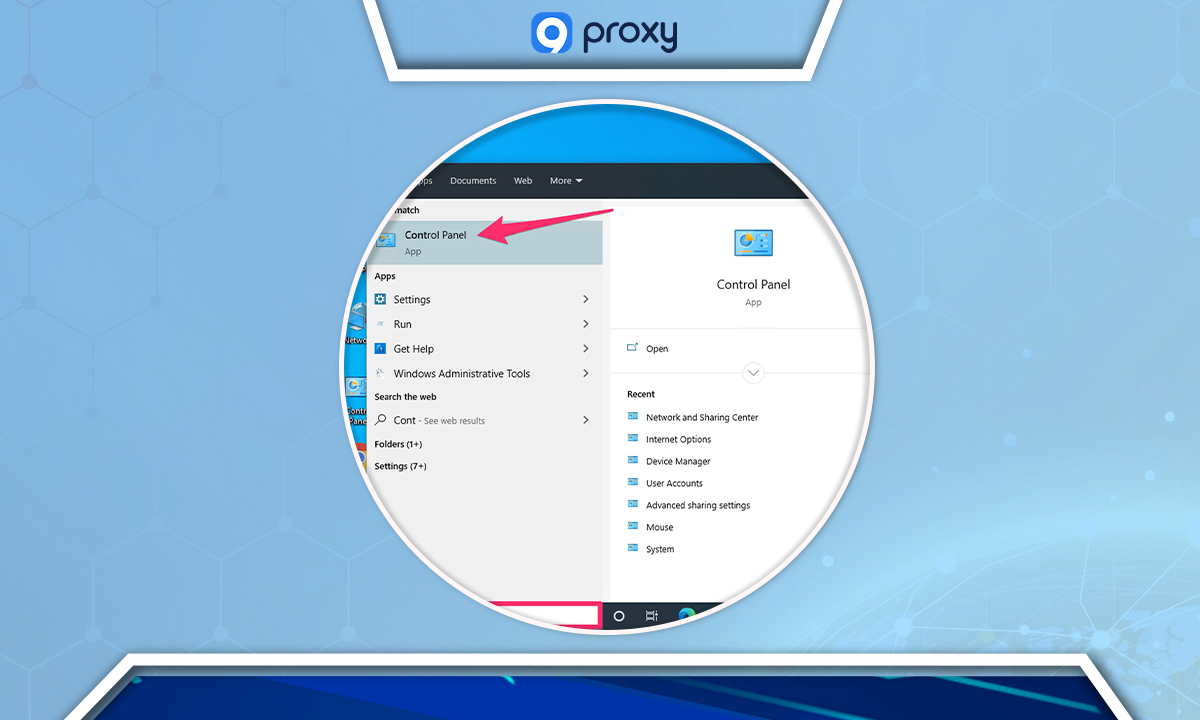
Select ‘Uninstall a program’.
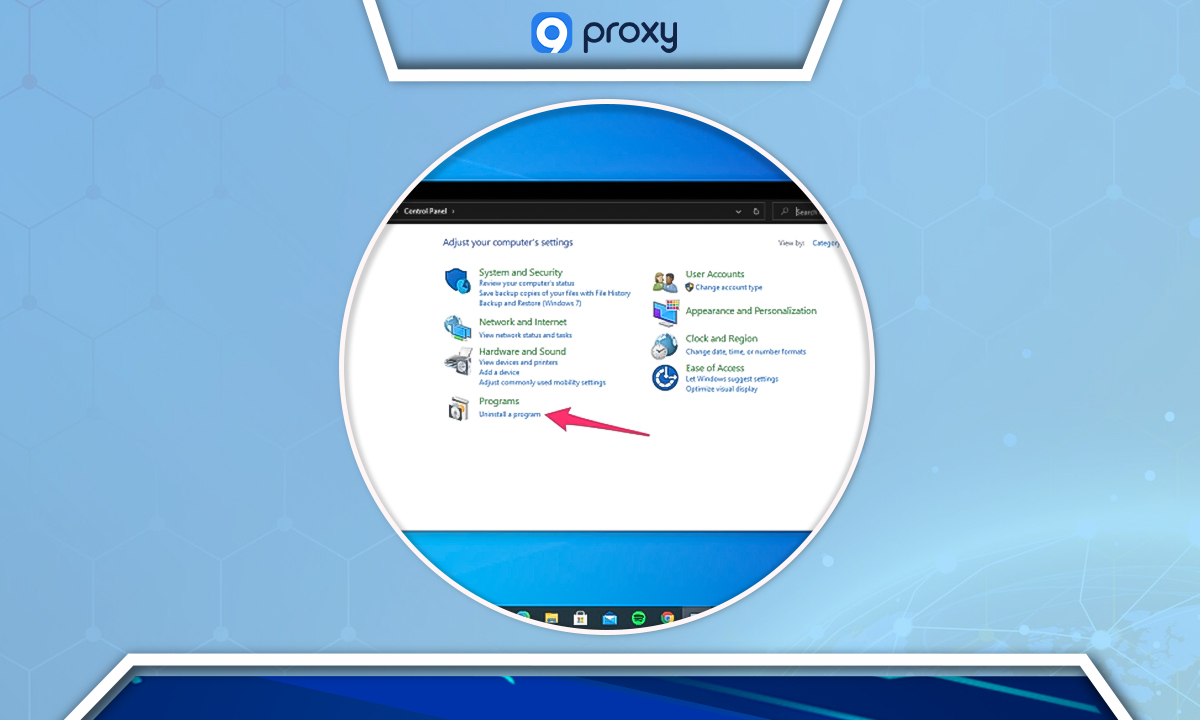
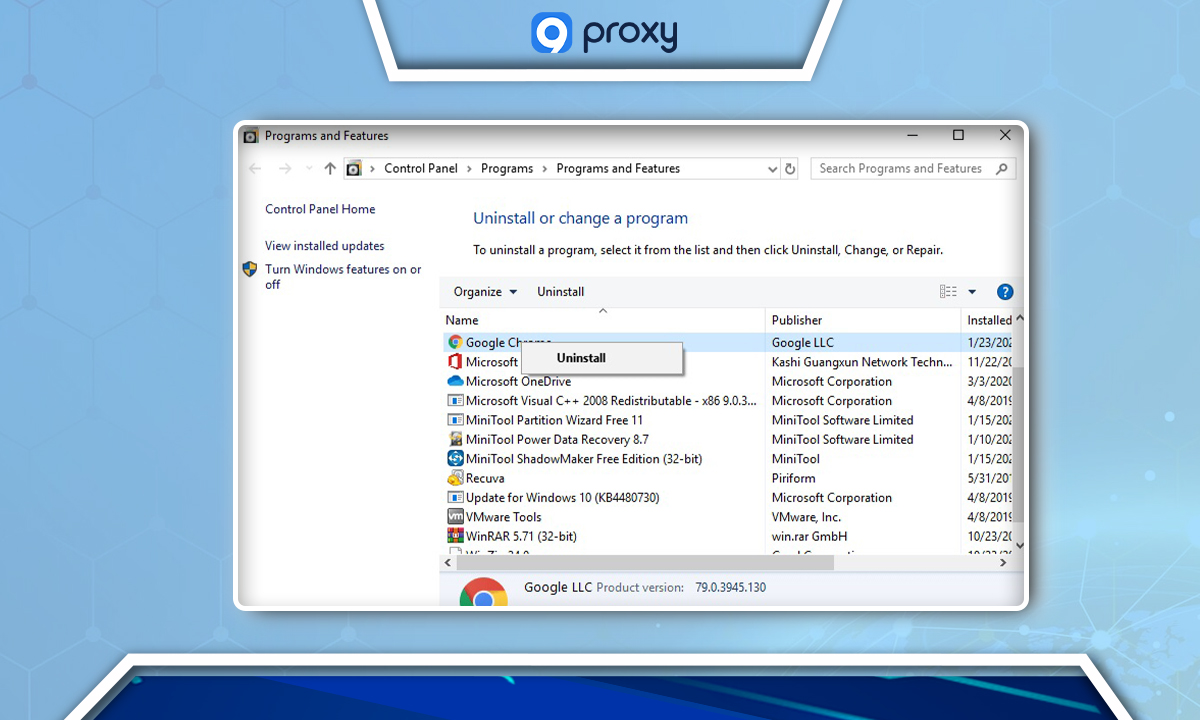
Find Chrome, select it, and choose ‘Uninstall’.
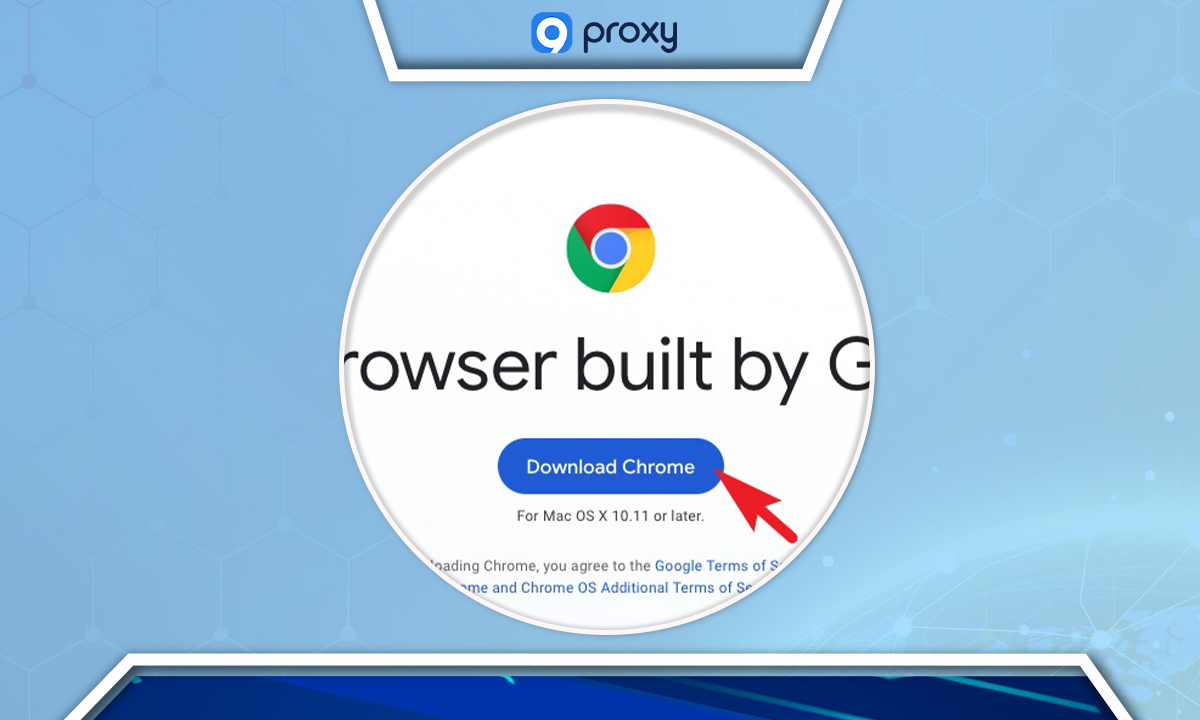
After uninstallation, download Chrome again from its official website. For other browsers, visit their respective official websites.
FAQ
How do I know if the proxy server error is a temporary glitch or a persistent problem?
A temporary glitch is typically resolved with a simple restart or disappears after a short period. Persistent problems will continue to occur and won’t be fixed without adjusting settings or addressing underlying issues.
If my browser is outdated, could that lead to a proxy server error?
Yes, an outdated browser can cause compatibility issues with current proxy settings or protocols, potentially leading to this error.
Are authentication issues a common cause for proxy server errors?
Yes, incorrect or missing credentials for a proxy server that requires authentication frequently result in a proxy server error.
Can a VPN conflict with my proxy server settings and cause this error?
Yes, using a VPN and a proxy server at the same time can create conflicts, potentially leading to connectivity errors.
Conclusion
In conclusion, encountering the “There Is Something Wrong With the Proxy Server” error can be a common yet solvable issue. As we’ve explored in this blog, this error can stem from various causes, including unstable connections, outdated browsers, incorrect proxy settings, and conflicts with security software. By methodically following the steps outlined, you can effectively diagnose and resolve this error, ensuring a smoother online experience.
For more insightful solutions and tips on navigating similar issues, don’t forget to explore our other blogs at 9Proxy. We’re dedicated to providing you with easy-to-understand, practical advice to keep your digital life running smoothly. Stay connected with us for more valuable content!