

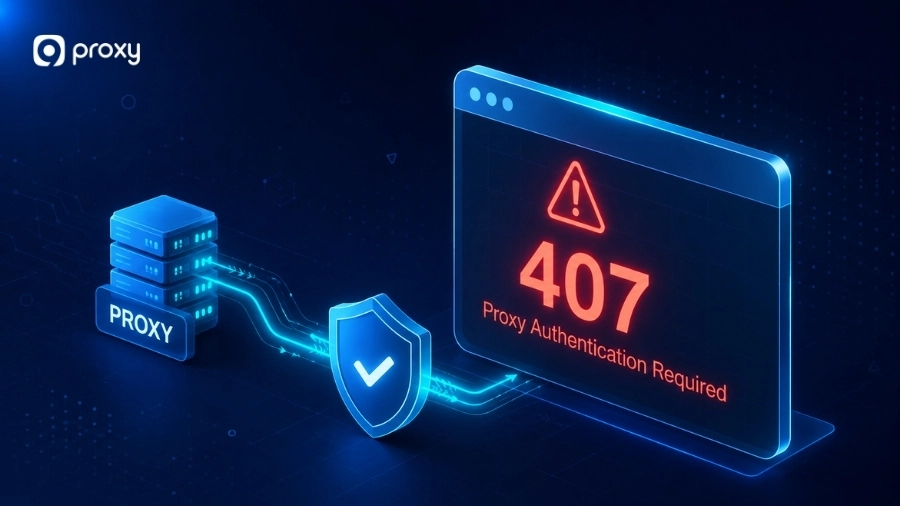
The 407 proxy authentication required error appears when a proxy server blocks your request because it needs valid login details before allowing access. This usually happens due to wrong credentials, missing authentication, a bad proxy setup, or conflicts in your network.
Whether you are using a browser, system proxy settings, or a scraping tool, this article will help you find the real cause quickly. It starts with simple checks, then moves to deeper fixes, so you can resolve 407 proxy authentication required clearly and safely.
What Is The “407 Proxy Authentication Required” Error?
The 407 proxy authentication required error is an HTTP status code that appears when a proxy server stops your request before it reaches the website, app, or API. In simple terms, the proxy acts like a gatekeeper and asks you to prove your identity first.
If your login details are missing, incorrect, expired, or not supported, the proxy blocks the request and shows 407 proxy authentication required. This issue usually happens at the “middle” layer, not the website itself, so fixing your proxy settings or credentials often resolves the problem quickly.

The Most Common Causes of a “407 Proxy Authentication Required” Error
A 407 error often stems from multiple layers of your connection setup rather than a single point of failure. It is rarely a hardware problem and almost always a configuration or permission issue.
In some cases, users may also encounter related issues like proxy error codes, which can help identify exactly where the failure occurs. We have identified several frequent triggers for this error:
- Incorrect or Expired Credentials: Using an old password or making a typo in your username is the number one cause.
- Missing Credentials in Requests: Many apps or scripts forget to “attach” the login details to the data packet they send.
- Unsupported Auth Methods: A mismatch occurs if your proxy expects “Basic” authentication, but your app sends “NTLM” or “Digest.”
- IP Whitelist Restrictions: Your proxy provider might require you to authorize your specific IP address in their dashboard.
- Configuration Errors: Using the wrong port, host address, or protocol (HTTP vs. SOCKS5) can trigger a failure.
- Software Conflicts: VPNs, firewalls, or aggressive antivirus tools can strip away authentication headers.

Quick Fixes First: What To Check in the Next 5 Minutes
Before trying advanced changes, we recommend checking the simplest items first. In many cases, 407 proxy authentication required is caused by a small mistake that takes only a minute or two to fix.
If basic checks do not solve the issue, you may need to look into deeper solutions to fix proxy error in your setup. Here are the fastest checks to make right away:
Confirm you are using a proxy
Check your browser, app, or system settings to see if a proxy is enabled. In many cases, a proxy may be turned on automatically by software or network settings, and users may not even realize it is active.
Re-enter your proxy username and password
Check your browser, app, or system settings to see if a proxy is enabled. In many cases, a proxy may be turned on automatically by software or network settings, and users may not even realize it is active.
Check whether your IP must be whitelisted
Some proxy providers require your IP address to be approved before access is allowed. If your current IP is not authorized, the connection will fail even if your username and password are correct. For DNS-specific configurations, see proxy server dns.
Disable the proxy temporarily
Turn off the proxy in your settings and try accessing the same website or request again. If it works normally without the proxy, the issue is very likely coming from the proxy configuration or authentication.
Try another browser or app
If the error only appears in one tool, test it in another browser or application. This helps you determine whether the problem is specific to that app or related to your overall system or proxy account. For browser-specific guidance, refer to proxy server chrome settings.
Check Whether the Problem Is the Client, the Proxy, or the Target Path
When 407 proxy authentication required appears, many users try changing different settings randomly, which often wastes time and makes the issue harder to fix. A better way is to find exactly where the problem comes from. You should check step by step whether the issue is caused by your app, the proxy service, or the destination you are trying to access.
Test the same request without the proxy
Try to access the target website directly using your normal home or office internet. If it works perfectly, then the destination is fine. This confirms the 407 proxy authentication required error is coming specifically from your proxy setup.
If the request still fails, the issue may be unrelated and could appear as errors like 502 bad gateway error or 504 gateway timeout, which come from the server side instead of the proxy.
Test the same request with another proxy endpoint
Switch to a different proxy IP or a different gateway provided by your service. If the new endpoint works, the first one might be temporarily down or restricted. If all endpoints fail, the problem is likely your account or local settings.
Check whether only one app fails while others work
To troubleshoot this issue, test the same proxy in different tools to see where it fails. You can try using the same proxy in:
- A web browser (Chrome, Edge, Firefox)
- Tools like Postman or cURL
- A desktop application
- A script or automation tool
If it works in one place but not another, the proxy is likely fine. In some cases, app-specific issues may also lead to errors like unable to connect to the proxy server, which indicates a local configuration problem rather than a service failure.
Compare the proxy response headers and logs
The proxy response can tell you a lot. Look for the authentication challenge, the expected auth method, and any message that shows missing credentials, invalid login details, or rejected requests. Proxy dashboards, app logs, and developer tools can help here. Instead of guessing, these clues can show exactly why 407 proxy authentication required is happening.
Fix 407 Proxy Authentication Required by Your Setup Type
The 407 proxy authentication required error can have different causes depending on how you use the proxy, such as in a browser, system, or code. Instead of trying every fix, focus on the solution that fits your setup to resolve it faster.
Fix Path for Browser Users
In browsers, 407 proxy authentication required often happens because of old saved credentials or extensions that change proxy settings without you noticing. To fix it, follow these simple steps:
- Open your browser settings and search for “Proxy,” then check that no extensions have changed your proxy configuration
- Go to Settings → Privacy → Clear Browsing Data, and clear saved passwords or login data related to the proxy
- Restart your browser, then enter your correct proxy username and password again when prompted
This helps remove outdated data and ensures your browser uses the correct authentication.

Fix Path for Windows and macOS System Settings
System-level settings control how your whole computer connects to the internet. If these settings are wrong, every app can show the error 407 proxy authentication required, not just your browser. Here is where to check and what to look for:
|
System |
Where to go |
What to check |
|
Windows |
Settings → Network & Internet → Proxy |
Make sure the proxy is turned ON only if needed, and the IP and port are correct. Also, check if any automatic setup script is outdated |
|
macOS |
System Settings → Network → Your connection → Details → Proxies |
Make sure the correct proxy type (HTTP/HTTPS) is selected and the login details are correct |
After fixing, turn the proxy OFF and ON again. This helps clear old login data so your system can ask for new credentials.
If you use a work device, also check for old VPN or company profiles. These can keep wrong settings and cause 407 proxy authentication required to keep coming back.
Fix Path for Proxy Users and Businesses
For paid proxy services, the error 407 proxy authentication required is often caused by account or configuration issues rather than your device. To check quickly, follow these steps:
- Log in to your proxy provider’s dashboard and make sure your account is active and not expired
- Check your current public IP (for example, using whatismyip.com) and confirm it matches the IP allowed in your provider settings
- Verify you are using the correct port for your proxy type, since HTTP and SOCKS5 often use different ports (such as 8080, 1080, or 10000)
- If everything looks correct but the error still appears, contact support because it may be caused by server-side restrictions or IP rotation issues
These checks help ensure your proxy account is set up correctly and working as expected.
Fix Path for Developers and Scraping Tools
In code or scripts, 407 proxy authentication required usually means your credentials are missing, incorrect, or not sent properly. This often happens due to small mistakes in headers, encoding, or environment settings.
To troubleshoot, follow these steps:
Step 1. Make sure credentials are sent in every request: Many HTTP clients do not send proxy login details automatically. You may need to add the Proxy-Authorization header manually
Step 2. Encode credentials correctly for Basic auth:
- Combine username and password like this: username:password
- Encode it using Base64 (example: dXNlcm5hbWU6cGFzc3dvcmQ=)
- Add it to the header: Proxy-Authorization: Basic <encoded_value>
Step 3. Use secure connections: Base64 is not encryption, so your credentials can be decoded easily. Always use HTTPS when working with proxy authentication
Step 4. Check environment variables: Review HTTP_PROXY and HTTPS_PROXY for typos, missing http://, or old values that may override your current settings
Step 5. Test with curl to isolate the issue:
curl -x host:port -U username:password https://httpbin.org/get
Use -x for proxy and -U for credentials. If needed, use options like –proxy-digest or –proxy-ntlm depending on your proxy type
Step 6. Encode special characters in passwords: Characters like @, :, #, or & can break your proxy URL. Use encoding (for example, %40 for @) or pass credentials separately in your code
These steps help ensure your request is properly authenticated and reduce errors caused by formatting or configuration issues.

Stop “407 Proxy Authentication Required” Errors From Coming Back
Preventing issues is always easier than fixing them later. By following a few simple habits, you can reduce the chance of seeing 407 proxy authentication required and keep your connection stable. For additional guidance and tips on proxy management, visit Blog9Proxy.
- Store and manage credentials safely: Use a password manager or secure environment variables instead of saving proxy credentials directly in code or apps
- Keep a clear record of your setup: Write down your proxy host, port, and authentication type so you can quickly check if something changes after updates
- Track failed login attempts: If you are a developer, log 407 proxy authentication required responses to detect expired credentials or blocked IPs early
- Check software after updates: After updating VPNs or antivirus tools, review their settings to make sure they did not change your proxy or add new restrictions
These small steps can help you avoid repeated errors and maintain a smoother browsing experience.
FAQs
Is the 407 Proxy Authentication Required Error the Same as a 401 Unauthorized Error?
No, they are different. A 401 error comes from the website when your login is missing or wrong, while 407 proxy authentication required comes from the proxy before your request reaches the website.
Can Using a VPN Cause the 407 Proxy Authentication Required Error?
Yes. A VPN can change your IP or interfere with your connection, which may cause 407 proxy authentication required. Turning off the VPN is a quick way to test this.
Are There Any Tools to Help Fix or Diagnose the 407 Proxy Authentication Required Error?
Yes. Tools like browser DevTools, Postman, cURL, Wireshark, and proxy logs can help you see what is causing 407 proxy authentication required and fix it faster.
Can Saved or Cached Credentials Cause the 407 Proxy Authentication Required Error?
Yes. Browsers and apps can store old proxy login details in memory, password managers, or cache. If your password has changed or the saved information is incorrect, the system will keep sending wrong credentials and cause 407 proxy authentication required repeatedly. Clearing saved credentials is usually a quick and effective fix.
Conclusion
Understanding the 407 proxy authentication required error helps you fix it quickly and keep your connection stable. In most cases, a simple check like updating credentials or verifying your IP can solve the issue.
For a more reliable experience, you can take a look at 9Proxy for a stable proxy solution to reduce 407 proxy authentication required errors and keep your connection smooth.