


Open source proxy server setups can give you better control over traffic, privacy, and application access, but only if they are configured correctly. Whether you need a fast caching proxy, a simple lightweight relay, or a privacy-focused filter, understanding how open source proxy servers work will help you build a more stable and efficient network.
It is also important to know the difference between forward proxies and reverse proxies, as this affects both security and performance. Open source is a smart option because you can review the code and avoid vendor lock-in, but it still requires regular updates, proper access limits, and basic monitoring to stay safe.

What Is an Open Source Proxy Server?
An Open source proxy server is software that sits between a client and a destination server, forwarding traffic based on rules you define. Because the source code is publicly available, it offers strong transparency and allows the community to review, improve, and fix security issues over time. In modern setups, these tools are often compared with managed solutions such as an Azure proxy server when teams decide between self-hosted control and cloud-managed access.
As a forward proxy, they manage outbound traffic from users or devices, helping with access control, filtering, and basic privacy. As a reverse proxy, they protect web services by routing inbound traffic, handling TLS, and shielding applications from direct exposure. These tools are popular with developers, system administrators, and technical teams who want flexible configuration, clear logging, and freedom from vendor lock-in.
Why People Deploy Open Source Proxies
Many users choose open source proxies because they need more control over their network traffic or stronger privacy than standard ISP connections can offer. These tools make it easier to see, manage, and adjust how data moves through the network. Common reasons for using them include:
- Content Caching: Stores local copies of websites so repeat visits load faster and use less bandwidth.
- Access Control: Lets organizations filter content and block malicious domains at the network level.
- IP Masking: Adds a basic layer of privacy for outbound browsing by hiding the client’s original IP address.
- Web Scraping: Helps developers collect public data more efficiently by managing request headers and rotation.
- Load Balancing: Spreads incoming traffic across multiple servers to keep applications available and responsive.

Best Open Source Proxy Servers You Can Use
Choosing the right open source proxy server depends on whether your main goal is controlling outbound user traffic or protecting an inbound web service. Below, we compare the top-rated tools that are leading the industry in 2026. Many teams start with open source options before later evaluating a managed cloud proxy server for easier scaling.
|
Tool |
Proxy role (forward/reverse) |
Best for |
Difficulty |
Notes |
|
Squid |
Forward |
Caching + ACL control |
Medium |
Strong policy control, common in orgs |
|
Privoxy |
Forward |
Privacy filtering |
Medium |
Header/cookie controls, no caching focus |
|
Tinyproxy |
Forward |
Lightweight proxy |
Low |
Simple footprint, fewer advanced controls |
|
Apache (mod_proxy) |
Both |
Existing Apache stacks |
Medium |
Useful if Apache is already in place |
|
Nginx |
Reverse |
Web routing + stability |
Medium |
Popular default for web reverse proxying |
|
HAProxy |
Reverse |
Load balancing |
Medium |
Strong reliability for high traffic |
|
Caddy |
Reverse |
Simple HTTPS |
Low-Medium |
Easier TLS automation |
|
Envoy |
Reverse |
Cloud-native routing |
High |
Powerful, more complex |
|
Traefik |
Reverse |
Containers + dynamic routing |
Medium |
Common with Docker/Kubernetes |
|
Varnish / Apache Traffic Server |
Forward/ Reverse |
Web caching at scale |
High |
Often used for performance-heavy caching |
The tools listed above combine proven stability with modern automation. Squid is still a strong choice for traditional office networks, while newer tools like Caddy and Traefik are becoming popular in cloud-based and containerized environments because they are easier to automate and manage.
Forward Proxy Picks for Real-World Teams (Linux/Windows)
If you need to control outbound traffic, apply filtering, or enable caching, you should use a forward proxy. Below are practical options that many teams use in real environments, especially when replacing older hardware-based systems like a Blue Coat proxy with software-defined alternatives:
- Squid: Offers strong caching and detailed access control lists (ACLs). Squid is often chosen for enterprise-style setups where logging, rules, and performance tuning are important.
- Privoxy: Focuses on privacy filtering. It is useful for modifying headers, managing cookies, and reducing tracking during browsing.
- Tinyproxy: Lightweight and easy to manage. It works well when you need a simple proxy with a small system footprint.
- Apache mod_proxy: Helpful if Apache is already in use. It can act as a forward proxy in some cases, though many teams mainly use it as a reverse proxy.
If you need open source proxy Windows support, Squid can run on Windows, and Apache-based setups are also common. Teams that need more setup flexibility can also compare these tools with proxy server software for windows before choosing between local control and managed deployment. However, for most production environments, Linux is still the preferred choice.

Reverse Proxy Picks (Modern Web + Cloud)
Reverse proxies are placed in front of your web applications to manage incoming traffic, improve security, and distribute requests efficiently across servers. These open source proxy servers play a key role in modern web architecture by helping applications stay fast, stable, and protected as traffic grows.
In larger environments, these tools often fill the same role as a centralized enterprise proxy server but with greater flexibility. Common reverse proxy options include:
- Nginx: Well-known for low memory usage and the ability to handle many connections at the same time. It is widely used as the foundation for modern websites and APIs.
- HAProxy: Designed for high performance and reliability. It is often used as a high-availability load balancer in demanding production environments.
- Caddy: A modern web server that automatically manages HTTPS certificates, making it ideal for fast and secure deployments with minimal setup.
- Envoy / Traefik: Built for microservices and cloud-native environments, especially Kubernetes. They provide dynamic routing and integrate well with container-based platforms.

Open Source Proxy Server for Linux: Fast Setup Paths
Linux is the most common platform for running these tools because of its stability, flexibility, and strong command-line support. In this section, we focus on two popular setup paths: a feature-rich option using Squid and a lightweight alternative using Tinyproxy. These examples represent common proxy server software patterns used in real production systems.
Squid on Linux (Basic Setup + Safe Defaults)
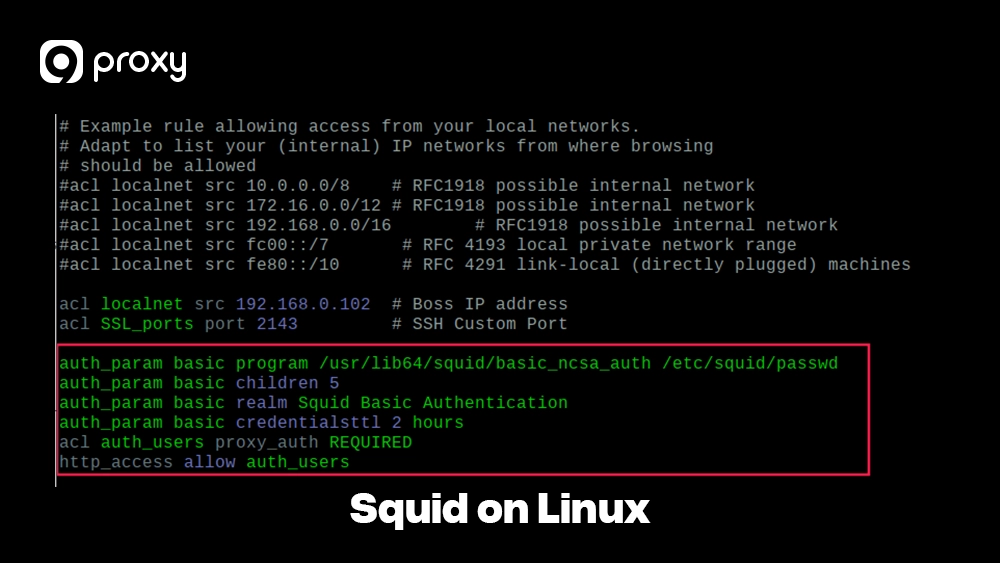
Squid is one of the most popular open source proxy servers for Linux setups used in professional environments. It is known for handling large traffic volumes and for offering detailed security and access control settings.
- Install: Use your package manager (e.g., sudo apt install squid).
- Define Port: The default is 3128, but you can change this in /etc/squid/squid.conf.
- Restrict Access: This is the most important step. Set an ACL to allow only your specific IP range (e.g., acl localnet src 192.168.1.0/24).
- Safe Defaults: Ensure you have a http_access deny all rule at the end of your config to prevent unauthorized use.
- Restart: Apply changes with sudo systemctl restart squid.
Tinyproxy on Linux (Lightweight Alternative)
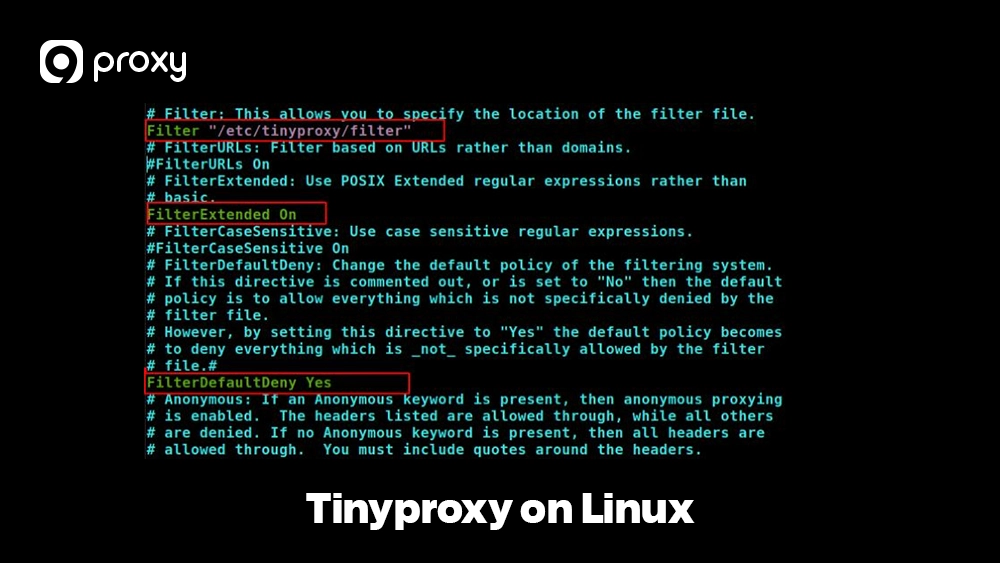
If Squid seems too complicated for what you need, Tinyproxy is a great and simpler option. It uses very few system resources and is easy to set up for basic proxy tasks. Here is a simple setup flow:
- Install: Run sudo apt install tinyproxy to install the service.
- Configure: Open /etc/tinyproxy/tinyproxy.conf and set the Port and Listen address.
- Allowlist: Add Allow 127.0.0.1 or your local network IP so only approved devices can connect.
- Restart: Run sudo service tinyproxy restart to apply the changes and start using the proxy.
Tinyproxy is a good choice when you want something lightweight and easy to manage without advanced features.
Privoxy on Linux (Privacy Filtering Use Case)
Privoxy is different from most proxy tools because it is not focused on speed or caching. Instead, it is designed to improve privacy by cleaning up web traffic before it leaves your device. We often recommend Privoxy for users who want to remove tracking headers, block unwanted cookies, and limit how much information their browser shares with websites.
It works well as a standalone filter for privacy-focused browsing, and it can also be combined with other tools such as Tor to add an extra layer of protection. Privoxy is a good choice when privacy control matters more than performance gains.
Open Proxy Settings: Configure Clients Safely (Browser + OS)
After your server is running, the next step is to configure your devices so they actually use it. When we mention open proxy settings, we mean the proxy configuration on your local computer or device, not opening the proxy server to public access.
Open Proxy Settings in Windows (System Proxy)
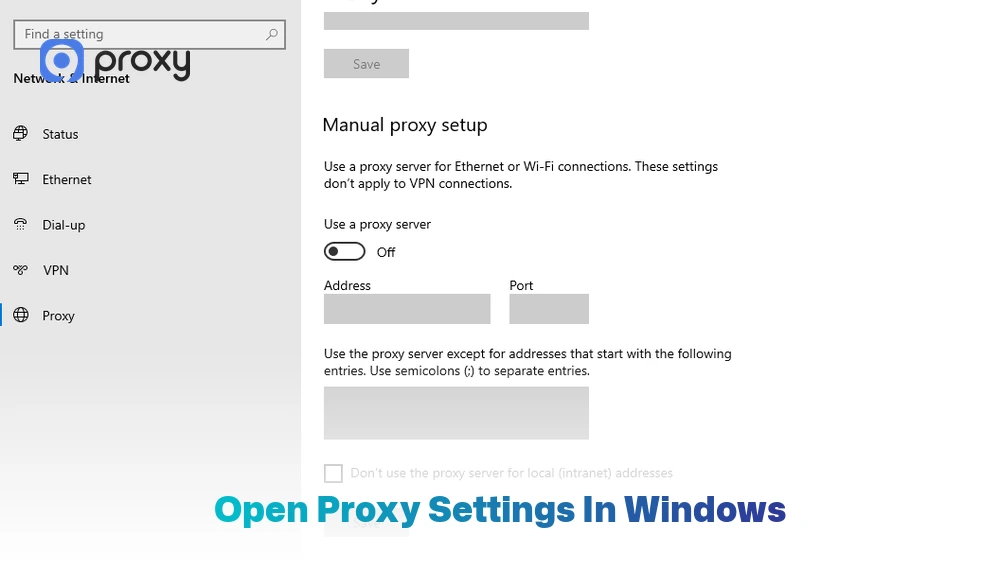
Setting up an open source proxy Windows configuration is usually done at the system level. This way, most applications on your computer will automatically follow the same proxy routing rules. Here is a simple way to do it:
- Open Settings > Network & Internet > Proxy.
- Under Manual proxy setup, turn Use a proxy server to On.
- Enter your proxy server’s IP address and the port number you selected, such as 3128.
- Click Save to apply the changes.
If you ever need to return to a direct internet connection, you can turn this option off instantly.
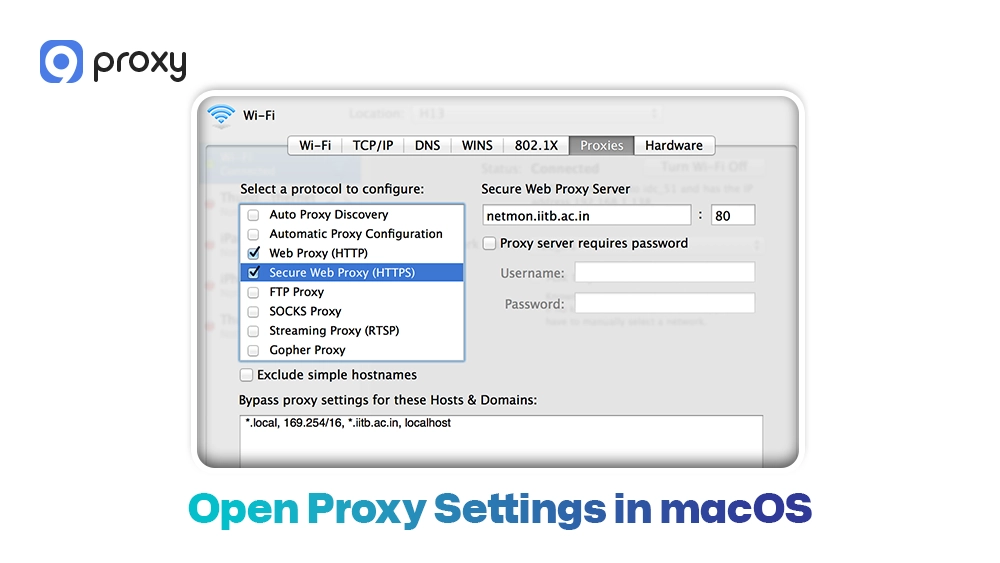
Open Proxy Settings in macOS (Network Proxy)
Mac users can configure proxy settings directly through the system’s network options, without installing any extra software. This method applies the proxy at the system level, so most applications will follow the same routing rules. The process is simple, takes only a few minutes, and can be easily undone at any time if you need to return to a direct internet connection.
- Open System Settings and go to Network.
- Select your active network connection and click Details > Proxies.
- Choose the proxy type you need, usually Web Proxy (HTTP) or Secure Web Proxy (HTTPS).
- Enter the proxy server address and port number.
- Click OK, then Apply to start routing traffic through the proxy.
You can return to this menu at any time to disable the proxy or change the settings.
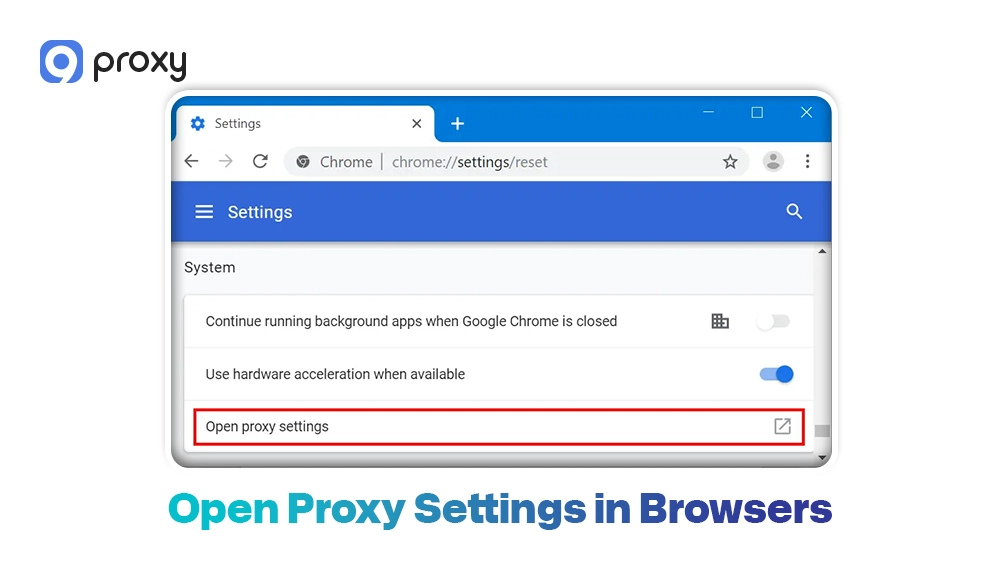
Open Proxy Settings in Browsers (Chrome/Firefox)
Browser proxy behavior can vary, so it helps to understand how each browser handles proxy settings. Before making any changes, decide whether you want a system-wide proxy that applies to all apps or a proxy that only affects a single browser.
Here are the key points to keep in mind:
-
- Chrome usually follows the proxy settings configured at the operating system level.
- Firefox allows you to set a proxy directly inside the browser, independent of the system settings.
- If you use multiple browser profiles, avoid sharing the same proxy identity across profiles to prevent conflicts.
- If a website does not load correctly, check whether the proxy supports HTTPS CONNECT or the correct protocol mode.
Following these guidelines helps keep your open proxy settings consistent and makes troubleshooting much easier.
Common Problems and Quick Fixes
Even with a well-configured open source proxy server, technical issues can still happen. Below are the most common problems we see, along with simple ways to fix them.
- Proxy works but websites fail: Some websites require HTTPS. Make sure your proxy supports the CONNECT method for handling encrypted SSL traffic.
- Slow browsing: This often means the server’s CPU is overloaded or the cache is set up incorrectly. Try disabling caching for a short test to see if performance improves.
- Some sites are blocked: Check your ACL rules or filtering settings in the configuration file. A rule may be too broad and block more traffic than intended.
- Authentication errors: Confirm that your browser is sending the correct login details and that the proxy is set to accept the chosen method, such as Basic or Digest authentication.
- Open proxy emergency: If unknown users are connecting, act fast. Close port 3128 in your firewall and tighten the http_access rules to allow only trusted IPs.

FAQs
What are the system requirements for running an open source proxy server?
Most open source proxy servers can run on modest hardware, but requirements depend on traffic. For small teams, a basic Linux VM with stable CPU, RAM, and disk is often enough. If you enable caching, plan for more storage and faster disks. For busy networks, you also need monitoring and log retention planning.
How much does an open source proxy server cost?
The software itself is usually free, but operations are not. You still pay for servers, bandwidth, maintenance time, and security updates. If you run it in the cloud, you also pay for VM costs, storage, and outbound traffic. The real cost is usually “ownership and upkeep,” not licensing.
Are there any risks associated with using an open source proxy server?
Yes. If the proxy is set up incorrectly, it can be exposed to abuse by strangers. Outdated software may also contain known security flaws. In addition, logs can hold sensitive information if too much data is stored. The safest approach is to limit access strictly, keep the software updated, store only necessary logs, and regularly review firewall rules and ACL settings.
Conclusion
Open source proxy servers can be a good choice in 2026 if you value transparency, flexibility, and control over your network. The safest approach is to choose the right proxy role first, then apply secure defaults such as deny-by-default ACLs, strict allowlists, and carefully managed client open proxy settings.
For use cases that require higher stability, easier scaling, or clean IPs, 9Proxy can help reduce operational risks. To learn more and see real examples in action, we invite you to explore related blogs and video content on Blog9Proxy.