

ixBrowser is an anti-detect browser made for people who manage multiple logins, ads, or online stores. The ixBrowser helps you create separate identities so every profile looks like a different user with a different device and location.
When ixBrowser is combined with 9Proxy, your setup becomes safer because you can avoid fingerprints and reduce the risk of bans even without technical experience. Thus, this article will help you understand ways to handle the ixBrowser, how to connect to stable 9Proxy residential proxies, and how to build clean profiles that protect your accounts.
What is ixBrowser?
xBrowser is a free anti-detect browser made to help you manage many online accounts without being linked to your device or fingerprint. In simple terms, it belongs to the category of an antidetect browser, meaning it isolates digital identities through fingerprint simulation and proxy integration. It creates separate, isolated browser profiles, and each profile has its own digital fingerprint and proxy settings. This makes every profile look like a different user with a unique device and location.
ixBrowser is built to get around advanced anti-fingerprinting and anti-scraping systems on major websites, so your identities stay safe and harder to detect. Because it supports strong fingerprint control, stable multi-account management, and team features, ixBrowser is widely used by affiliate marketers, e-commerce sellers, social media managers, and research teams who need high anonymity and protection from bans or data leaks.
Why Should You Use ixBrowser?
ixBrowser is invented to create separate environments so every account looks and works like a real, unique user session. This also helps when you need to compare different network setups, such as static vs rotating proxies, for traffic stability across campaigns.
Running multiple ad accounts: You can open many ad profiles on Meta, TikTok, Google, and other platforms, each with its own fingerprint and proxy IP. This makes it harder for ad systems to link your accounts or block them all at once. Many marketers who previously relied on tools like Dolphin Anty browser or read in-depth comparisons such as a Multilogin review often evaluate ixBrowser as a lighter and more accessible alternative.
Affiliate marketing & arbitrage: When testing offers, angles, or landing pages, ixBrowser keeps each funnel in its own profile. You can rotate proxies through 9Proxy so your traffic shows the correct GEO for each campaign.
Web scraping & QA testing: If you need to check user flows, prices, or content from different regions, you can create separate profiles with different IPs and user agents instead of clearing cookies or switching VPNs all the time.
Crypto wallet & fintech management: Many users store each wallet or financial account in a different profile. This prevents cookie and fingerprint overlap, which helps secure sensitive transactions.
Managing environments for teamsTeams can share profiles, set permissions, and keep projects separate without using real devices or exposing their main browsers.
How Does ixBrowser Work?
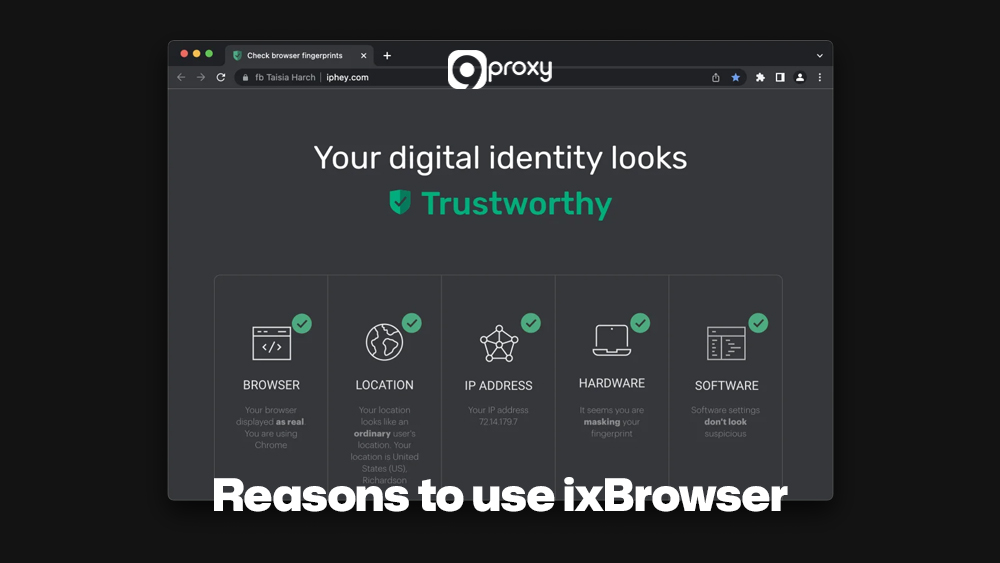
The fundamental principle behind ixBrowser is keeping each digital identity completely separate. A normal browser shows websites your real device details, but ixBrowser changes this information so you can stay hidden. This method is called anti-detection. It works by masking your IP through a proxy, creating advanced browser fingerprints, and blocking leaks such as WebRTC.
It works by masking your IP through a proxy, creating advanced browser fingerprints, and blocking leaks such as WebRTC. To verify whether your fingerprint setup is truly consistent, many professionals also use tools like BrowserScan to check canvas, WebGL, timezone, and IP alignment before launching campaigns.
These protections are especially useful if you want to understand differences like vpn vs reverse proxy when building a secure environment. Thanks to these methods, every ixBrowser profile looks like a real, different user to any website. This separation is very important because traditional browsers cannot give you this level of safety or prevent accounts from being linked.
Key Features of ixBrowser
ixBrowser includes a mix of privacy, team, and automation features that are especially powerful when you pair them with reliable proxies like 9Proxy. Below is a quick comparison of key features and how mature they are today.
This table summarises the most important ixBrowser features and how well they currently serve multi-account and privacy use cases.
| Feature | What It Does | Maturity / Score* | Notes for 9Proxy Users |
| Fingerprint spoofing | Controls device, OS, canvas, WebGL, WebRTC, fonts, etc. | 9/10 | Ideal for pairing unique fingerprints with unique proxy IPs. |
| Profile management | Creates and organizes many browser profiles | 9/10 | Unlimited profiles with daily open/creation limits by plan. |
| Proxy support | Let’s you attach HTTP(S)/SOCKS proxies to each profile | 8/10 | Works well with setups involving reverse proxy vs port forwarding depending on project needs. |
| Cloud sync / local storage | Stores profile data in the cloud with backup options | 8/10 | Good for teams that need shared, persistent environments. |
| Automation & API integrations | Built-in API and support for automation tools | 7/10 | Let’s you script profile creation and control sessions programmatically. |
| Performance & UI/UX | General speed, interface clarity, and resource use | 8/10 | Lightweight interface; some overhead vs normal browsers is expected. |
| Cross-platform support | Availability across different operating systems | 7/10 | Official build focuses on Windows; Mac/Linux users often rely on VMs or workarounds. |
*Scores are indicative and based on public information plus industry experience, not official ixBrowser ratings.
Overall, ixBrowser offers a powerful and well-balanced feature set that supports complex workflows such as advertising, e-commerce, automation, and global account management. When you pair ixBrowser with a reliable proxy stack like 9Proxy, the setup becomes even stronger because each profile gains a clean IP, stable GEO targeting, and lower fingerprint risk. This combination gives users a safer, more consistent, and more scalable foundation for handling many accounts without unwanted links or sudden bans.
How to Set Up 9Proxy in ixBrowser?
Setting things up correctly is important to keep your profiles clean and harder to detect. Below are four simple steps that will help you integrate everything smoothly.
What Do You Need Before You Start the Setup?
Before you connect 9Proxy to ixBrowser, make sure you have a few things ready so the setup goes smoothly and your browser profiles stay fully compatible with the proxy settings you plan to use:
Download ixBrowser from the official source: Go to the official website and click the main Download button to get the correct ixBrowser download package. This helps you avoid unsafe or modified installers.
Create your ixBrowser account: Open the registration or login page and complete your ixBrowser login using a valid email and a strong password. Your profiles will be saved in this cloud account.
Choose the right platform package: The official version is built for Windows. If you need ixbrowser for Mac, it’s best to run it through a Windows virtual machine or a dedicated Windows device to ensure full compatibility.
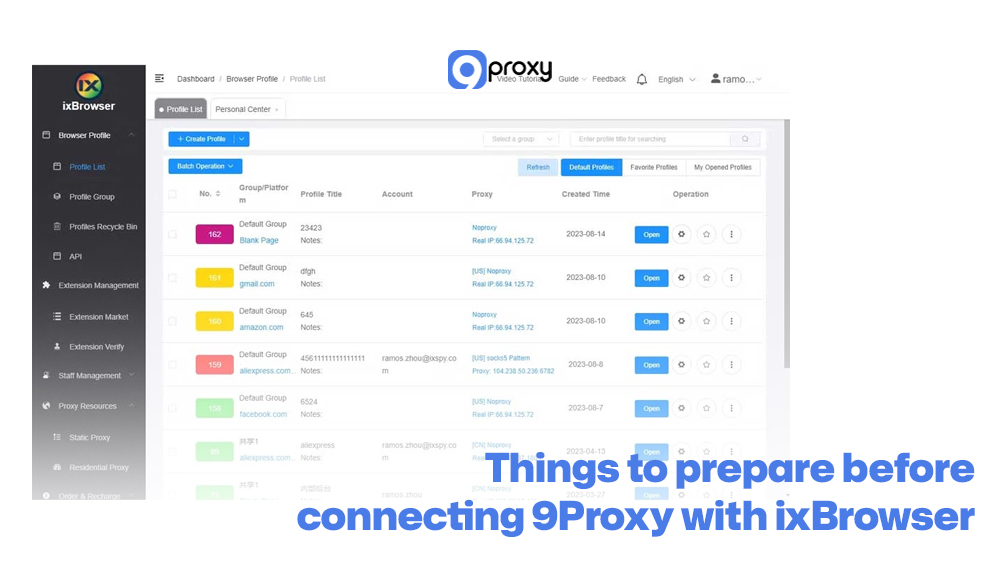
Have an active 9Proxy subscription or trial: Sign in to your 9Proxy dashboard so you can access the Proxy List and the port-forwarding tools that you will use in the setup steps.
Step 1: Accessing The Proxy List On 9Proxy
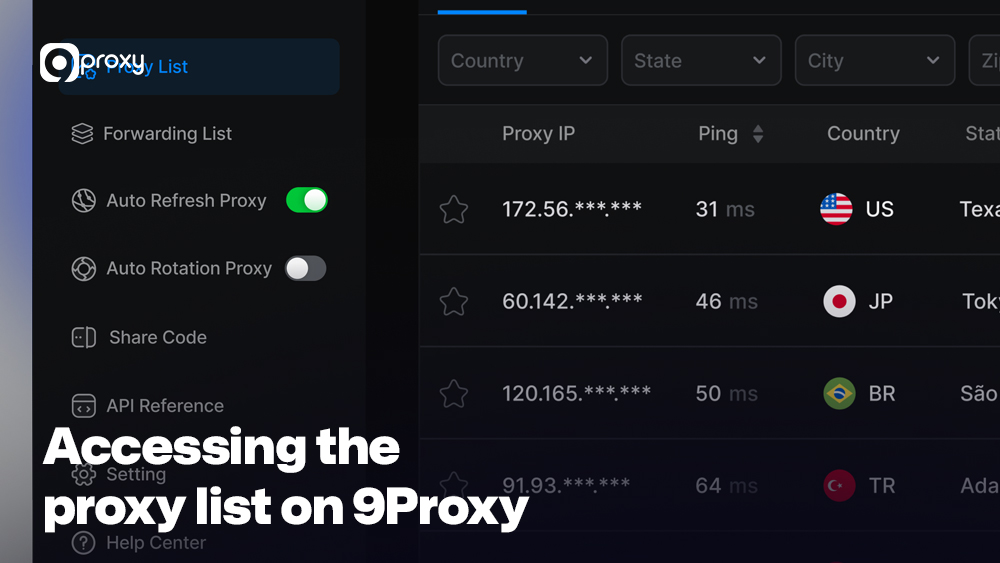
To keep each ixBrowser profile safe, we want a clean, stable IP from 9Proxy for every important account or small group of accounts. Here’s how you work with the Proxy List inside 9Proxy:
- Accessing the Proxy List on 9Proxy
Open the 9Proxy app and go to the “Proxy List” or “Today List” section to see the IPs available for you. - Setting Up Geolocation Targeting
Pick a proxy that matches the country, city, or ISP you want your ixBrowser profile to appear from. Keeping the location consistent helps reduce detection. - Configuring Proxy Forwarding
Right-click the proxy you want and choose “Forward to Port.” This will link the proxy to a local port on your computer, such as 127.0.0.1:5000. - Copying the Proxy Details
Go to the “Forwarding List” tab. Here you will find the IP address (usually 127.0.0.1), the port number, and the protocol type (SOCKS5 or HTTP). Copy this information because you will enter it into ixBrowser later.
This preparation also helps when performing checks, such as test proxy accuracy during configuration.
Step 2: Create a Browser Profile in ixBrowser
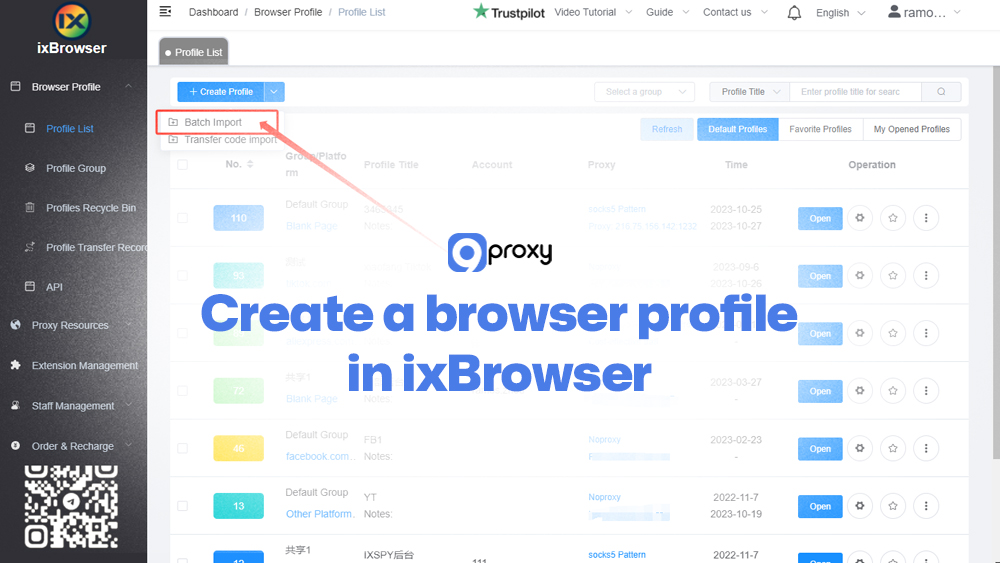
With your proxy details copied, the next step is to create a new, fresh profile inside ixBrowser. Launch the browser application and follow these instructions:
- Navigate to Profiles: Click the “Profiles” tab in ixBrowser and select the “+ Create Profile” option.
- Name the Profile: Give your profile a unique, descriptive name (e.g., “US-Account-01”) and assign it to a group for better organization.
- Choose Fingerprint Settings: Select the desired operating system and browser version you want to emulate. You can use the random generation feature for unique fingerprint settings, which is highly recommended for security.
- Complete Basic Setup: Fill in any other profile-specific details, such as initial cookies or notes.
The key to this step is creating a unique, isolated digital identity before linking it to the IP address.
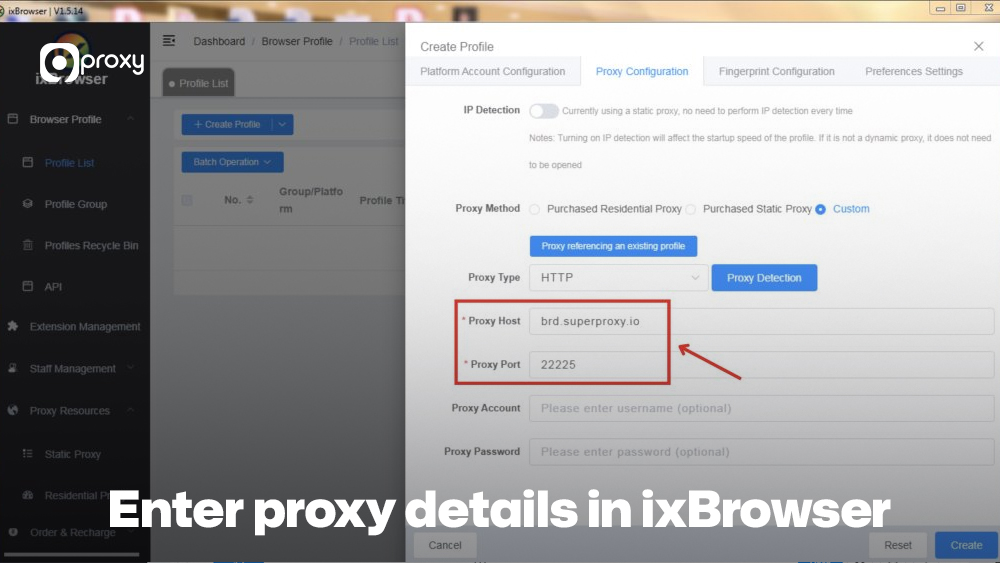
Step 3: Enter Proxy Details in ixBrowser
This is the most important step for integrating 9Proxy into your ixBrowser profile. Inside the profile creation window, look for the “Proxy Settings” or “Network” tab.
- Select Proxy Type: Choose the proxy protocol (SOCKS5 or HTTP) that matches the type of proxy you forwarded in the 9Proxy app. SOCKS5 is generally preferred for better security and leak protection.
- Insert Proxy Information: Paste the IP address (usually 127.0.0.1) and the Port number (e.g., 5000) copied from the 9Proxy “Forwarding List.”
- Enter Credentials (If applicable): If you enabled “Proxy Authentication” in the 9Proxy app, enter the specific username and password. Remember, these credentials apply to all proxies in your Today List.
- Verify the Connection: Use the built-in “Test Proxy” feature in ixBrowser to ensure the connection to the 9Proxy IP is active and successful.
Successful verification confirms that your new ixBrowser profile is now securely masked by the 9Proxy residential IP.
Step 4: Test and Launch the Profile
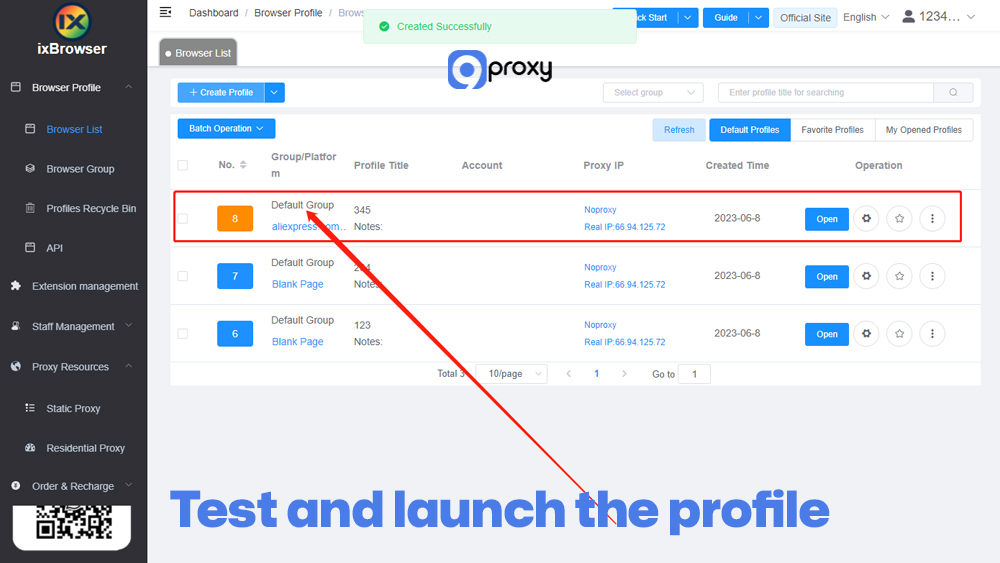
After entering the proxy details, the last step is to check that everything is working correctly and then start your new environment. Save the profile in ixBrowser.
Before you begin using it, make sure to run a quick final test. Open the profile and visit an IP checker site (such as whatismyipaddress.com) to see if the IP address and location match the one you chose in the 9Proxy app.
It is also helpful to run a browser fingerprint test to confirm that ixBrowser’s anti-detection features are active and stable. When both the IP check and fingerprint test look correct, your profile is fully ready to use. This final verification is important for keeping your identity safe and ensuring strong anonymity.
Avoid Common mistakes when using ixBrowser
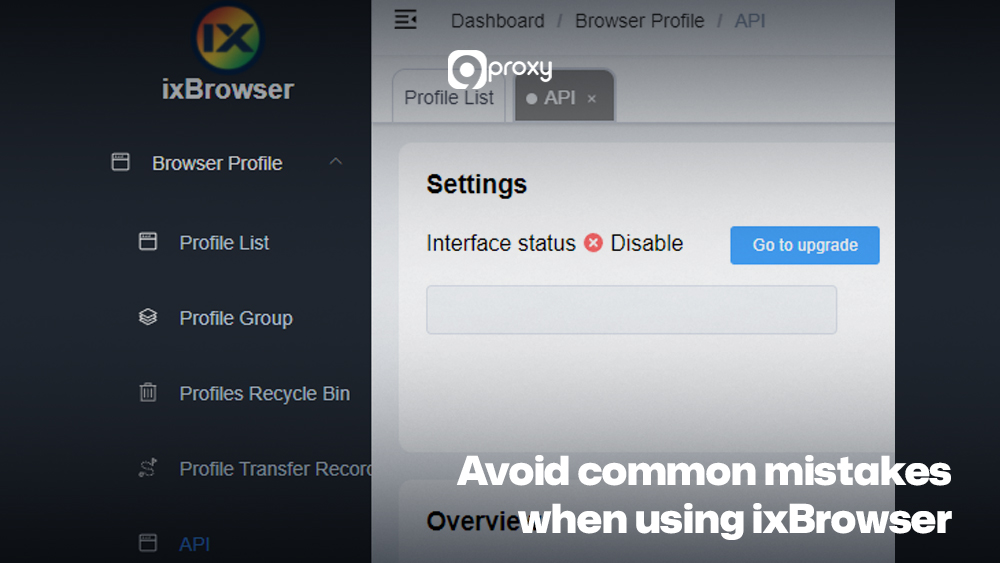
Even with strong tools like 9Proxy and ixBrowser, small mistakes can still affect your anonymity. To keep your setup secure, you should watch out for the issues below:
Reusing IPs
Do not use the same 9Proxy IP address for more than one ixBrowser profile. This creates an instant link between accounts.
Leakage
Always check for WebRTC, DNS, and IP leaks after creating a profile. The ixBrowser settings must match the proxy location to avoid mismatches.
Detectable Patterns
Avoid using automation scripts that behave in an obvious or unnatural way. Actions that are too fast or repetitive can trigger detection systems.
Low-Quality Proxies
Do not replace a clean residential proxy with cheap alternatives. Some users mistakenly use tools like ps3 proxy server for unrelated tasks, but these are not suitable for anti-detect browser setups.
Pros and Cons of ixBrowser
Choosing the right anti-detect browser is important for your business. To help you see whether the ixBrowser is the right choice, we’ve put together a clear list of its advantages and disadvantages. This overview gives you a better understanding before you decide to use it in your daily workflow.
Pros of ixBrowser
ixBrowser offers a powerful combination of features designed for maximum performance and security:
- Superior Anti-Detection: Its advanced fingerprint spoofing technology ensures your profiles are nearly undetectable by major monitoring services. This provides long-term security for critical accounts.
- Free Core Features: Unlike many competitors, ixBrowser offers a free plan that provides substantial features, allowing you to scale your operations without immediate, heavy investment.
- User-Friendly Interface: The platform is designed to be intuitive, making it easy for both beginners and experienced users to create, manage, and launch multiple isolated profiles quickly.
- Team Collaboration Tools: The built-in features for sharing profiles, setting roles, and managing sub-accounts make it an excellent choice for businesses with large teams.
Cons of ixBrowser
While ixBrowser is a strong tool, there are a few things you should think about before using it long-term:
- Resource Usage: Running many separate profiles, especially on heavy websites, can use a lot of CPU and RAM. Make sure your device is powerful enough to handle this.
- Dependency on Proxies: To get full anonymity and flexible locations, ixBrowser needs to be paired with a high-quality proxy service like 9Proxy. The browser’s performance depends greatly on the quality of your proxies.
- Learning Curve for Advanced Settings: The basic setup is easy, but adjusting advanced fingerprint settings, such as Canvas or WebGL, can take some technical understanding.
Pricing and Plans
To make it easier for you to compare the value, here is a quick overview of the common subscription tiers offered by ixBrowser, along with their features and who they are best suited for.
The table below highlights the main differences between the plans, especially the limits on profile usage and team access. These are the most important points for professional users when choosing the right plan.
| Plan | Price (Monthly) | Browser Profiles | Team Seats | Daily Profile Creations | Daily Profile Opens | Extra Features* |
| Free | $0 / month | Unlimited | 2 | 10 | 100 | Core features meet most needs |
| Professional | $3.99 / month | Unlimited | 20 | 100 | 1000 | API, advanced fingerprint, cloud |
| Business | $9.99 / month | Unlimited | 50 | 500 | 5000 | More actions, team scaling |
| Enterprise | $19.99 / month | Unlimited | 150 | 1500 | 15000 | Large teams and heavy usage |
| Basic Developer | $9.99 / year | Unlimited | 10 | 10 | 100 | API access on a light budget |
*Based on the official pricing page at the time of writing, always confirm details on the ixBrowser site for the latest offers.
The pricing structure is built to scale, giving you good value as the number of profiles you manage increases. Keep in mind that ixBrowser usually does not provide refunds after a subscription starts, so it is safer to begin with a smaller plan or the free trial first. This helps you confirm that the tool fits your needs before making a bigger purchase.
9Proxy: The Perfect Proxy Match for ixBrowser Profiles
To unlock the full power of ixBrowser, you need clean, stable IPs tied to each profile. That’s exactly where we, 9Proxy, come in.
9Proxy provides high-quality residential proxies with unlimited bandwidth options and strong uptime, designed for demanding use cases like multi-account management, web scraping, and geo-testing. Our network covers 90+ countries and millions of IPs, helping you match each ixBrowser profile to the right GEO and ISP.
If you want more technical tutorials and real-world proxy integrations for anti-detect browsers, you can explore additional guides on Blog 9Proxy, where we regularly publish detailed comparisons and setup walkthroughs.
Some key advantages when you pair 9Proxy with ixBrowser:
- Real residential IPs from real users: You get authentic household IP addresses, which significantly reduce the risk of instant bans and CAPTCHA on major platforms.
- Clean, private proxy pools: Our pools are curated and refreshed, so you’re not stuck with heavily abused IPs. Combined with ixBrowser’s fingerprint control, this gives each profile a natural, human-like environment.
- Unlimited bandwidth per IP: You can run heavy workflows (scraping, testing, streaming, uploading) without worrying about hitting traffic caps mid-campaign.
- Affordable pricing and flexible packages: Plans start from just a few cents per IP or competitive per-GB rates, giving you room to experiment before you scale to thousands of profiles.
- Crypto and local payment support: If you prefer cryptocurrency payments, you can often get extra perks such as bonus IPs when topping up with crypto.
If you’d like to explore our current plans in detail, you can check the official pricing page on the 9Proxy website.
Conclusion
We have shown you the full step-by-step process for connecting 9Proxy’s secure residential IPs with the ixBrowser. By following these steps, you now know how to create, launch, and manage safe, separate browsing profiles for your professional work.
The combination of 9Proxy’s real, clean residential IPs and ixBrowser’s strong anti-detection system gives you a reliable setup for better security, anonymity, and smooth multi-account management. Let 9Proxy be the backbone of your workflow and grow your projects with confidence in ixBrowser.