

Something Wrong With the Proxy Server is a common error that appears when your browser or device cannot connect through the configured proxy. If you see “there is something wrong with the proxy server,” your internet may still work, but the proxy connection is failing and blocking access to websites.
Instead of guessing what went wrong, 9Proxy will help you pinpoint the exact cause and fix it step by step, from quick checks to detailed solutions across browsers and devices so you can get back online without confusion.

What is “There Is Something Wrong With the Proxy Server” Error?
The error Something Wrong With the Proxy Server appears when your browser cannot connect properly to the proxy server. A proxy server acts as a bridge between your device and the websites you visit, helping manage requests and connections.
This error does not always mean your internet is down. In many cases, your connection still works, but the proxy settings are wrong or the server is not responding. Simply put, your device is trying to use a “bridge” to reach the internet, but that bridge is broken, misconfigured, or unavailable.
Why Does the “There Is Something Wrong With the Proxy Server” Error Happen?
Several factors can cause this connection problem. Most of the time, it happens because of small setting mistakes or temporary issues with the proxy server.
Here are the most common causes you should check:
- Wrong proxy address: Even one incorrect number in the IP address will stop the connection.
- Wrong port number: If the port is wrong, your data cannot reach the correct server.
- Proxy server offline: The server may be down or under maintenance.
- Authentication failure: Your username or password may be incorrect or expired.
- Bad automatic setup: A faulty auto-config script can send wrong settings to your device.
- Outdated browser: Older versions may not work well with current network settings.
- Firewall interference: Security software may block proxy traffic by mistake.
- VPN conflict: Using a VPN and a proxy at the same time can cause connection errors.
Common Proxy Error Messages and What They Usually Mean
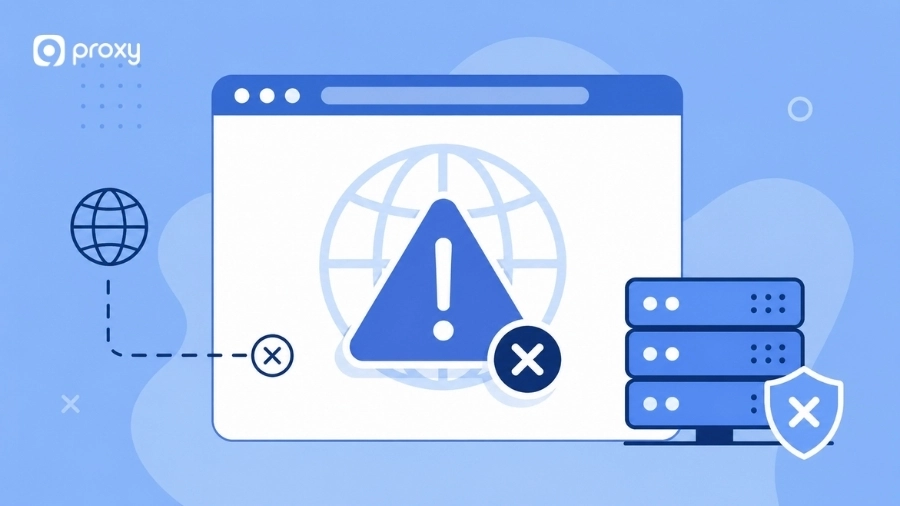
Different browsers and operating systems may use different terms to describe connection errors, including messages like something wrong with the Proxy Server. By understanding these differences, you can more easily identify whether the problem comes from your device or the website server.
The table below shows the most common error messages you may see while browsing. If you want a deeper explanation of each error type, you can refer to this guide on proxy error codes.
|
Error Type |
Code |
Meaning |
Common Example |
|
Browser Error |
ERR_PROXY_CONNECTION_FAILED |
The browser cannot reach the proxy server, caused by a wrong IP/port, proxy offline, or antivirus interference |
“Unable to connect to proxy server” |
|
Bad Request |
400 |
The request sent to the proxy is malformed or contains invalid syntax |
“Bad Request” |
|
Forbidden |
403 |
The proxy or server is refusing access due to permissions or IP ban |
“403 Forbidden” |
|
Authentication Error |
407 |
The proxy requires a valid username and password before allowing the request through |
“Proxy Authentication Required” |
|
Request Timeout |
408 |
The client took too long to send the request to the proxy |
“Request Timeout” |
|
Too Many Requests |
429 |
The proxy has rate-limited your connection due to too many requests |
“Too Many Requests” |
|
Server Error |
500 |
An unexpected error occurred on the proxy or origin server |
“Internal Server Error” |
|
Bad Gateway |
502 |
The proxy received an invalid or no response from the upstream server |
“502 Bad Gateway” |
|
Gateway Timeout |
504 |
The upstream server took too long to respond to the proxy |
“Gateway Timeout” |
These messages help you understand whether the issue is caused by a connection problem, a login error, or server downtime.
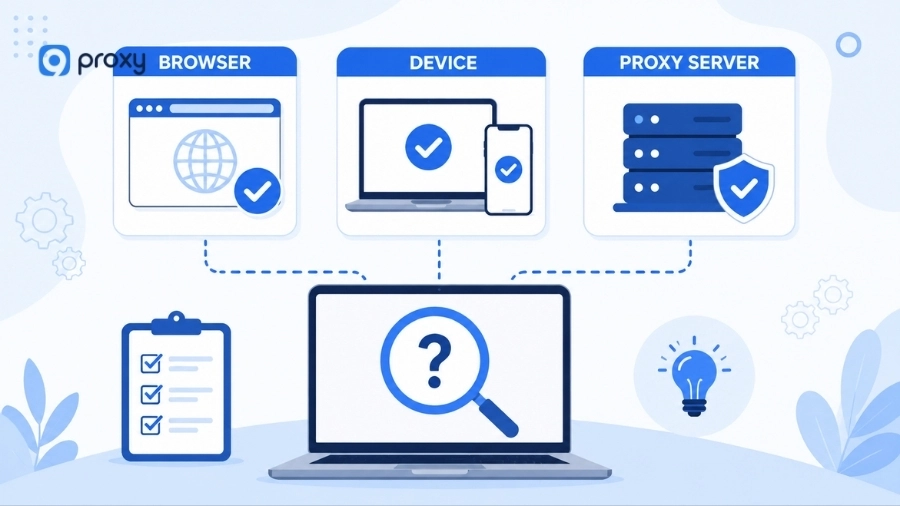
Check Whether the Problem Is in the Browser, Device, or Proxy Server
Before changing complex settings, it’s best to find out where the problem comes from. This helps you avoid wasting time fixing something that isn’t actually broken. You can try these simple steps to identify the issue.
If you still cannot determine the cause, you may want to explore detailed guides on errors like cannot locate the internet server or proxy to better understand where the failure occurs.
- Open a website without the proxy: Turn off the proxy and check if the website loads normally.
- Try another browser: If Firefox works but Chrome doesn’t, the problem is likely with the browser.
- Test on another device: Use your phone on the same network to see if the issue still happens.
- Compare different websites: Check if only one site doesn’t load or if all websites are affected.
- Test with another server: If another proxy works, your current server may be down.
Quick Fixes for the “Something Wrong With the Proxy Server” Error
If you see an error or something wrong with the Proxy Server, try these quick steps first. They are simple and often fix the problem without technical knowledge. For more detailed troubleshooting steps, you can also check this guide to fix proxy error.
- Reload the page: Press F5 or Ctrl+R to refresh.
- Use incognito or another browser: This helps check if extensions or settings cause the issue.
- Turn off the proxy: Switch to a direct connection to see if the proxy is the problem.
- Check proxy IP and port: Make sure they are correct; even one wrong number can fail.
- Disable VPN: VPN and proxy can conflict with each other.
- Clear browser cache: Remove old files and cookies that may cause errors.
- Flush DNS: Run ipconfig /flushdns in Command Prompt.
- Reset network settings: Use netsh winsock reset and restart your device.
- Check firewall/antivirus: They may block the connection, turn off temporarily to test.
- Restart your device: This helps apply all changes properly.
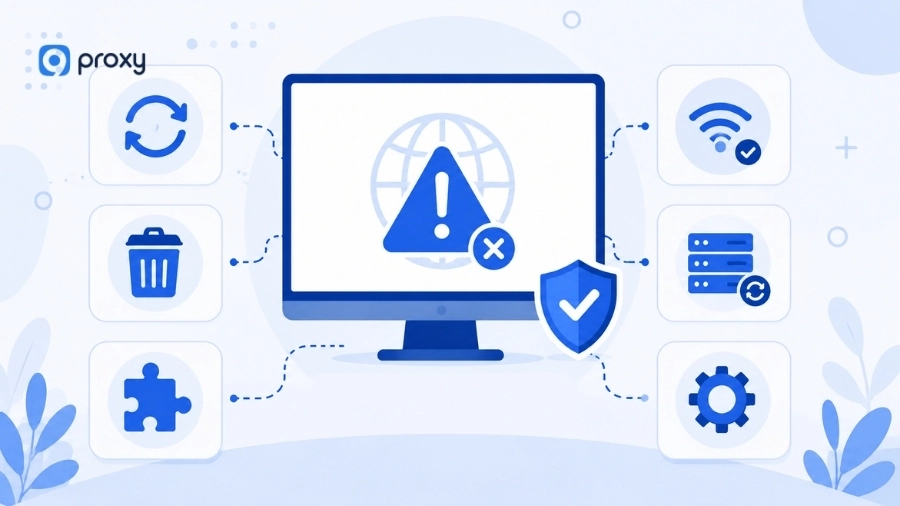
Fix the Error in Chrome and Other Browsers
Most modern browsers share system-wide settings, but their menus look different. We will show you exactly where to look to ensure your software is pointing to the right place.
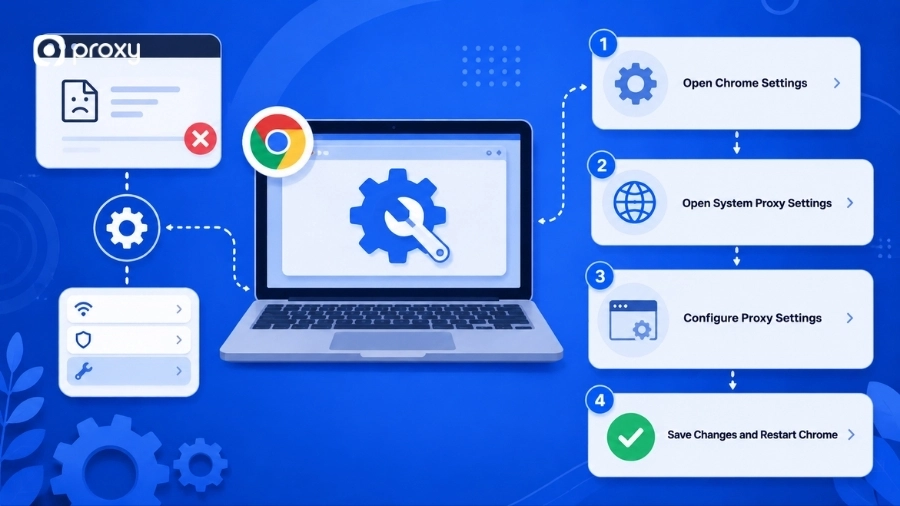
Fix Proxy Error in Chrome
Chrome is the most popular browser, and it typically relies on your computer’s main network settings. If there is something wrong with the proxy server, Chrome will guide you to your system’s configuration page.
Connection failures in Chrome often appear after incorrect manual entries, disabled network services, or unreachable servers. In many cases, users may also encounter messages such as unable to connect to the proxy server, especially when the browser cannot communicate with the configured proxy endpoint.
To fix this in Chrome, follow these steps:
- Open Chrome and click the three dots in the top right corner.
- Select Settings and navigate to the System tab on the left.
- Click Open your computer’s proxy settings.
- Verify the address and port, or toggle “Use a proxy server” to Off for testing.
- Restart Chrome to apply the new connection rules.
Fix Proxy Error in Firefox
Unlike other browsers, Firefox allows you to set up a proxy that only affects the browser itself. This is helpful if you want to keep your system traffic separate from your browsing traffic.
Please use the following steps to check your Firefox setup:
- Click the menu button and select Settings.
- Scroll down to Network Settings and click Settings….
- Check if “Manual proxy configuration” is selected.
- Confirm the HTTP Proxy and Port fields are accurate.
- Select “No proxy” to see if the error disappears immediately.
Fix Proxy Error in Edge
Microsoft Edge is deeply integrated with Windows, meaning it almost always follows the global settings of your OS. If Edge shows an error, it usually indicates a broader system issue.
You can manage this by doing the following:
- Open Edge and go to Settings.
- Search for “Proxy” in the search bar.
- Click Open your computer’s proxy settings.
- Under Manual proxy setup, click Edit and toggle “Use a proxy server” to Off, then click Save
- Ensure “Automatically detect settings” is on, or check your manual entries.
Fix Proxy Error on Different Devices
Sometimes, the error “something wrong with the Proxy Server” continues because your operating system is still using incorrect or outdated settings. Even if your browser is working fine, the problem may come from system-level configurations that were set earlier, such as a network profile or old proxy setup.
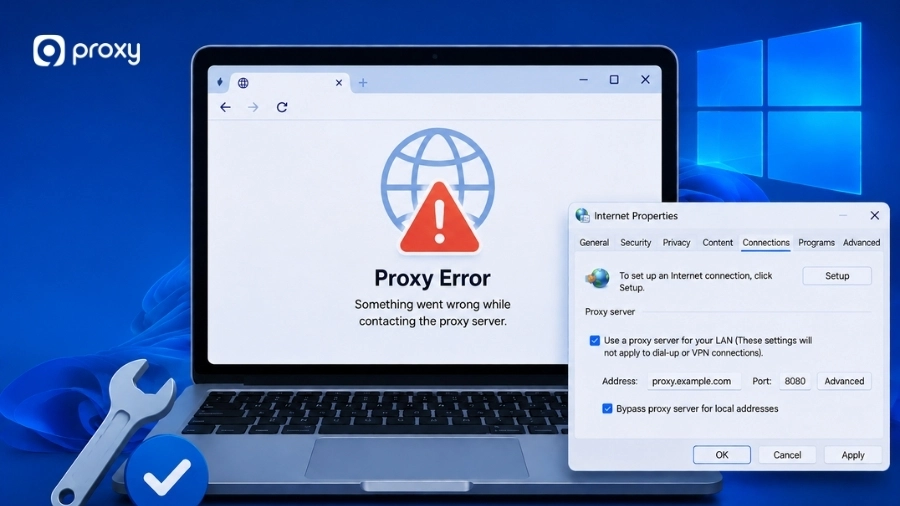
Fix Proxy Error on Windows
Windows lets you use proxy settings automatically or manually. Errors often happen when manual proxy settings are left on by mistake.
Some systems may also display warnings related to windows could not detect proxy settings when automatic network detection fails or when outdated configurations remain active after a network change.
- Press Windows + I → go to Network & Internet → Proxy
- Turn Automatically detect settings ON
- Under Manual proxy setup, turn OFF Use a proxy server (or check the IP and port if needed)
If the problem continues: Press Win + R, type inetcpl.cpl → Connections → LAN Settings
- Check Automatically detect settings
- Uncheck Use a proxy server
For serious issues:
- Open Command Prompt (Admin) and run netsh winsock reset
- Or go to Advanced network settings → Network Reset
Fix Proxy Error on Mac
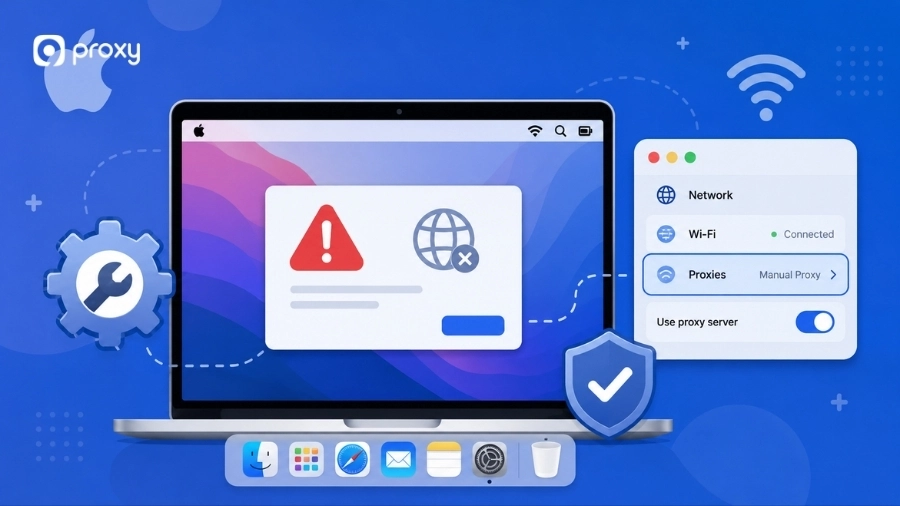
macOS manages proxy settings for each network (Wi-Fi or Ethernet). The steps below work for Ventura, Sonoma, and Sequoia:
- Click the Apple menu → go to System Settings
- Select Network → choose your active connection (Wi-Fi or Ethernet)
- Click Details… → open the Proxies tab
- Turn OFF all proxy options to test a direct connection
- Click OK to save
If the problem continues:
- Go to System Settings → Network → Filters
- Turn off any active VPN, firewall, or security filters
- Restart your Mac
What Should We Do When the Error Keeps Coming Back?
If you fix the connection only for it to break an hour later, you might be dealing with a recurring conflict. This often happens in corporate environments or due to interfering software, and may repeatedly trigger errors like something wrong with the Proxy Server.
Several network-layer issues can repeatedly trigger this problem, especially when DNS routing or filtering services are unstable. Misconfigured proxy server dns settings may redirect requests incorrectly or fail to resolve domains through the proxy connection.
We recommend checking these common recurring causes:
- Unstable providers: Low-quality free proxies often flicker in and out of service.
- Malicious software: Some unwanted programs “hijack” your settings to redirect traffic.
- Extension interference: Browser extensions can override your manual settings without asking.
- Corporate policies: Work computers may automatically re-enable proxies every time you reboot.
If the issue repeats often, we recommend stopping local troubleshooting and switching to a stable proxy provider like 9Proxy or contacting support. You can also explore additional troubleshooting guides and setup tutorials on Blog9Proxy.
FAQs
How do I know if the proxy server error is a temporary glitch or a persistent problem?
If you see the error “something wrong with the Proxy Server”, try connecting to a different network, such as a mobile hotspot. If the error disappears, the issue is likely related to your original network. This could be caused by a DNS problem, router settings, or a network-level configuration from your ISP or administrator. If the error still appears on the new network, then the problem is on your device.
If my browser is outdated, could that lead to a proxy server error?
Yes, an outdated browser can cause connection problems, including the error something wrong with the Proxy Server. Older browsers may not support modern security protocols such as TLS 1.2, which are required by many websites and proxy servers. In some cases, the proxy server itself may also be outdated and incompatible with newer browsers
Are authentication issues a common cause for proxy server errors?
Yes, authentication problems are a common cause of proxy errors. If your proxy requires a username and password, incorrect or expired credentials will prevent the connection from working. This may result in an error message, such as something wrong with the Proxy Server or a failed connection request.
Can a VPN conflict with my proxy server settings and cause this error?
Yes, a VPN can conflict with proxy settings if both are active at the same time. When this happens, your system may not know which connection to use, which can lead to a failure. If you are not intentionally using both together, you should disable either the VPN or the proxy to resolve the issue.
Conclusion
The something wrong with the Proxy Server error is usually caused by incorrect settings, server issues, or network conflicts. In most cases, you can fix it quickly by checking your proxy configuration, restarting your browser, or testing your connection without a proxy.
If the issue continues, it may be time to switch to a more stable solution. With 9Proxy proxy solution, we could help you maintain reliable, fast, and secure connections. Choose the right proxy setup to avoid future errors and improve your browsing experience.