

Proxy server setup is simple, but many users find it confusing because settings differ across devices and browsers. Many beginners struggle with proxy server setup due to unfamiliar menus, technical terms, and small mistakes like entering the wrong port or applying settings in the wrong place.
This guideline will help you change proxy server settings, set up a proxy server on common devices, and fix common errors quickly. With clear, practical steps, you can complete your proxy server setup faster, avoid connection issues, and get everything working smoothly, whether for personal or business use.
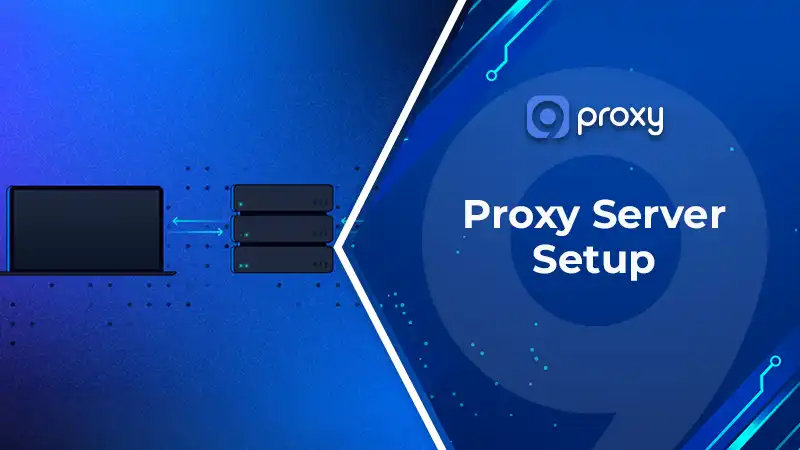
Proxy Server Settings Are Simple Once You Understand The Basics
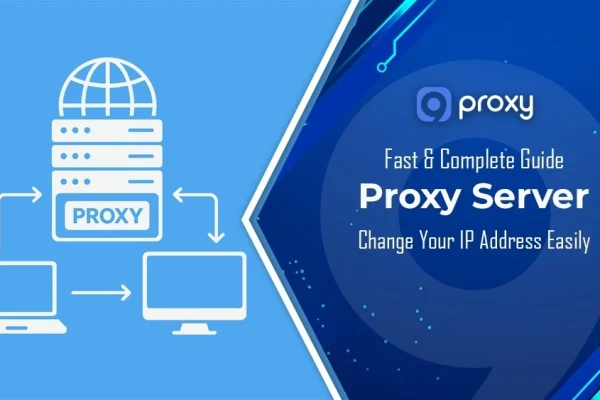
A successful proxy server setup only requires a few key elements provided by your proxy service. If you are still learning what is a proxy server and how these settings work together, focusing on the address and port first usually makes the setup process much easier.
We believe that understanding these basics first will save you time and prevent connection errors later. Once you have the correct details, the actual setup of a proxy server process is just a matter of copy-pasting values into the right boxes.
Proxy Address, Port, Username, Password, And PAC URL Explained
Before starting your proxy server setup, you need to understand the main fields you will enter. Each one plays a specific role in connecting your device to the proxy. Here are the key elements:
- Proxy Address (IP or Host): The server location your traffic will go through
- Port: The gateway number that allows the connection (for example, 8080 or 1080)
- Username & Password: Used for authentication if your proxy requires login
- PAC URL (Auto Config): A script that automatically sets proxy rules
If any of these values are incorrect, your proxy server setup will fail or show connection errors.
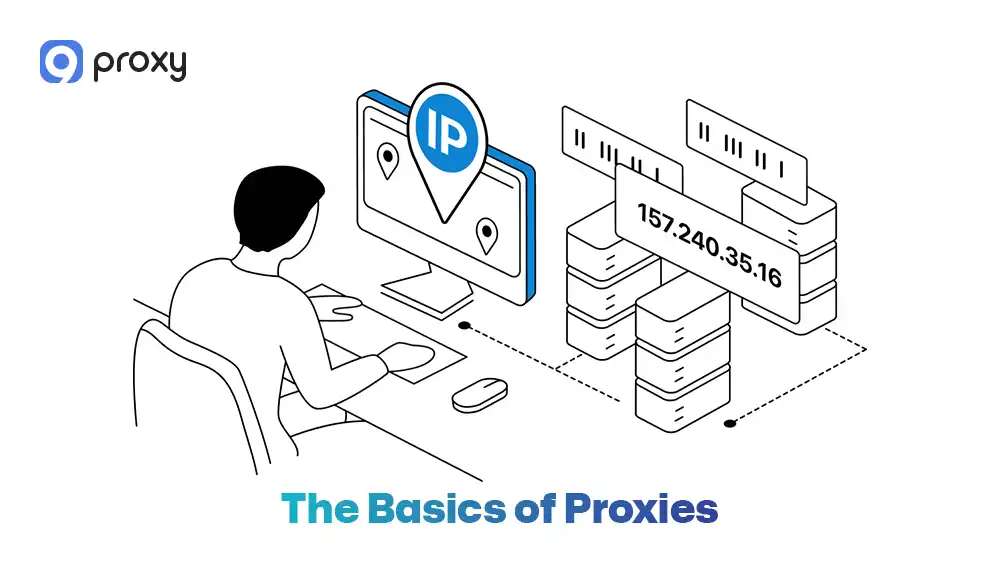
Manual Vs Automatic Proxy Setup – Which One Should You Use?
Manual setup is the most common way to setup proxy server. You enter the IP address and port yourself, which gives you full control and works well for specific tasks. Automatic setup uses a PAC URL to configure everything for you without manual input. While this can be convenient, it depends on your provider’s support.
We recommend following your provider’s instructions, but manual setup is usually easier for beginners to understand and troubleshoot if something goes wrong.
How To Set Up A Proxy Server On Windows, Mac, Mobile, And Browsers
Although the steps to set up a proxy server may vary slightly depending on the device, the overall process follows the same basic logic. To make it easier, we have organized the setup into clear, simple steps for each platform so you can follow along without confusion.
Set Up a Proxy on Windows and macOS
Desktop users can configure a proxy server setup at the system level so most applications automatically route traffic through the proxy.
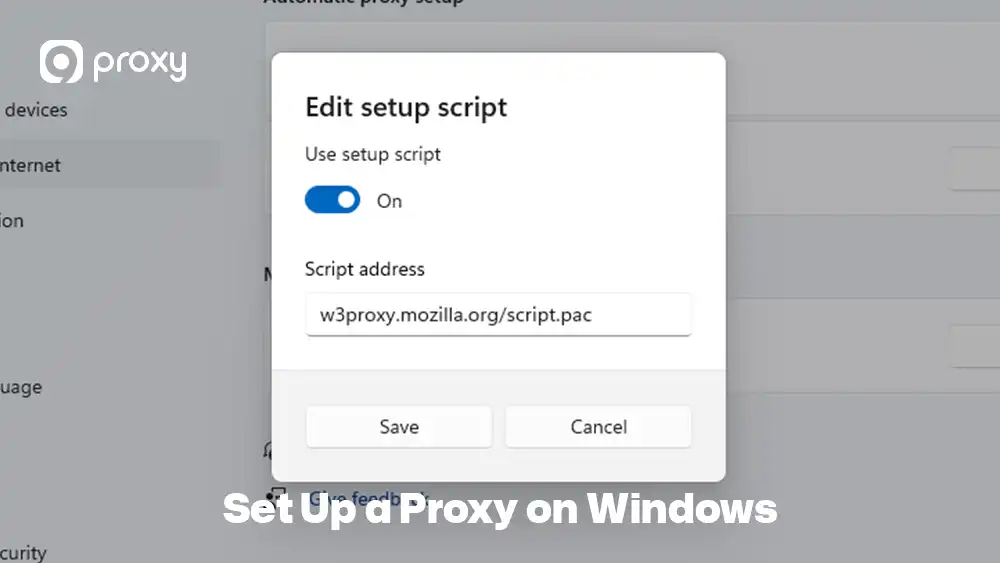
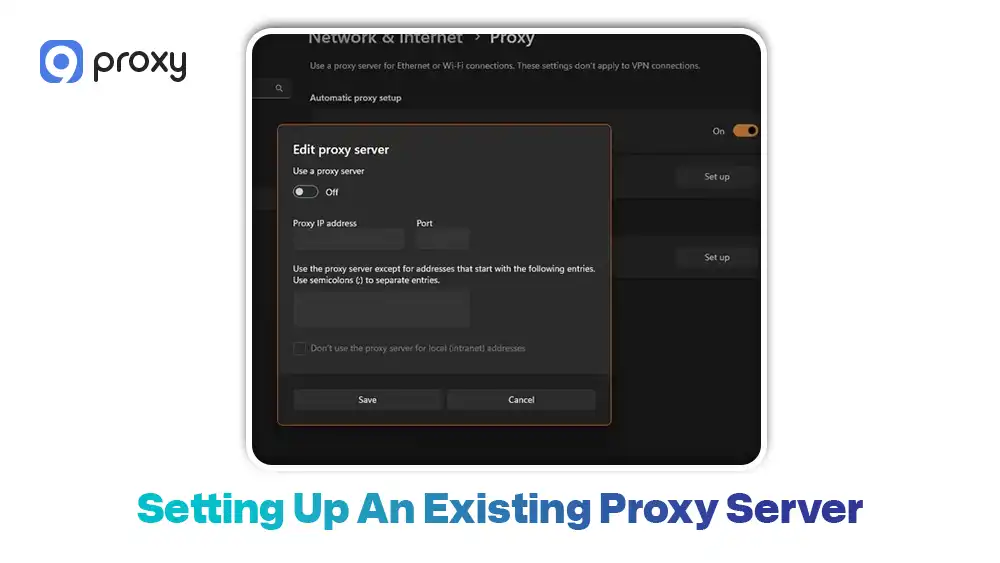
On Windows 11:
- Press Win + I → Network & Internet → Proxy
- Under Manual proxy setup, click Set up
- Turn ON “Use a proxy server”
- Enter your IP address and Port
- Click Save
- Turn OFF “Automatically detect settings” to avoid WPAD conflicts, especially on public networks
On macOS:
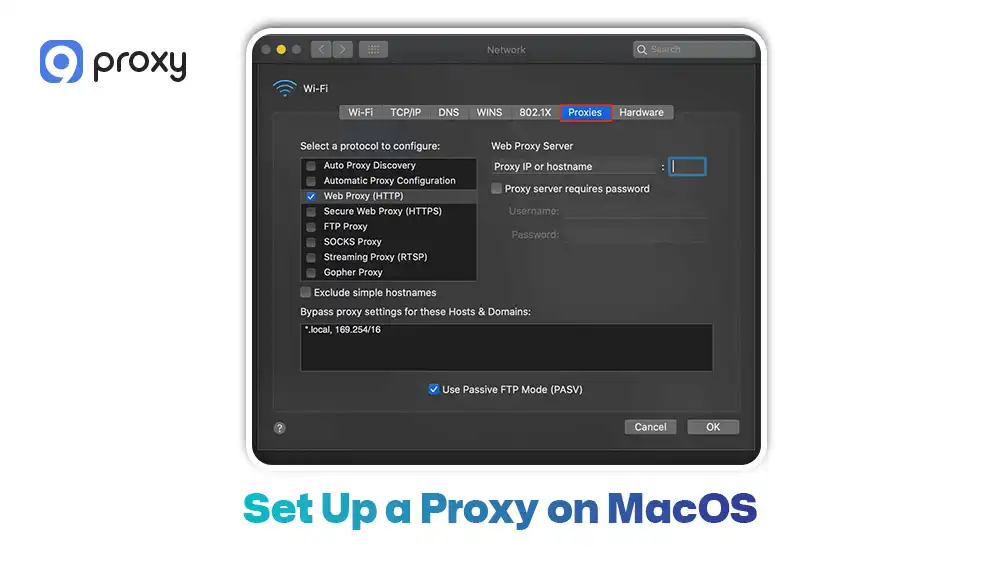
- Open Apple menu → System Settings
- Go to Network → select Wi-Fi or Ethernet → Details → Proxies
- Select the proxy protocol (Web Proxy, HTTPS, or SOCKS)
- Enter your IP address and Port
- Add credentials if required → click OK → Apply
- For automatic setup, use Automatic Proxy Configuration (PAC URL)
Set Up a Proxy on Browsers (Chrome, Edge, Firefox)
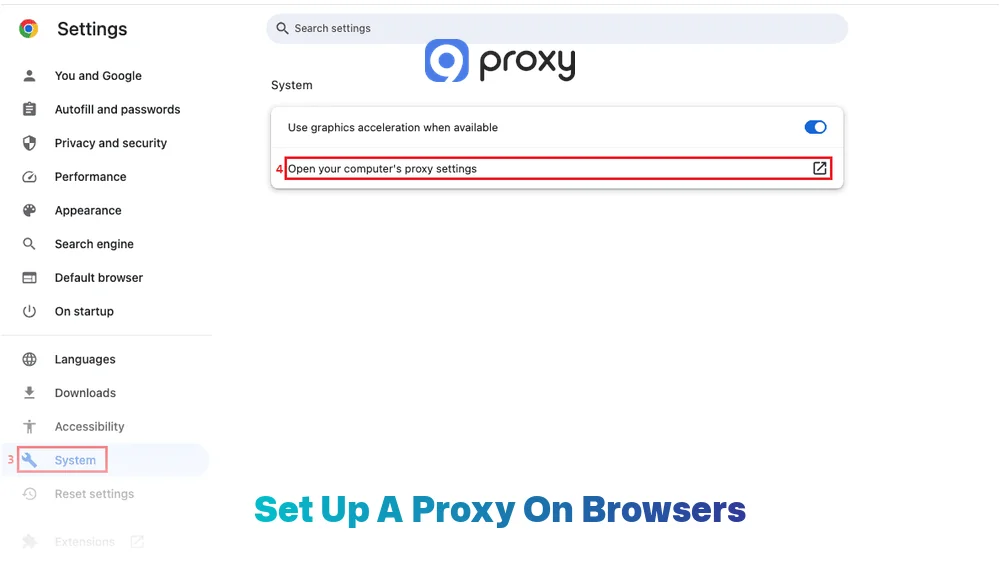
A browser-based proxy server setup works differently depending on the browser, so it’s important to understand how each one handles proxy settings before configuring.
Chrome & Edge: Because these browsers do not have their own proxy settings. When you click “Open system proxy settings,” it simply opens the Windows or macOS settings. If you need more detailed guidance for browser-based configuration, especially for extensions and SOCKS5 authentication, reviewing proxy server chrome settings can help prevent common setup mistakes.
Firefox:
- Go to Settings → General → Network Settings → Settings…
- Select Manual proxy configuration
- Enter your proxy IP and port
- If using SOCKS5: Select SOCKS v5
- Enable “Proxy DNS when using SOCKS v5” to prevent DNS leaks
- Click OK
Important difference: Firefox proxy only affects browser traffic, while Chrome and Edge use system proxy settings, meaning all system traffic (not just the browser) goes through the proxy. This is also why understanding proxy server dns settings matters when preventing DNS leaks and improving privacy.
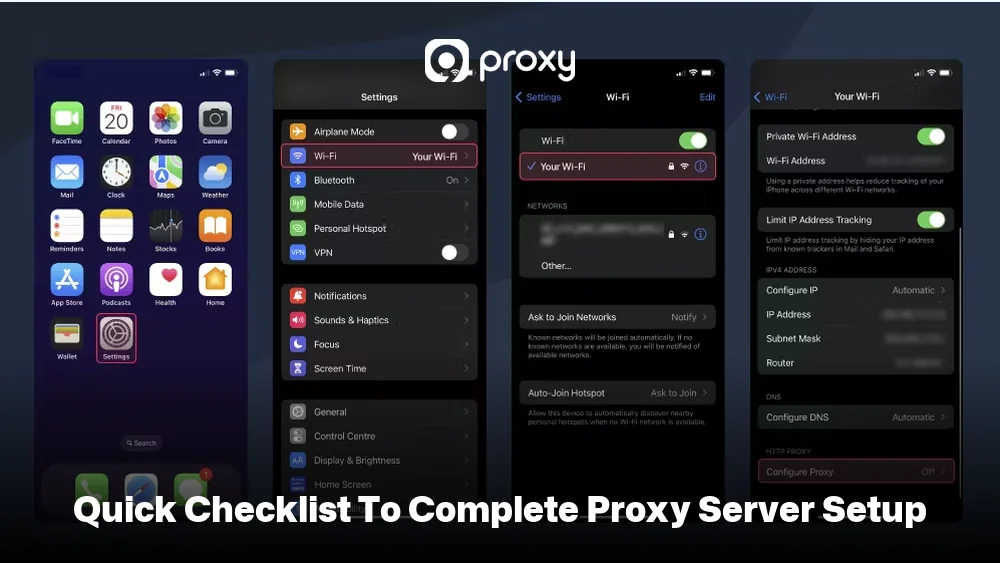
Set Up a Proxy on Mobile Devices
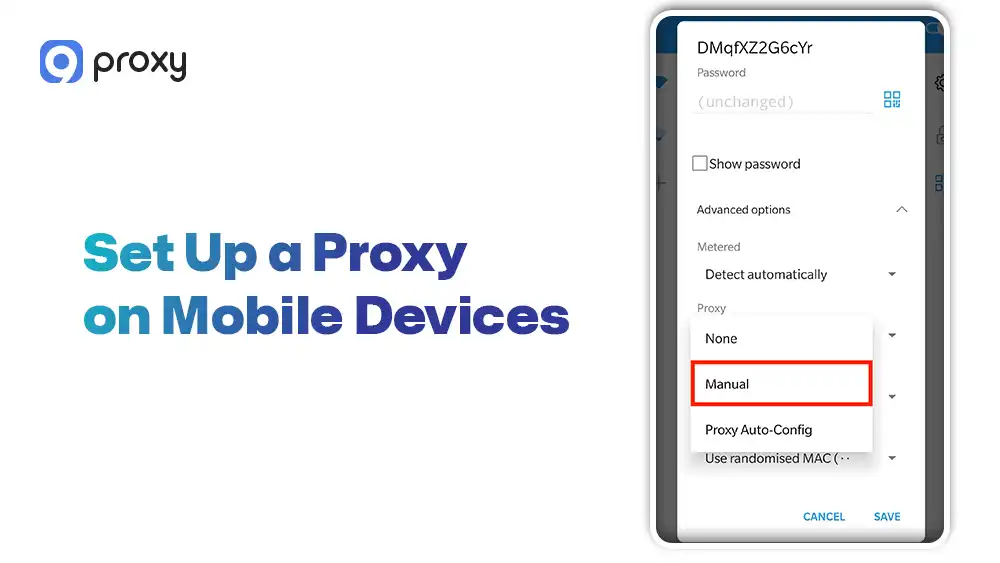
On mobile devices, proxy server setup applies only to Wi-Fi networks and does not work globally across all connections.
- Go to Wi-Fi settings
- Select your current network
- Tap Advanced options or Configure proxy
- Choose Manual
- Enter your proxy IP and port
- Add credentials if required
- Save settings
Set Up A Proxy Faster Based On Your Use Case
The following table explains how proxy server setup changes depending on your goal. We want to help you choose the fastest path to a working connection.
| Use Case | Method | Difficulty |
| Personal Privacy | Buying a Residential Proxy | Easy |
| Web Scraping | Using Rotating Proxies | Moderate |
| Building a Server | Setting up Squid on Linux | Hard |
This proxy server setup comparison shows that most people should stick to existing proxy services for speed. Viewing this table helps you decide if you need a pre-made solution or an advanced DIY build.
In summary, buying a trusted proxy is the fastest way to get an active IP without technical headaches.
Setting Up An Existing Proxy Server (Most Common Case)
Most users only need to how to setup a proxy server using details provided by a proxy service like 9Proxy. This method is fast, beginner-friendly, and provides stable performance without complex configuration.
Steps to set up:
- Get your proxy IP, port, username, and password from your provider
- Open your device or browser proxy settings
- Enter the proxy details in the correct fields
- Save and enable the proxy
- Test your connection to confirm it works
Setting Up Your Own Proxy Server (Advanced Users)
If you want to setup proxy server yourself, you need a dedicated server and software like Squid. This gives you full control over your proxy but requires technical knowledge and proper configuration.
Steps to set up:
- Rent or prepare a VPS or dedicated server
- Install proxy software (for example, Squid on Linux)
- Configure ports, access rules, and authentication
- Open the required ports in your firewall
- Connect your device using the server’s IP and port
This option is more complex, so we recommend it only for advanced users who need full control over their infrastructure.
How To Test If Your Proxy Server Is Working Properly
After completing your proxy server setup, testing is important to confirm everything works correctly. Here are simple ways to check:
- Check IP address: Make sure your visible IP has changed
- Verify location: Confirm it matches your proxy
- Test browsing speed: Open websites and check performance
- Check apps: Some apps may bypass proxy settings
Testing helps you avoid hidden issues before using the proxy fully.
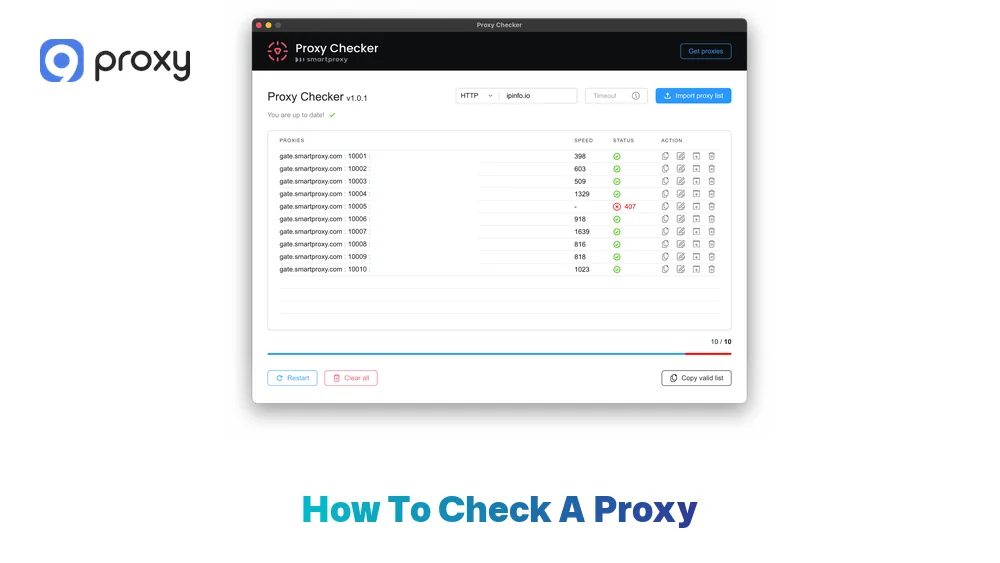
Common Proxy Server Setup Errors And How To Fix Them
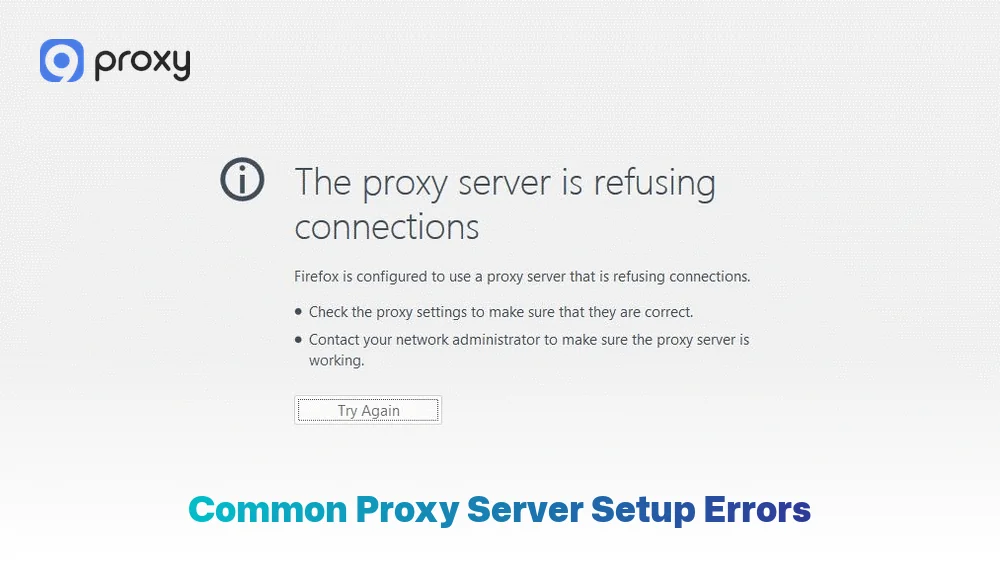
Most problems during a proxy server setup are caused by small mistakes like typing errors or incorrect settings. If you repeatedly see connection failures or browser timeout messages, troubleshooting guides for unable to connect to the proxy server can help identify whether the issue comes from incorrect credentials, DNS conflicts, or inactive proxy IPs.
| Error | Cause | Quick Fix |
| Connection Timed Out | Wrong IP or Port | Double-check your provider details |
| Authentication Required | Missing Username/ Password | Enter your credentials when prompted |
| No Internet Access | Proxy Server is Down | Try a different proxy IP |
This proxy server setup error guide covers the most common issues users face. Checking this table can save you a lot of time when your browser does not load pages. In most cases, the problem is solved by reviewing your proxy server settings carefully for typos, extra spaces, or incorrect numbers.
Incorrect Proxy Address, Port, Or Login Details
One of the most common reasons a proxy server setup fails is entering incorrect information. Even a small mistake like an extra space, wrong port number, or missing character can break the connection.
To avoid this, copy and paste the details directly from your provider dashboard instead of typing manually. Also, make sure you are using the correct protocol, such as HTTP or SOCKS5, as required by your proxy service.
Proxy Settings Not Applied In The Correct Place
Another common issue is applying settings in the wrong location. For example, changing proxy server settings in Chrome only affects browser traffic, but not other apps like Spotify or system tools.
If you want all applications to use the proxy, you need to configure it in your system settings instead of just the browser.
Proxy Stops Working When Switching Networks
On mobile devices, your proxy server setup only works for the specific Wi-Fi network where it was configured.
If you switch to mobile data (4G/5G) or connect to a different Wi-Fi network, the proxy will stop working automatically. In this case, you need to set up the proxy again for each new network connection.
Quick Checklist To Complete Proxy Server Setup Without Errors
To complete your setup proxy server process smoothly and avoid common issues, follow these simple steps carefully:
- Gather your IP address, Port, Username, and Password from your proxy provider
- Open the network or proxy settings on your device or browser
- Enter the details exactly as provided by 9Proxy to avoid errors
- Save the settings and restart your browser or application
- Visit an IP checker website to confirm your IP and location have changed
- Test your connection speed to make sure it is stable for your task
Following these steps helps ensure your proxy works correctly from the start. For more setup tutorials, troubleshooting guides, and proxy-related resources, you can also explore Blog9Proxy for additional platform-specific instructions and fixes.
FAQs
How Do I Turn Off Proxy Server Settings?
To turn off proxy server settings, go to your device’s proxy settings and disable Manual proxy configuration or switch the proxy option to OFF. This will return your connection to normal.
Why Does My Proxy Only Work On Wi-Fi And Not Mobile Data?
On most devices, proxy settings are applied only to Wi-Fi networks. Mobile data (4G/5G) does not use these settings, which is why your proxy only works when connected to Wi-Fi.
Can I Use A Proxy Server For All Apps On My Device?
Yes, you can use a proxy server for all apps if you configure it at the system level. However, some apps may still bypass proxy settings depending on how they are built.
Can I Set Up My Own Proxy Server Instead Of Buying One?
Yes, you can set up your own proxy server, but it requires technical knowledge, server setup, and ongoing management to keep it secure and stable.
Conclusion
A successful proxy server setup depends on understanding the basic settings, following the correct steps, and testing your connection carefully after setup. Most problems happen because of small mistakes, such as incorrect details or wrong configuration, and they can usually be fixed quickly.
We recommend using a reliable proxy service like 9Proxy to reduce errors and ensure stable performance. Start your proxy server setup today to improve security, avoid connection issues, and enjoy a smoother browsing experience.