

Seeing the “Unable to Connect to the Proxy Server” error can instantly interrupt your browsing and leave you wondering what went wrong. This issue usually appears when proxy settings are misconfigured, servers become unreachable, or your network blocks the connection.
Whether you're unable to connect to the proxy server on Chrome, Firefox, Edge, or other devices, the impact is equally frustrating. Therefore, 9Proxy will walk you through simple explanations and practical steps to help you identify the cause, fix the problem quickly, and restore stable access so you can get back online without hassle.
Understanding the “Unable to connect to the proxy server” Error
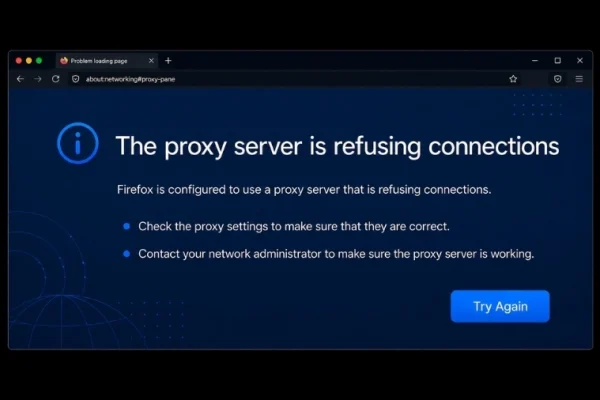
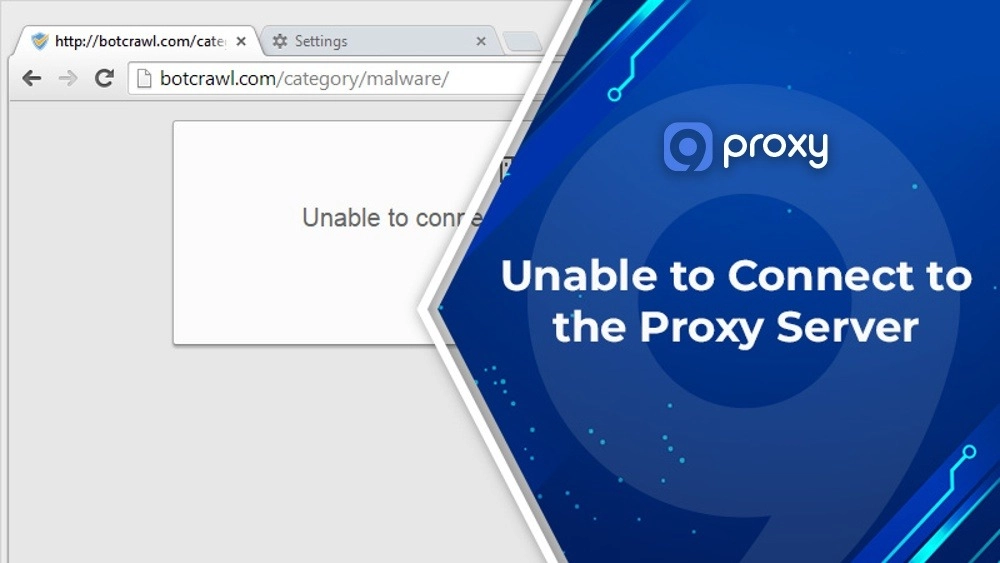
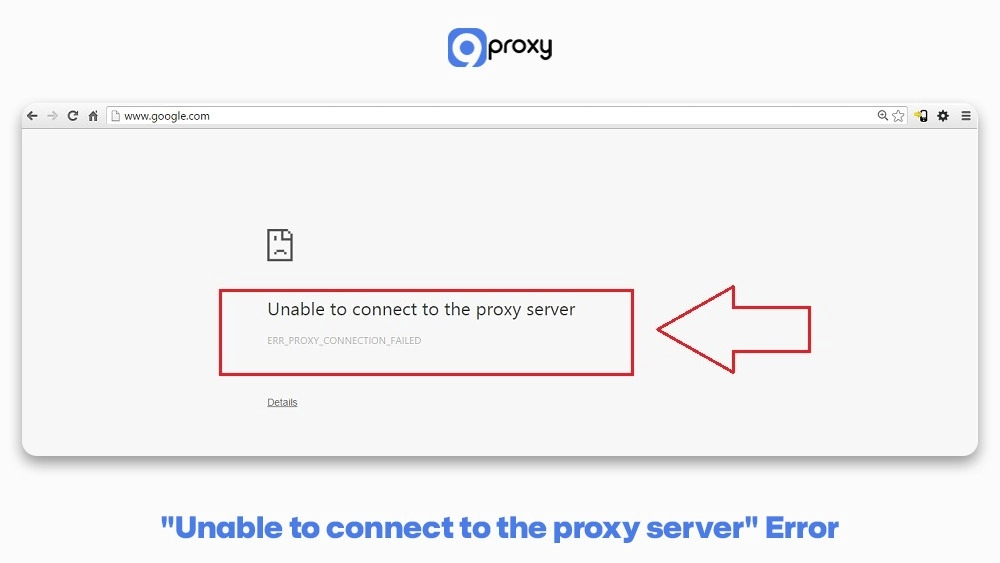
When you see the “Unable to Connect to the Proxy Server” message, it simply means your browser tried to reach the proxy but couldn’t complete the connection. A proxy works like a middleman that forwards your requests to websites, so when that link breaks (because of wrong settings, server downtime, firewall blocks, or other network issues), your traffic can’t pass through even though your Wi-Fi still works normally.
This is why the browser shows a proxy-specific warning instead of a generic “no internet” message. In many cases, users also run into related issues like something wrong with the proxy server, which shares the same root causes and solutions. Often, the error happens because your device expects one configuration while the proxy server behaves differently.
Common Causes of Proxy Connection Issues
Knowing the root cause of the unable to connect to the proxy server error helps you fix it faster. Below are the most common reasons:
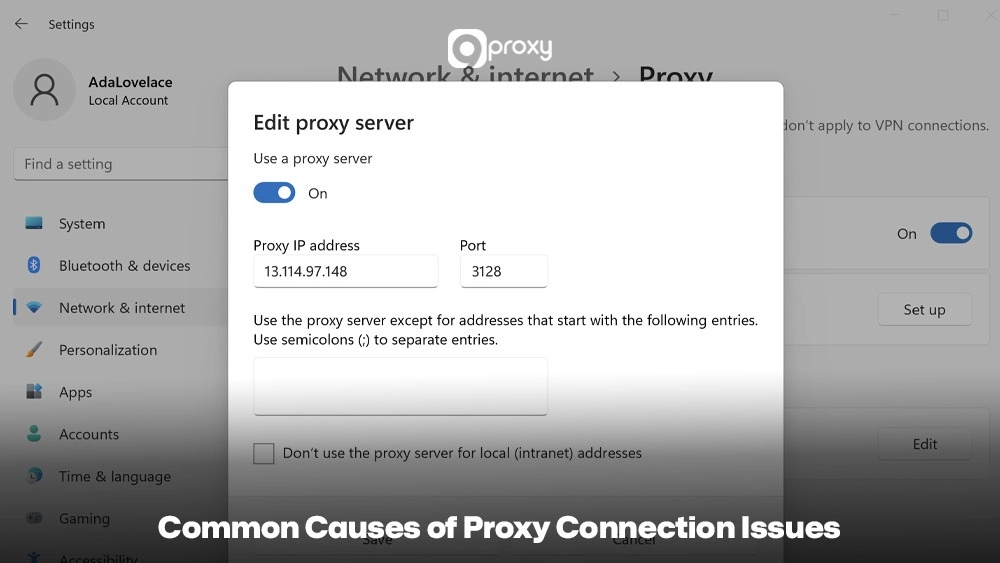
- Incorrect Proxy Settings: This is the main culprit. Your browser or system needs the correct proxy IP address and port. If they are wrong, or if an old proxy setting is still active, the connection will fail immediately.
- Proxy Server Down: Sometimes the proxy server is offline because of maintenance, overload, or technical problems. In such situations, users may search for ways to fix proxy error because the problem is often on the server’s end rather than the device.
- Network or Firewall Issues: Firewalls, antivirus programs, or even your router can block the port your proxy uses, preventing the request from reaching the proxy server.
- Authentication Failures: Many proxies require a username and password. If your credentials are wrong, expired, or no longer valid, the proxy will reject the connection.
- DNS Resolution Problems: Your device must convert the proxy’s domain name into an IP address. If DNS is not working properly, your computer may show errors like cannot locate the internet server or proxy, meaning it can’t find the correct destination.
9 Ways to Fix “Unable to Connect to the Proxy Server” Error
Dealing with a faulty connection is always frustrating. To help you handle the unable to connect to the proxy server issue on any device or browser, we’ve put together nine practical methods that include both quick checks and deeper system adjustments.
Quick Fixes
Sometimes the easiest steps can solve the problem fastest. Before adjusting advanced settings, try these simple actions to fix the unable to connect to the proxy server error:
Restart Device and Router: Turn off your computer and router or modem, wait about 30 seconds, then turn them back on. This helps clear temporary errors and refresh your network.
Test Other Websites or Applications: Try opening different websites or apps, such as messaging tools. If they work normally, the issue is likely limited to your browser.
Toggle Wi-Fi or Ethernet: Disconnect and reconnect your network connection. This forces your device to rebuild the link.
Try Another Browser: If you see the error in Chrome, test the same site in Firefox or Edge. If it loads there, the problem is specific to Chrome’s settings.
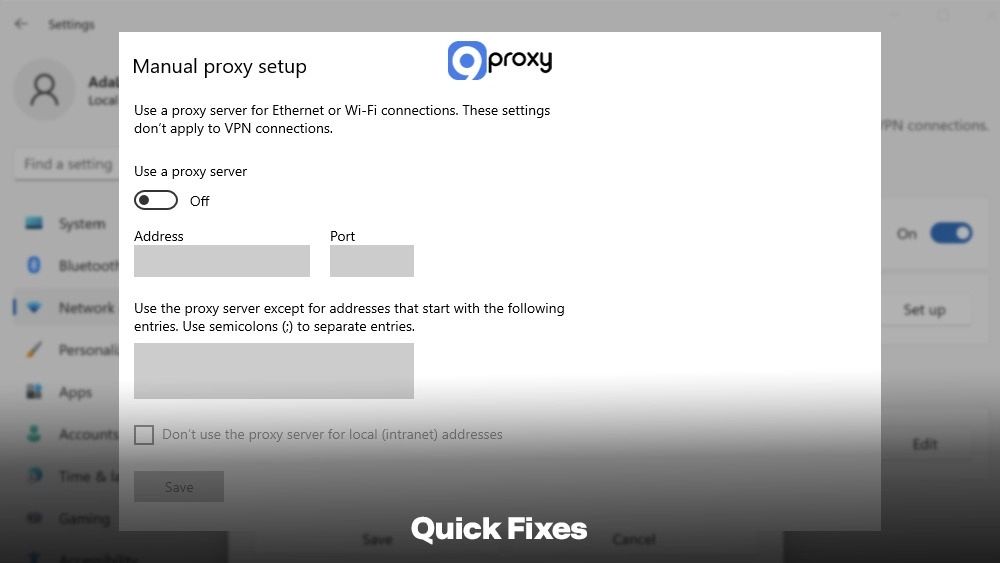
Temporarily Disable Proxy (Direct Internet Access): Turning off proxy settings can quickly show whether the issue is configuration-related or linked to cases like can’t connect to proxy server errors that come from mismatched settings.
How to temporarily disable proxy settings:
- Open your computer’s Internet Options. On Windows, search for “Internet Options”. On macOS, go to System Settings > Network.
- Find the section that controls your proxy settings.
- Turn off any option that says “Use a proxy server for your LAN”, or switch the proxy mode from Manual to Automatically detect settings or Off.
- Try loading a website again. If everything works, it means the original proxy settings or the proxy server itself was causing the problem.
Fixing “unable to connect to the proxy server” in Chrome (Windows 10 & Windows 11)
Google Chrome on Windows uses the system’s proxy settings by default. If you see unable to connect to the proxy server Chrome, you should review the Windows proxy configuration first.
Steps to Check and Fix Proxy Settings on Windows:
- Open Windows Internet Properties: Press Windows Key + R, type inetcpl.cpl, then press Enter.
- Access LAN Settings: Open the Connections tab and select LAN settings.
- Disable Unwanted Proxy: If you do not need a proxy, make sure “Use a proxy server for your LAN” is unchecked. Keep “Automatically detect settings” checked for a safe default configuration.
- Check Chrome Extensions: Some extensions can change your proxy settings. Visit chrome://extensions, and remove or disable any suspicious or unfamiliar extensions, especially ones related to network or security.
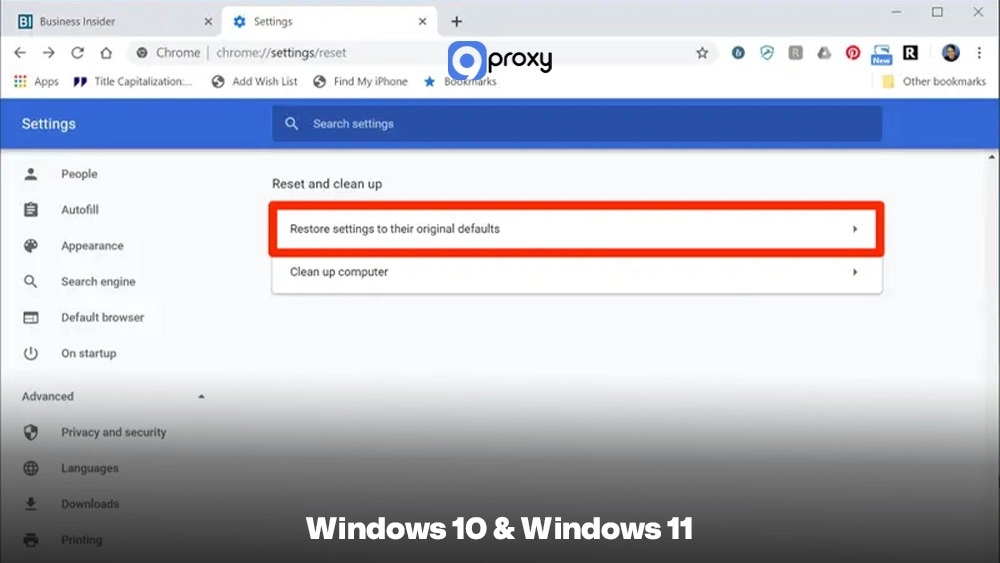
- Reset Chrome Settings: If the issue continues, go to chrome://settings/reset, click Restore settings to their original defaults, and confirm. This resets your browser settings and disables extensions while keeping your bookmarks and history.
Warning: If your device belongs to a company network, proxy settings may be controlled by your administrator. Avoid changing options that are greyed out or marked as managed, as doing so can disrupt your network connection.
Fixing Proxy Connection Errors on macOS & Chrome
On macOS, Chrome follows the system’s network configuration, so adjusting the proxy settings at the operating system level will fix the issue for both Chrome and Safari.
Steps to Check and Fix Proxy Settings on macOS:
- Open Network Settings: Go to System Settings (or System Preferences on older macOS versions) and select Network.
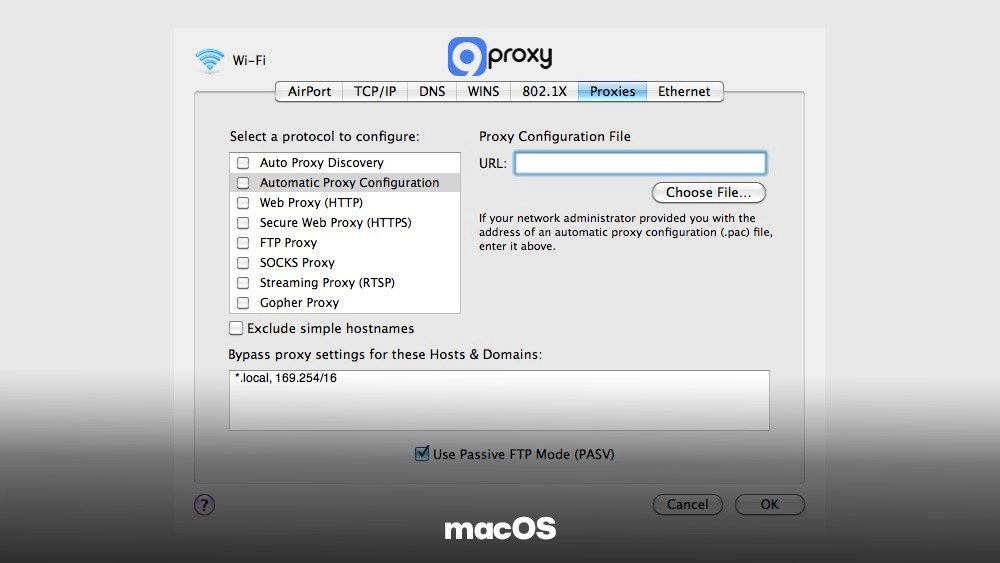
- Open Proxy Settings: Choose your active connection, such as Wi-Fi or Ethernet, click Details, then open the Proxies section (or Advanced > Proxies on older versions).
- Review and Reset:
- Look through the list of proxy protocols like Web Proxy (HTTP) and Secure Web Proxy (HTTPS).
- If you do not need a proxy, uncheck all proxy options except Auto Proxy Discovery or Automatic Proxy Configuration if required.
- If you do need a proxy, verify that the server address and port are entered correctly.
- Apply Changes: Click OK or Apply to save your adjustments.
Fixing the system-level proxy settings on macOS usually resolves the Unable to Connect to the Proxy Server error in Chrome and any other browser that relies on the same configuration. In cases where the issue still persists, it may indicate something wrong with the proxy rather than a local configuration problem.
Fixing Proxy Errors in Other Desktop Browsers (Edge, Firefox)
While Chrome uses the system proxy on Windows and macOS, other browsers may manage proxy settings differently. The table below explains how each browser handles proxy configuration and what quick steps you can take to fix related issues.
|
Browser |
How Proxy Settings Are Managed |
Quick Fix Instruction |
|
Microsoft Edge |
Edge, like Chrome, relies on the Windows or macOS system proxy settings. |
Follow the Windows/macOS steps above to review Internet Options (Windows) or Network Details (macOS). |
|
Mozilla Firefox |
Firefox uses its own independent proxy settings by default. |
Open Firefox Settings (about:preferences), search for “Network Settings” or “Proxy”, and click Settings. Select No proxy or Use system proxy settings to test if the issue is resolved. |
Adjusting the system settings will usually fix proxy problems in Edge. For Firefox, because it often overrides the system configuration, you need to edit its internal proxy panel to disable the proxy or point it to the correct server.
Fixing “unable to connect to the proxy server” on Android & iOS
On mobile devices, proxy problems usually come from the saved settings of the Wi-Fi network you are using, especially when old configurations, incorrect proxy details, or automatically applied network rules interfere with how your browser connects to the internet.
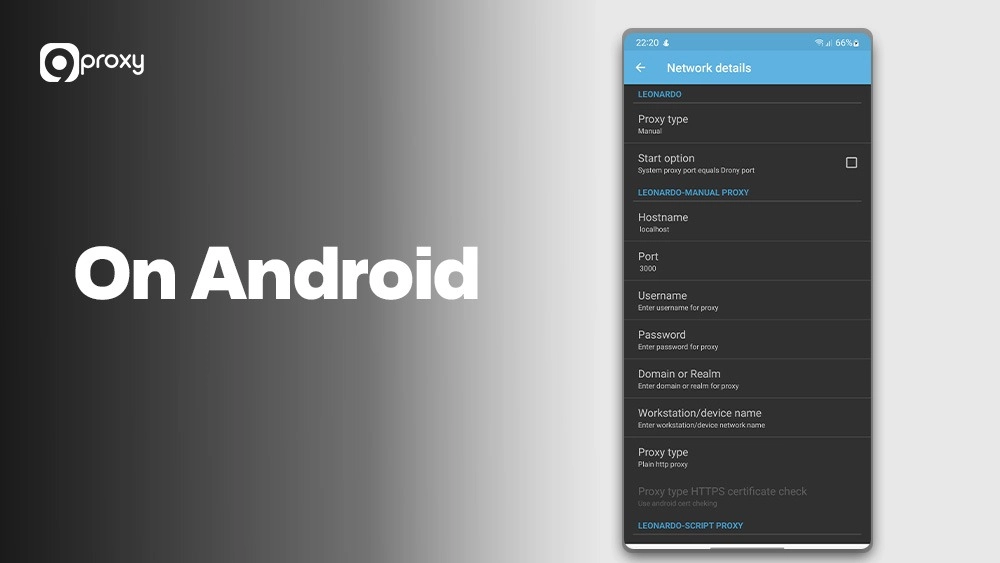
On Android (Chrome):
- Open Settings > Network & Internet > Internet (or Wi-Fi on some devices).
- Tap and hold your connected network, then choose Modify network or Manage network settings.
- Open Advanced options and look for the Proxy section.
- Set the proxy to None to disable it, or make sure all proxy details are correct if you need to use one.
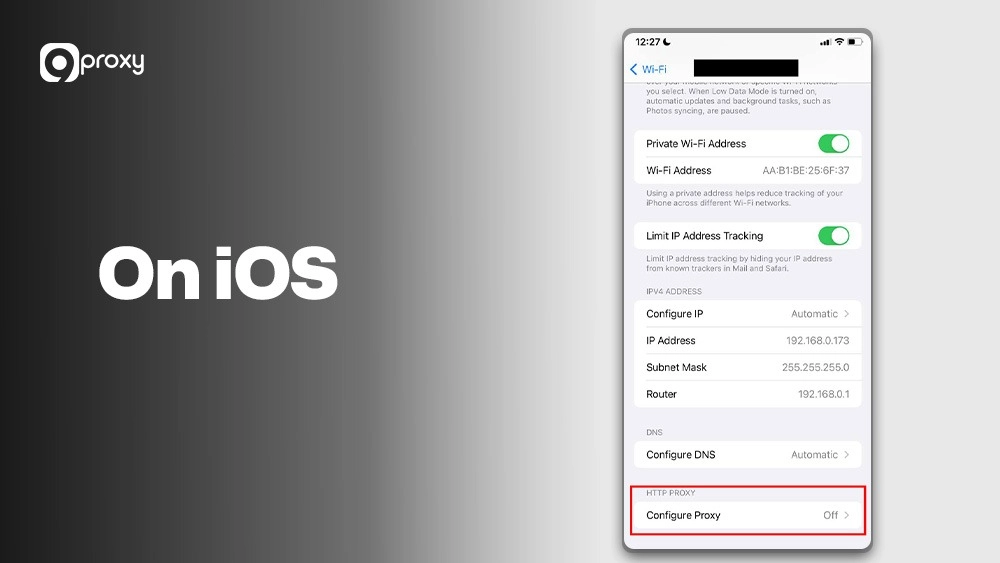
On iOS (Chrome/Safari):
- Go to Settings > Wi-Fi.
- Tap the (i) icon next to your connected network.
- Scroll to HTTP Proxy.
- Choose Off to disable the proxy, or carefully check the Manual configuration if a proxy is required.
Flush DNS Cache and Renew IP (Windows & macOS)
Sometimes, outdated or corrupted Domain Name System (DNS) data stored on your device can interrupt your connection. When this happens, your system may fail to locate the proxy server correctly. Flushing the DNS cache forces your device to perform a fresh lookup of the proxy server’s address, which often restores normal connectivity.
This table explains what to run on each operating system:
|
Operating System |
Command Prompt Action |
Description |
|
Windows |
Open Command Prompt as Administrator and run: ipconfig /flushdns Then run: ipconfig /release and ipconfig /renew |
Clears the local DNS cache. Releases and renews your device’s IP address. |
|
macOS |
Open Terminal and run: sudo dscacheutil -flushcache; sudo killall -HUP mDNSResponder |
Clears the DNS cache and restarts the related network service. |
Running these commands can help eliminate conflicts caused by old or mismatched network settings, allowing your device to reconnect to the proxy server properly.
Check Firewall & Antivirus Rules Blocking Proxy Connections
Your security software or firewall may incorrectly flag your proxy connection as a potential risk, blocking it from connecting. Steps to Check and Fix:
Temporarily Disable: As a quick test, turn off your third-party firewall or antivirus program (such as McAfee or Norton) for a moment. If the connection works afterwards, you’ve identified the source of the problem.
Whitelist the Browser or Port: Turn your security software back on, then open its settings. Create an exception or whitelist rule for your web browser (Chrome, Firefox, etc.) so it can send traffic without restrictions. If needed, also allow the specific port your proxy uses.
VPN, Proxy Chains, and Double-Tunnelling Issues
Using a VPN and a proxy at the same time, or chaining multiple proxies together, can cause routing conflicts that trigger the unable to connect to the proxy server error.
Fix: If you’re using a VPN, disconnect it temporarily and try connecting to the proxy again. VPNs create their own virtual network adapters, which can override or disrupt the path your device uses to reach an external proxy server. Make sure your setup only uses the tools you actually need to prevent traffic conflicts and avoid connection issues.
Router-Level and ISP-Level Blocking
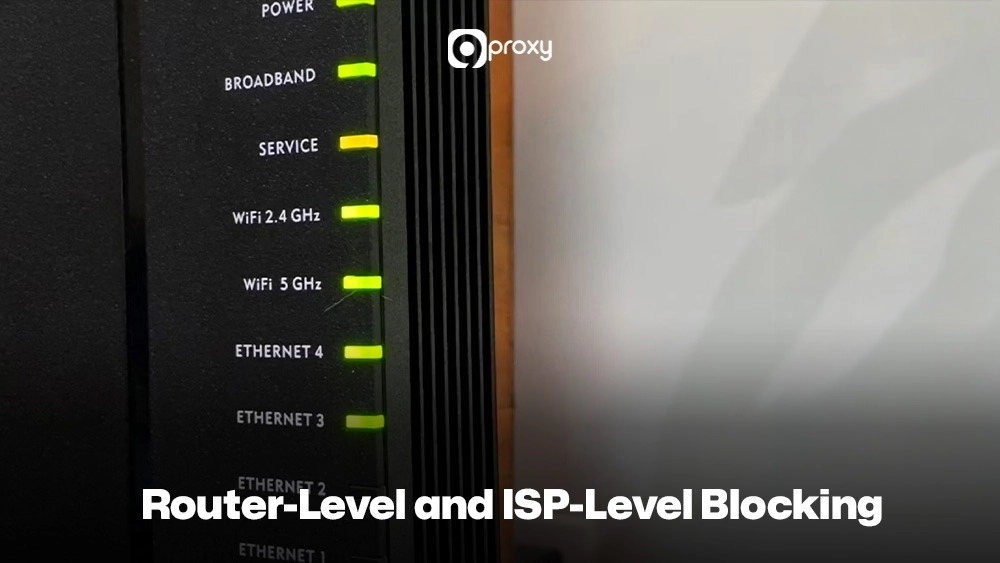
In some situations, the problem isn’t caused by your device at all. Your router or even your Internet Service Provider (ISP) may be blocking the connection to the proxy server.
Troubleshooting Steps:
Check Router Settings: Open your router’s admin page (usually by entering 192.168.1.1 in your browser). Look under Firewall, Security, or Access Control. Make sure the port used by your proxy and the proxy’s IP address are not being blocked.
Contact ISP: If the issue continues after checking everything else, your ISP may be filtering or blocking traffic to the proxy server’s destination. Contact their support team and ask whether any network filtering is affecting your connection.
Best Practices to Avoid Errors in the Future
Preventing the unable to connect to the proxy server error is always easier than fixing it afterwards. 9Proxy suggests a few simple habits to keep your connection stable:
- Keep Your OS, Browser, and Security Software Updated: Updates fix bugs and improve network stability, helping you avoid many proxy-related errors.
- Choose Reliable Proxy / VPN Providers: Using a trusted service, like 9Proxy’s residential proxies, gives you better uptime, faster speeds, and fewer server issues.
- Use Safe Configuration Practices: Double-check the IP address and port whenever you set up a proxy. Store your login details safely, and remove any old or suspicious proxy settings from your device to avoid conflicts.
You can also explore detailed explanations of proxy error codes to better understand how different failures occur and how to handle them.
Conclusion
Fixing proxy errors becomes simple when you understand how settings, DNS, firewalls, and networks interact. We’ve shared nine clear and practical ways to fix the Unable to Connect to the Proxy Server error. These steps cover basic restarts, system fixes for Windows and macOS, and browser adjustments. By following them one by one, you can quickly solve common problems like wrong settings or blocked connections.
And if this issue keeps happening, you can switch to a more stable, high-quality service like 9Proxy’s residential proxies that offer smoother, faster, and more secure browsing, helping you avoid connection problems in the future. For more troubleshooting guides and practical proxy tips, you can explore additional resources on Blog 9Proxy.