

An Azure proxy server is often a simple and effective way to unblock YouTube, enable secure remote access, and control outbound traffic in cloud environments. The term “Azure proxy” can refer to different solutions depending on your needs.
It may mean Azure Application Proxy for accessing on-premises apps, proxy rules for Azure Virtual Desktop to keep connections stable, or a proxy server Azure VM used as a cloud gateway. That's why 9Proxy explains what an Azure proxy server really is, how each option works, and how to choose the right setup to improve security, access, and daily work efficiency.

What Is an Azure Application Proxy?
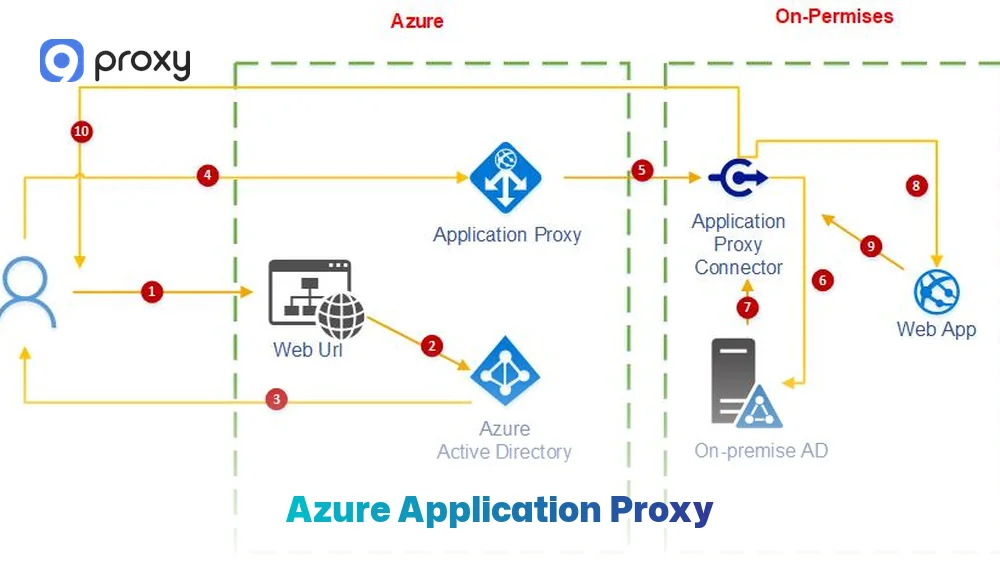
An Azure Application Proxy is a cloud service that allows users to access internal web applications from outside the corporate network securely. It creates an external URL for an on-premises app and uses Microsoft Entra ID, formerly Azure AD, to handle authentication.
Users are authenticated in the cloud first, and only then is traffic routed to the internal application through a connector. This approach keeps the internal network hidden and makes Azure Application Proxy a modern, safer alternative to traditional VPNs or legacy reverse proxies for web applications.
When to Use Azure Application Proxy (And What It Solves)
If you need to give users remote access without managing a full VPN, this Azure proxy service is a practical and easy option. It helps reduce security risks by keeping internal servers hidden and not directly exposed to the internet.
We recommend using this solution in the following situations:
- Remote access: Allow employees to reach internal SharePoint sites or HR portals from anywhere.
- Better security control: Replace broad VPN access with access limited to specific applications.
- Modern authentication: Add Multi-Factor Authentication (MFA) to older applications that do not support it on their own.
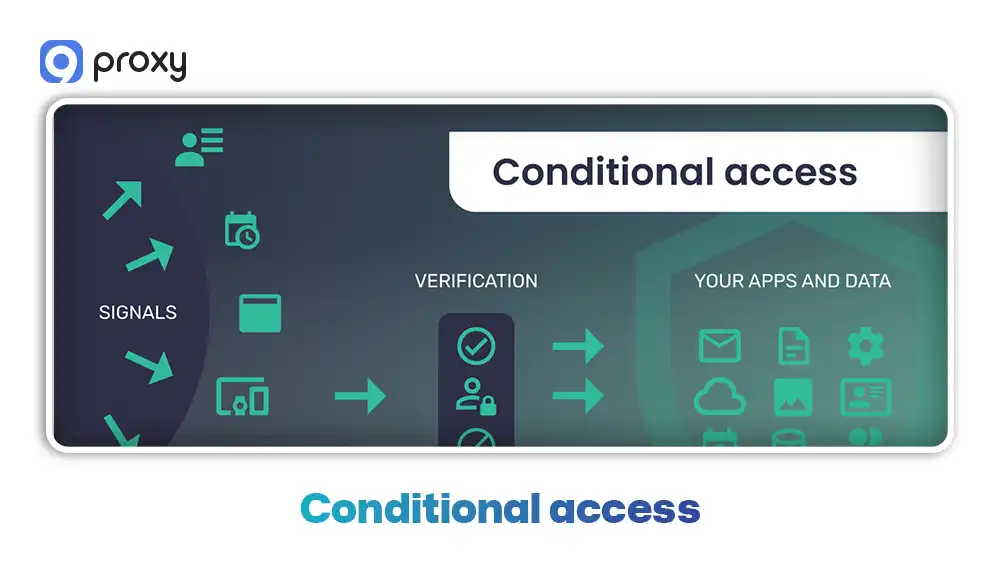
- Conditional access: Limit access based on device status or user location to improve security.
As organizations shift workloads to the cloud, solutions like Azure Application Proxy represent a modern approach to what is broadly known as a cloud proxy server infrastructure that bridges on-premises resources with cloud-based authentication and access control, enabling secure remote connectivity without traditional network boundaries.
Forward Proxy vs Reverse Proxy in Azure
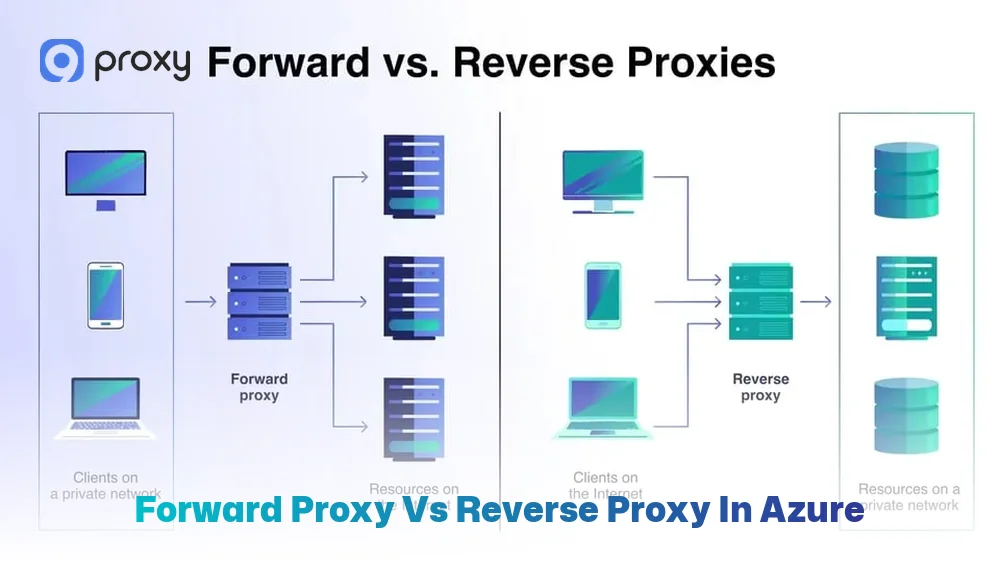
In Azure environments, proxy roles are defined by the direction of traffic and the goal they serve. Understanding this difference helps you design the right solution and avoid setup mistakes.
Forward proxy in Azure
This type of proxy is used to control outbound traffic. Client devices or workloads send their internet requests through the proxy, which allows you to monitor, filter, or manage external access.
Reverse proxy in Azure
This proxy is used to protect and publish internal services. External users connect to the proxy first, and the proxy then forwards approved traffic to internal applications.
In practice, Azure Application Proxy works like a reverse proxy for specific web apps, while a proxy server Azure VM is commonly used as a forward proxy or gateway to manage outbound traffic.
How to Set Up Azure Application Proxy (Step-by-Step Overview)
Deploying this Azure proxy service is a straightforward process with a clear structure. To keep the setup simple and avoid missing important steps, we usually divide it into three main phases that guide the deployment from start to finish.
Before You Begin: What You’ll Need
Before starting the configuration, it is important to make sure your environment meets the required technical conditions. Good preparation helps prevent common setup and installation issues. Please check that you have the following in place:
- Entra ID Tenant: An active tenant with at least the Application Administrator role assigned.
- Windows Server: A dedicated server or virtual machine to install and run the connector software.
- Outbound Access: The connector server must be able to connect to Azure cloud services through ports 80 and 443.
- DNS Strategy: A clear plan for internal and external FQDNs (Fully Qualified Domain Names) to ensure proper name resolution.

Install & Register the Application Proxy Connector
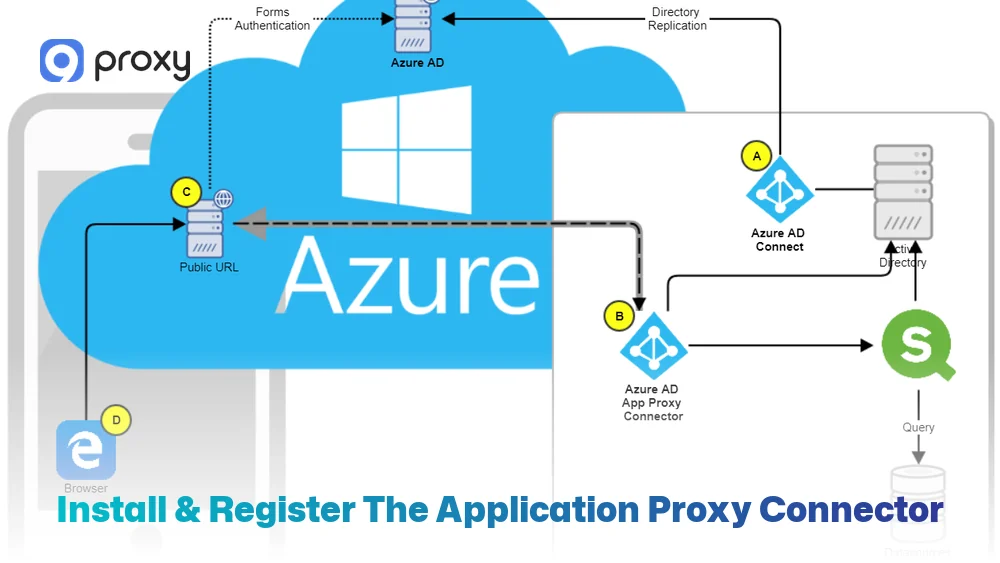
The connector acts as the bridge between Azure and your internal application, playing a critical role in how traffic is securely delivered. It runs inside your network and maintains a persistent outbound connection to Azure, so no inbound ports need to be opened on your firewall.
At a high level, the setup process includes the following steps:
- Step 1: Download the connector installation package from the Azure portal
- Step 2: Install the connector on a Windows Server located close to the target application to reduce latency
- Step 3: Sign in with an administrator account to register and authorize the connector
- Step 4: Verify the connector’s health and connection status in the Azure portal
- Step 5: Deploy multiple connectors if possible to provide redundancy and load balancing
Using more than one connector helps prevent downtime and improves overall availability, especially in production environments. For organizations evaluating deployment flexibility, it’s worth noting that while Azure Application Proxy uses proprietary Microsoft connectors, some infrastructure components can be built using open source proxy server solutions for adjacent use cases such as outbound traffic management or custom routing scenarios.
Publish an On-Premises Web App (Internal URL vs External URL)
Publishing the app is often the stage where configuration mistakes occur, so it is important to keep your choices clear and simple from the start. The key steps usually include:
- Step 1: Define the internal URL that the application uses inside your network
- Step 2: Assign an external URL that users will use to access the app from outside
- Step 3: Choose the appropriate pre-authentication options based on your security needs
- Step 4: Select the correct connector group to handle the traffic
- Step 5: Assign the users or groups who are allowed to access the application
Careful planning of internal and external URLs helps avoid common issues such as login loops and access errors.
Important Security Settings: SSO, MFA, and Access Control
The main strength of an Azure proxy server is that it lets you apply strong security rules while keeping things simple for users.
- Single Sign-On (SSO): Users sign in to Azure once and can access all approved internal applications without logging in again.
- Multi-Factor Authentication (MFA): Users must confirm their identity with an extra step, which helps protect against stolen passwords.
- Conditional Access: Access can be blocked if a user connects from a risky location or an unmanaged device.
- Least Privilege: Users only see and access the applications they need for their specific job roles, nothing more.
This level of centralized access control and policy enforcement is a defining characteristic of what many organizations refer to as an enterprise proxy server systems designed to balance security, scalability, and user experience across large corporate environments with complex identity and compliance requirements.
Tips to Make Your System Fast and Reliable
Performance matters just as much as security when working with a proxy Azure environment. If connections are slow, users can quickly become frustrated and less productive. To keep everything running smoothly, keep these best practices in mind.
- Proximity: Place connector servers as close as possible to the web applications to reduce delays.
- Redundancy: Use multiple connectors so the system keeps working during maintenance or unexpected issues.
- DNS Health: Rely on FQDNs instead of raw IP addresses so the setup stays flexible if server IPs change.
- Automatic Updates: Enable automatic updates to make sure connectors always receive the latest security fixes.
Common Azure Proxy Issues and Quick Fixes
Most issues with an Azure proxy gateway are caused by network or identity configuration problems. When access fails, using a step-by-step troubleshooting approach makes it easier to identify the root cause and apply the correct fix quickly.
Users Can’t Reach the External URL
If the external link returns an error, it usually means the connection is failing before it reaches the application. To troubleshoot, check the following:
- Check DNS: Confirm that your external CNAME records are correctly pointing to the Azure endpoint.
- Verify Connector: Make sure the connector service is running and shows an Active status in the Azure portal.
- Internal Reach: Test whether the connector server can access the internal URL of the application by itself.
Sign-In Loops or Unexpected Login Prompts
Repeated login prompts usually point to a problem with authentication headers or cookie settings. To fix this, check the following areas:
- SSO Configuration: Make sure Kerberos Constrained Delegation (KCD) is correctly configured if you are using Integrated Windows Authentication.
- Cookie Settings: Verify that the Use HTTP-Only Cookie option is enabled to prevent scripts from interfering with the login process.
- User Assignment: Confirm that the user is explicitly assigned to the Enterprise Application in Entra ID and not relying on inherited access.
Slow Access or Timeouts
Slow performance usually means there is a bottleneck somewhere between the user, Azure, and the on-premises server. To identify and fix the issue, check the following:
- Resource Check: Monitor CPU and RAM usage on the connector server to make sure it is not overloaded.
- Network Path: Review any local SSL inspection or security tools that may be slowing traffic between the connector and Azure. Network security layers that inspect or filter traffic-sometimes implemented as a proxy server firewall–can introduce latency if not properly configured to handle encrypted connections efficiently.
- Scaling: If latency remains high, add more connectors to the group, so the load is shared more evenly.
Choosing the Right “Azure Proxy” Option for Your Goal
Choosing the right Azure proxy option is important to balance security, performance, and complexity. Selecting the wrong tool can either overcomplicate your setup or leave important gaps.
The table below highlights the best proxy choices for common organizational goals.
|
Goal |
Best Azure proxy option |
Why it fits |
Key risk |
Best practice |
|
Remote app access |
Azure Application Proxy |
Secure, identity-based |
Misconfig auth |
Use MFA |
|
AVD performance |
Proxy bypass rules |
Reduces latency |
Policy gaps |
Test traffic paths |
|
Outbound control |
Proxy VM / gateway |
Central egress |
Single point |
Add redundancy |
|
Public services |
Reverse proxy pattern |
App protection |
Misrouting |
Use WAF |
This comparison shows that for most internal needs, the Application Proxy is the most balanced choice. For high-performance virtual desktops, bypassing the proxy for media traffic is often necessary to avoid lag.
Using 9Proxy with Azure: A Stable and Reliable Option
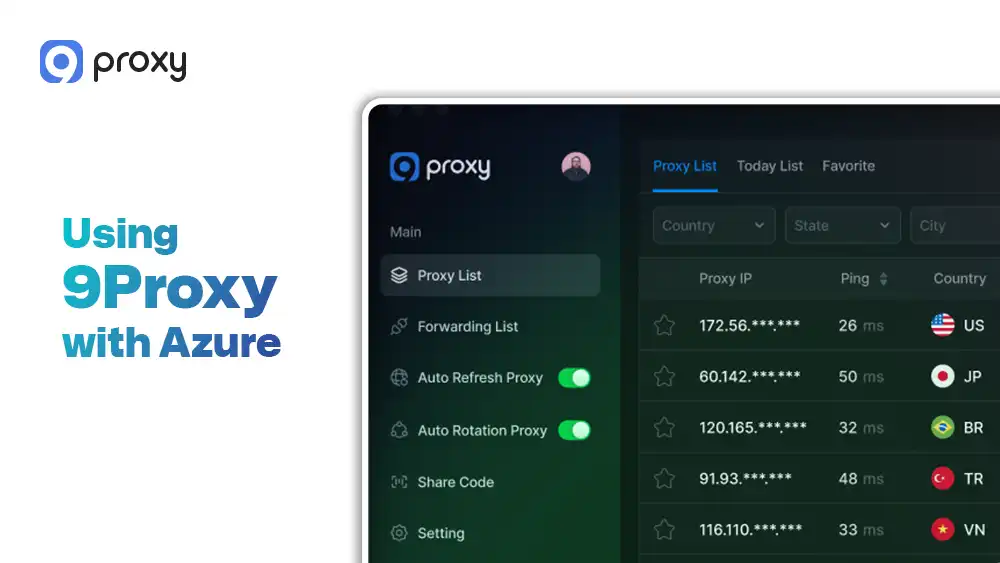
9Proxy delivers reliable and easy-to-use proxy solutions for both cloud and local environments. We offer access to over 20 million clean residential proxies in more than 90 countries, with 99.95% uptime to support important tasks. Our IPs are private and not shared, which helps reduce the risk of blocks from major platforms or cloud providers like Azure.
Key advantages of 9Proxy include:
- 100% real residential proxies: IPs come from real users, providing high anonymity and trust.
- Detailed targeting: Choose IPs by country, state, city, or even specific ISPs.
- Flexible pricing: Pick IP-based plans starting at $0.015 per IP or GB-based plans from $0.68 per GB.
- Crypto perks: Get a 5% IP bonus when paying with cryptocurrency.
Conclusion
An Azure proxy server can serve different purposes, from using Application Proxy for secure access to internal apps to deploying proxy gateways for outbound traffic control. The right choice depends on your actual goal, not just the name of the solution.
By understanding the setup options, security features, and performance best practices, you can build a system that is both stable and scalable. If your Azure environment also requires reliable external connectivity, high-quality IPs, or better access control, now is the right time to choose a trusted provider.
For more insights on proxy infrastructure and deployment strategies, visit Blog9Proxy to explore comprehensive guides and best practices. Explore and purchase proxy solutions from 9Proxy to strengthen your Azure proxy server strategy and keep your operations running smoothly in 2026.